52
Routine Operation
Chillgard 5000
US
Brightness
7.8.2 Gas Configuration
Use the "Gas" option to change the gas configuration settings.
NOTE: Except for the buttons that show in the screen headers, the screens and steps used to change
the gas configuration settings are the same as those used during the initial setup.
During the initial setup, the screen headers show the and buttons. During routine operation,
the screen headers show the , , and buttons.
When a change is made to the configuration, the "Save" button becomes active.
When the configuration changes have been saved, the "Settings" screen shows.
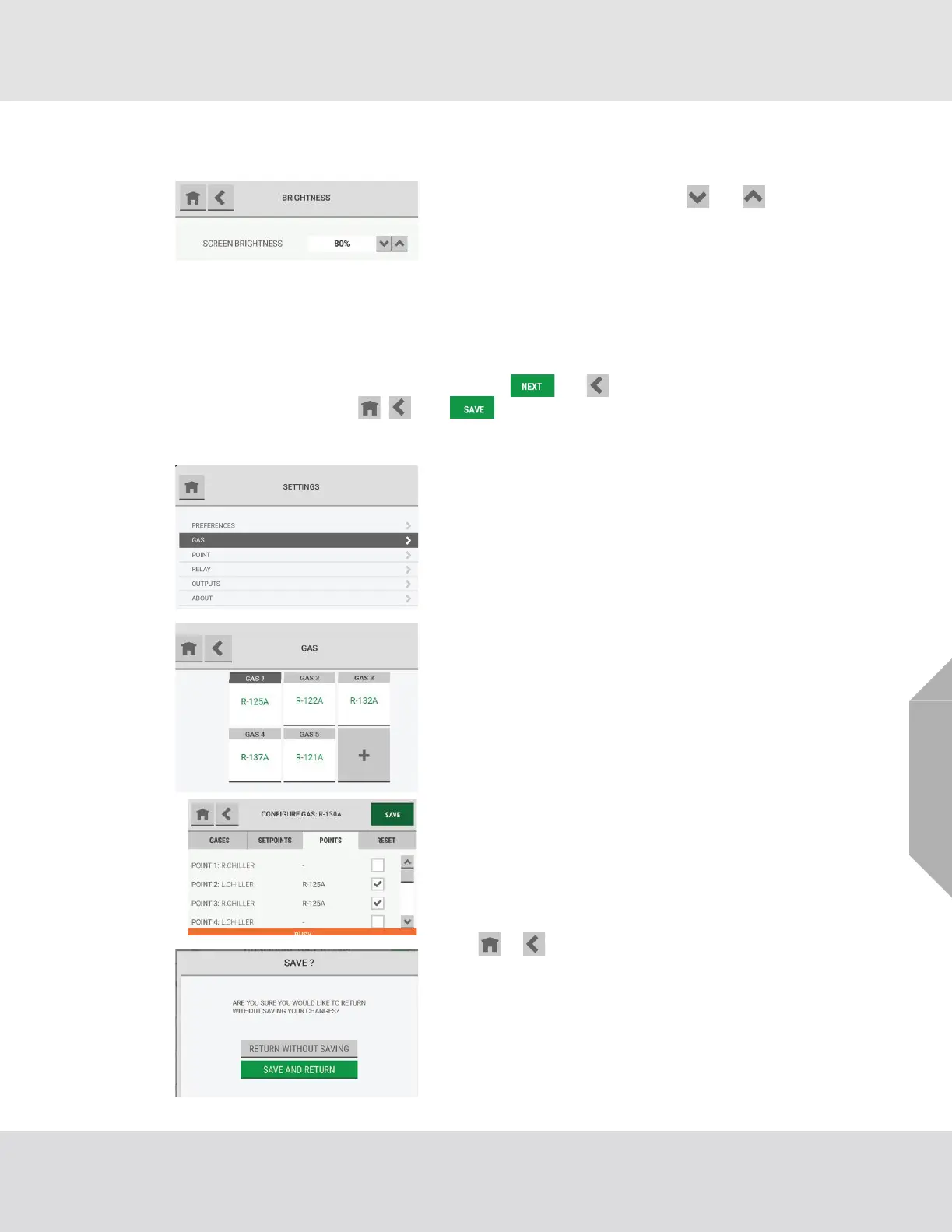
On the "Brightness" screen, use the and buttons to
increase and decrease the percentage of screen bright-
ness.
(1) On the "Settings" screen, select "Gas".
(2) On the "Gas" screen, select the applicable gas tile.
(3) Do one of the following:
a) To change the gas configuration settings, go to
Section 5.3, "Gas Configuration", and do Steps (2)
through (13).
b) To clear or delete a configured gas, go to Step (1)
in the "Reset" Tab section below.
While the configuration is being updated, a "Busy"
message shows at the bottom of the "Configure Gas"
screen.
If the or button is selected while the "Busy"
message shows, a pop-up asks whether to abandon the
configuration changes.
• To return to the "Gas" screen without saving the config-
uration changes, select "Return without Saving".
• To save the configuration changes and return to the
"Configure Gas" screen, select "Save and Return".


 To Next Page