Setting Up the GALAXY GX2
GALAXY GX2
45
US
Load/Delete Settings
Configured instrument settings can be loaded
into the GALAXY GX2 and applied to an instrument,
provided the black USB key is inserted into the Master Test Stand as described in the USB Drives
section [ chapter 2.4] of the System Features section.
This feature is particularly useful when configuring a large number of instruments. Unused set-
tings may be permanently deleted from the Test Stand. Pre-defined settings from a USB drive can
be efficiently transferred.
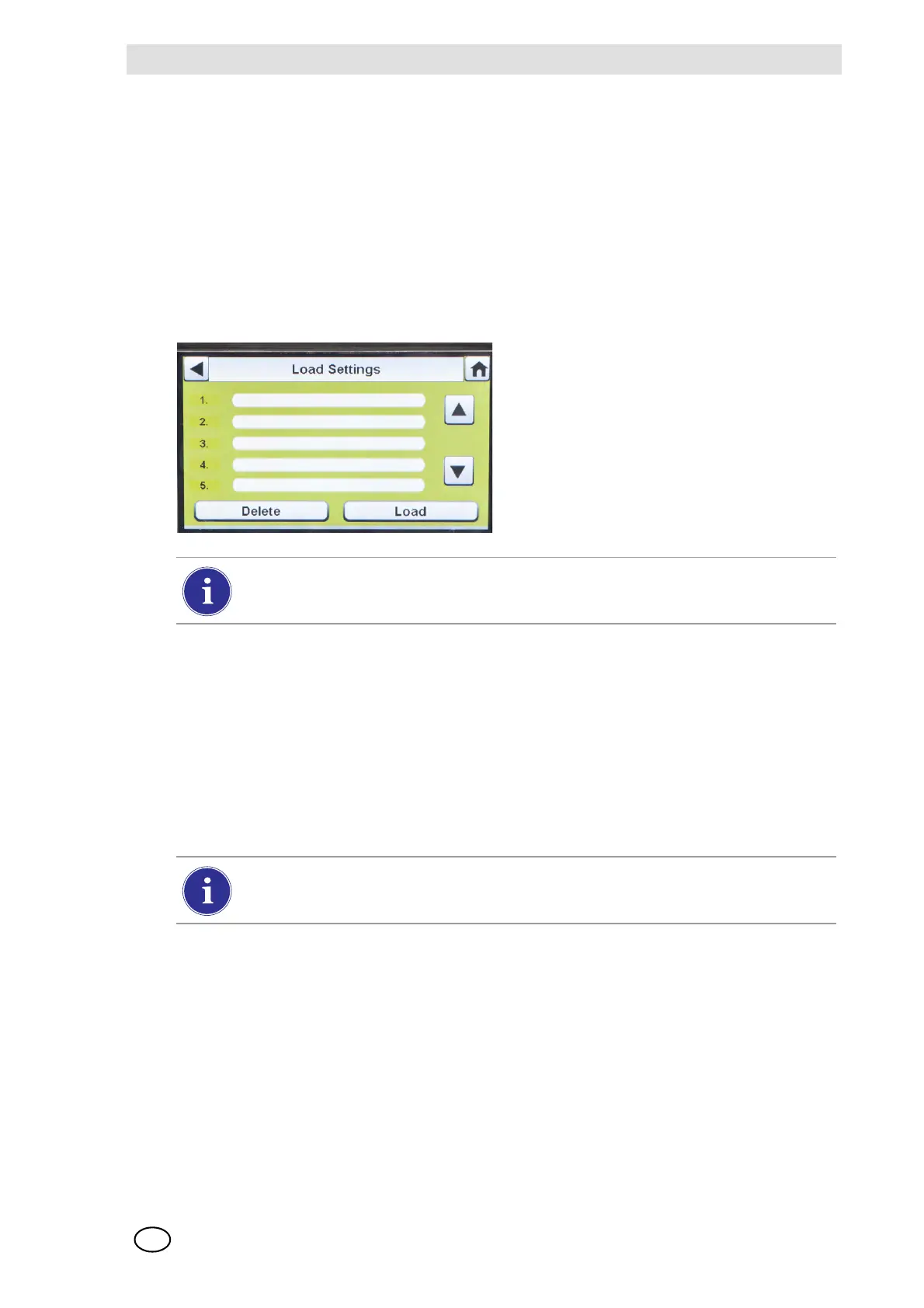
To load or delete settings:
(4) Select the up or down arrows to indicate the file name of the setting to apply.
(5) Select Load to apply the setting to the instrument.
Select Delete to permanently remove the setting from the USB drive.
(6) Select the Back Arrow on the top left of the screen to navigate to the
Instrument Configuration screen.
Update Settings
Select Update Settings to save or delete the settings on the instrument.
(1) Insert a USB drive with the Saved set-
tings into the port, under the memory
card port on the right side of the Test
Stand.
(2) Select Instrument Configuration on
the Home screen.
(3) Select Load Settings on the Instrument
Configuration screen.
Saved settings on the black USB key display.
Repeat the Load Settings and Update Settings steps for each new instrument that is
to be changed.



 To Next Page