GALAXY GX2
38
Setting Up the GALAXY GX2
MSA
US
Network Setup (Optional)
The GALAXY GX2 can be networked to a PC with the MSA Link Pro software application. Net-
working (single or multiple connected units) allows the user to remotely gather and analyze data,
monitor performance, and configure the Test Stand.
An Ethernet cable supporting 10/100 Mb must be connected to the farthest right Ethernet jack
when facing the front of the unit, (shown in Fig. 6) and connected to the PC or network router.
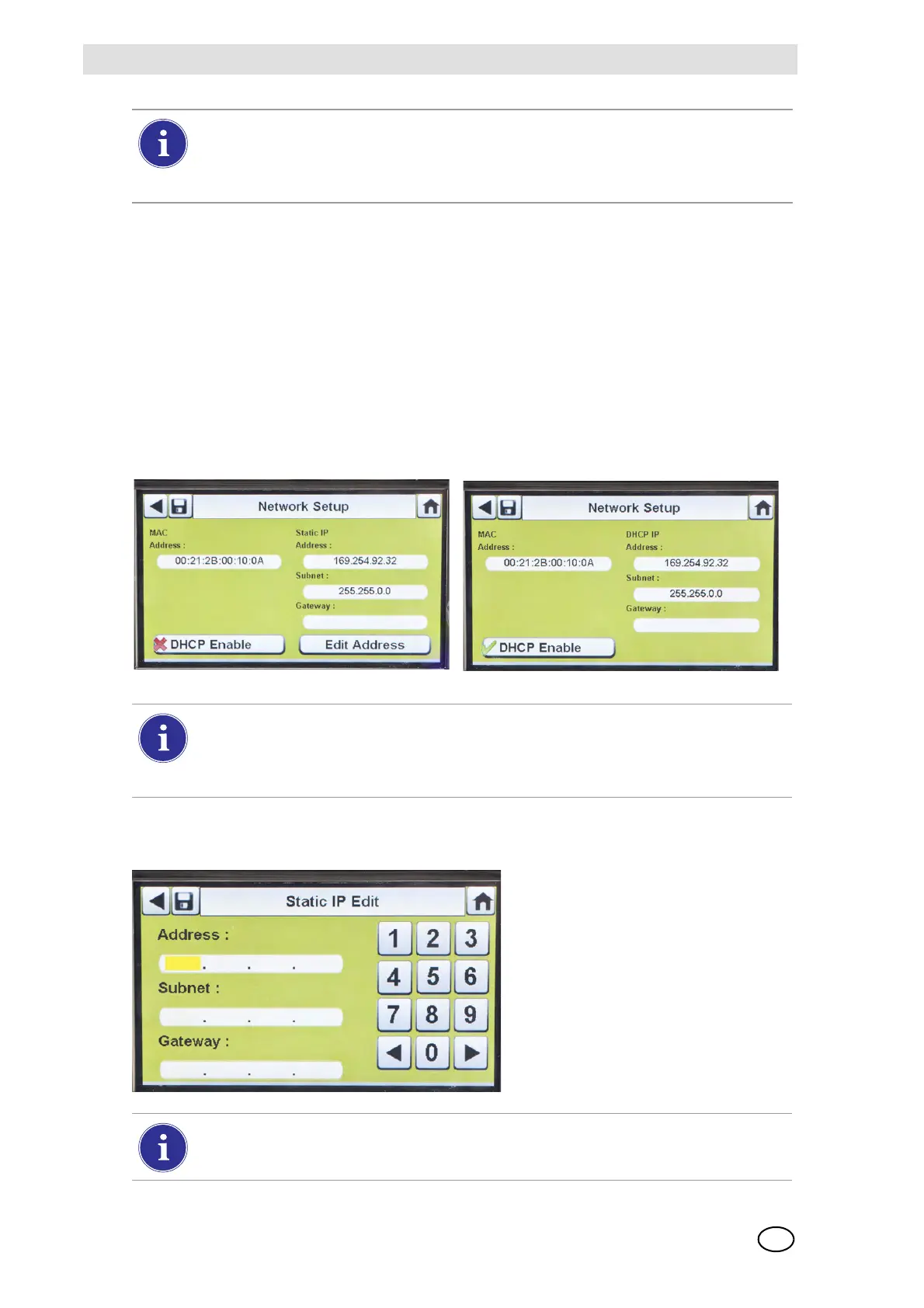
To configure the network setup, navigate to the GX2 Configuration screen and then select
Network Setup. The Network Setup screen displays. It is recommended to use a Static IP ad-
dress between the Master Test Stand and the MSA Link Pro application.
(1) If DHCP is disabled (
2), select Edit Address on the Network Setup screen.
Z The Static IP Edit screen displays.
If background gases could be present, connect a Zero Air Cylinder to any port on the
Cylinder Holder. MSA provides an RFID-tagged Air cylinder for this purpose. This re-
quires a calibration station with expanded solenoid capacity. Refer to the Introduction
section [ chapter 2] for more information about the expanded solenoid option.
Selecting DHCP Enable (3) allows the GALAXY GX2 to automatically receive an
IP address from the network. It is recommended that the DHCP server always assign
the same IP address to the Test Stand to maintain communications with the
MSA Link Pro application.
Corporate networks may require the involvement of an IT department for setup.



 To Next Page