Setting Up the GALAXY GX2
GALAXY GX2
25
US
4 Setting Up the GALAXY GX2
The GALAXY GX2 Automated Test System is shipped with the most common default options and
therefore requires minimal set up. A table of all default settings is provided in the Galaxy GX2 De-
fault Parameters section [ chapter 9] at the end of this manual. Configuration settings are de-
scribed in this chapter and can be changed to meet your individual needs via the touch screen
display.
The touch screen is intended for interaction with the user's bare finger. Gloves may interfere with
screen operation. The attached touch screen protector inhibits damage and should not be re-
moved. Replacement screen protectors can be purchased from MSA.
4.1 Initial Setup
The first time the Test Stand is powered on an initial set of screens will appear for system config-
uration. The GALAXY GX2 logo momentarily displays and then the unit's version number. This is
followed by the first of three required screens.
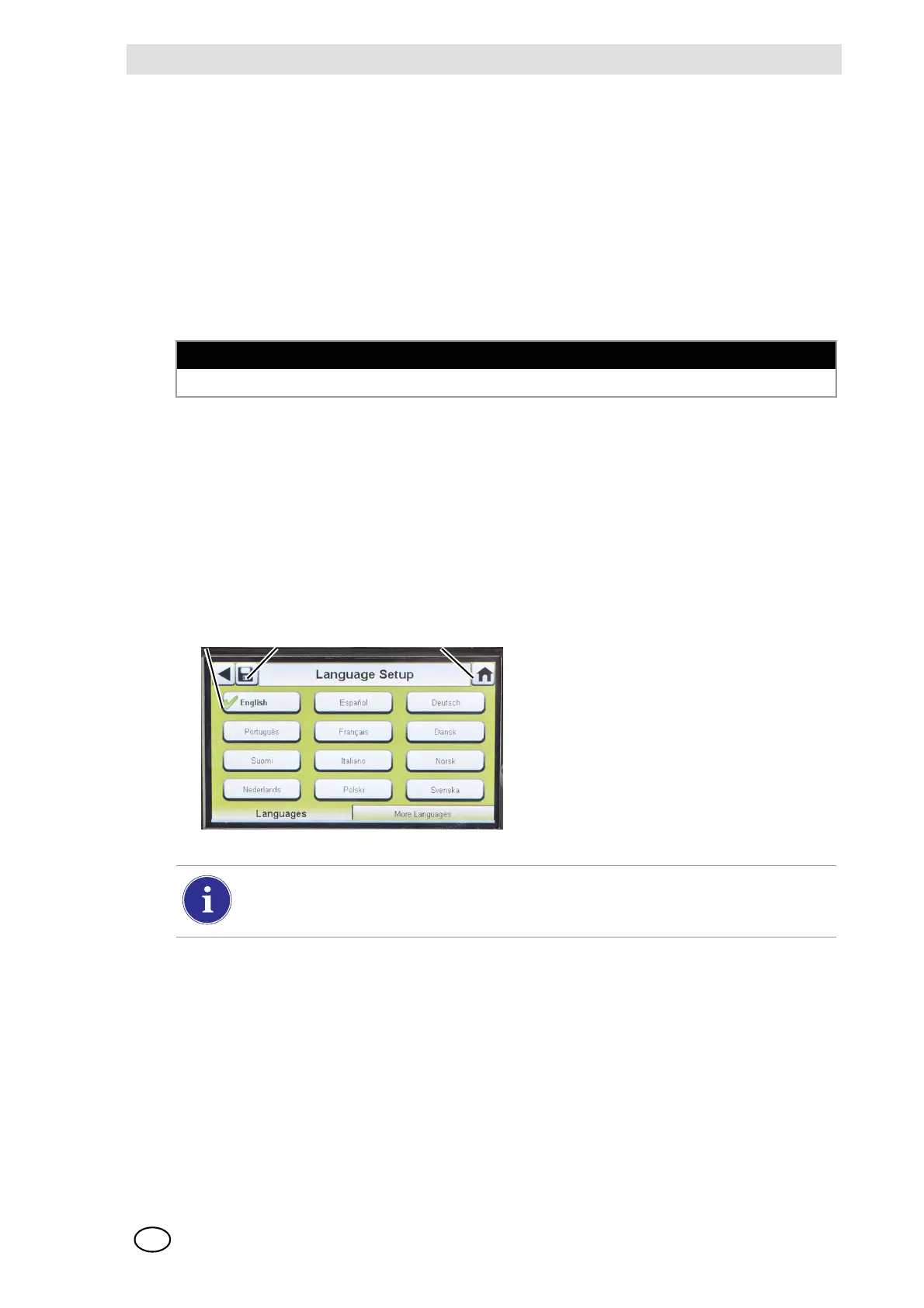
Language Setup
The Language Setup screen automatically displays.
NOTICE
Use of sharp objects on the touch screen could cause damage.
(1) Select your language from the list.
Z The language zone selection de-
termines the date format, either
MM/DD/YYYY or DD/MM/YYYY.
(2) Select Save.
(3) Select Home.
Changes must be saved on all screens by selecting the Save icon (shown above). If the
user selects the Back Arrow (W) without saving, a prompt will display. Select Yes to
save or No to discard changes.



 To Next Page