Menu9: Roll Length Manage 107
Your printer can scan the remaining length management code that was printed on a roll media with "
Roll Length Manage1:
Print
".
Note
• The printer may fail to scan if a remaining length management code has dirt or fold marks on it.
• Your printer is unable to scan if "Output Mode" is set to "Take Up".
"Setup 6: Output Mode" P. 77
• In case the printer failed to scan the code, manually specify the Roll Length settings based on the remaining length management information printed in
text on the media.
"Setup 17: Roll Length" P. 84
Roll Length Manage3: Scan
[1]
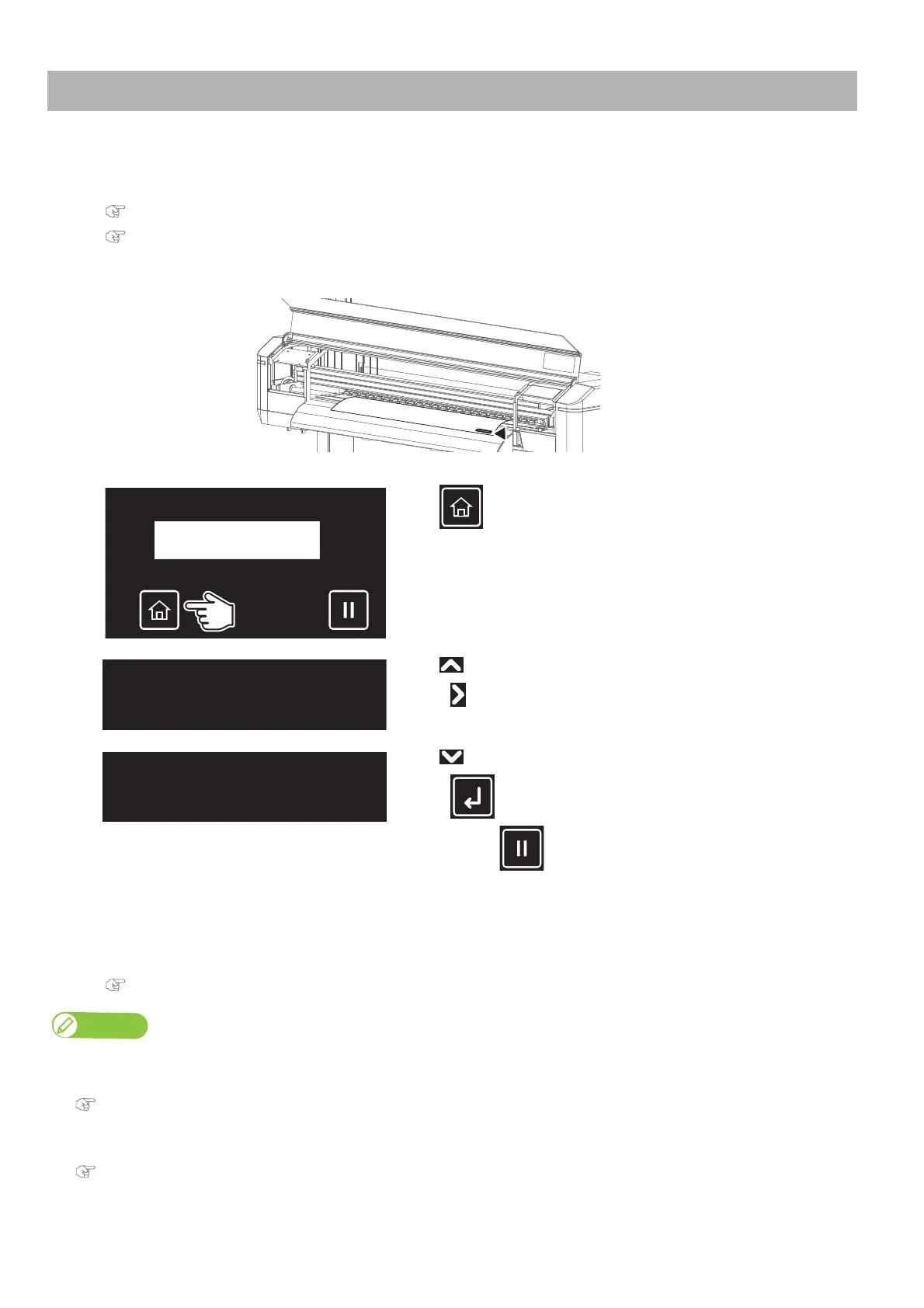
Load a roll media that the remaining length management code has been printed on it.
"Load a roll media into the printer" P. 22
"Roll Length Manage1: Print" P. 106
[2]
Check that the code printed on the media has passed through the pressure rollers.
[3]
Tap (Home).
[4]
Tap until the menu on the left appears.
•Tap .
[5]
Tap until the menu on the left appears.
•Tap (Enter).
• Tapping the (Cancel) key while scanning will cancel the scan.
[6]
When your printer scanned successfully, the following settings will be specified in Roll Length automatically:
•Type of roll media
• Remaining roll length
"Setup 17: Roll Length" P. 84
RollLengthManage3
Scan


 To Next Page