126 Cleaning
Cleaning period:
•Weekly
• When print blurring and dot missing remain after head cleaning is done.
Preparation:
• Cleaning stick
Cleaning of cleaning wiper
Important!
During cleaning, please note the followings.
• If it is hard to remove the stain, perform “Short” Head cleaning, and then clean again.
• Use a dry cleaning stick. A damp stick can cause damage to the print head.
• Do not touch the tip of a cleaning stick with fingers. Skin oil will damage the print head.
• Do not reuse a cleaning stick. Dust on the stick will damage the print head.
• This cleaning takes about 5 minutes. If it takes longer, the stick will get dry causing damage to the print head.
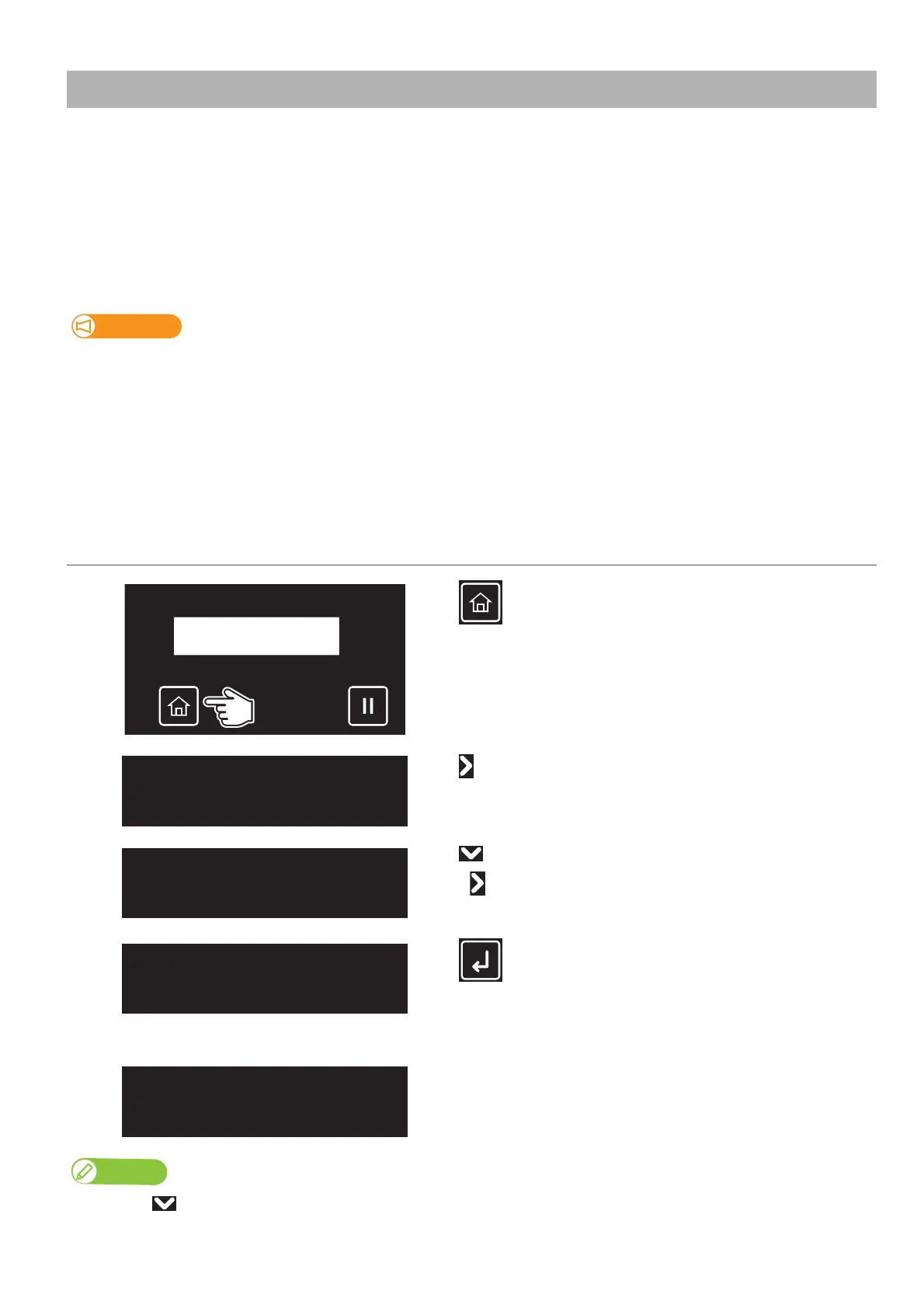
1. Putting the printer into the CR maintenance mode
[1]
Tap (Home).
[2]
Tap .
[3]
Tap until the menu on the left appears.
•Tap .
[4]
Tap (Enter).
• The carriage will move to the left side of the printer.
• The cleaning wiper will move upward.
[5]
The message on the left will appear.
• The printer will start cleaning.
Note
If you tap the key while “CR Maintenance End -> Enter” is displayed, the pump is activated, sucking up the ink in the cap.
CR Maintenance
Start -> Enter
CR Maintenance
End -> Enter


 To Next Page