Menu 1: Setup 61
Details of print mode
Effect
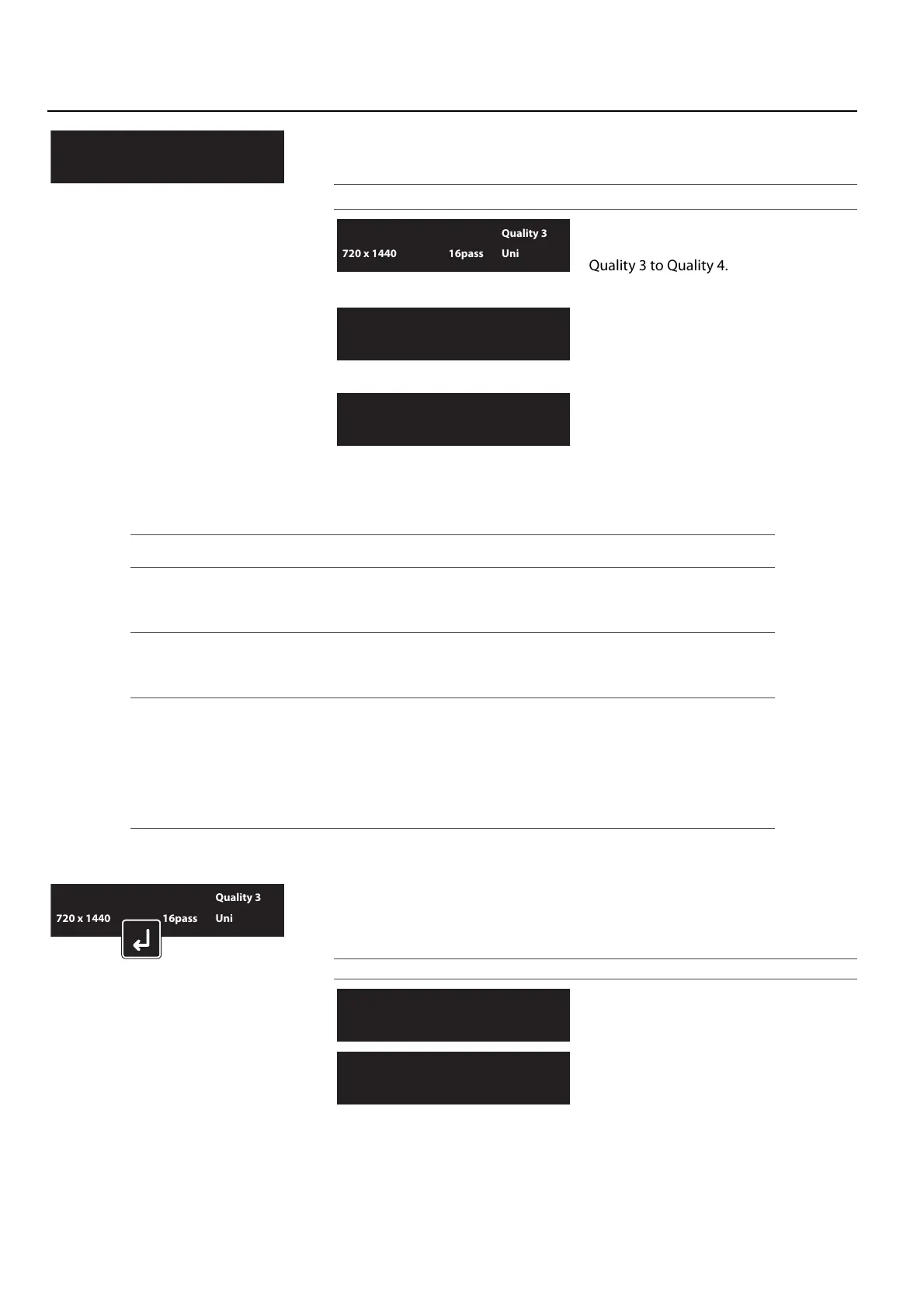
**>1: Print Mode
Select a print mode for the media.
• Once selected, the panel displays the effect menu.
Setting values
High-quality print mode.
The four types of mode are available:
Quality 3 to Quality 4.
Standard print mode.
• There are two types: Graphics 1 and
Graphics 2. Graphics 2 is the initial setting.
High-speed print mode.
There are four types: Banner 1 to Banner 4.
Print Mode Resolution Pass Direction Default effect settings
Quality 3 720 × 1440 16 pass Uni (unidirectional) Fine&Fog
Quality 4 720 × 1440 16 pass Bi (bidirectional) Fine&Fog
Graphics 1 720 × 1080 12 pass Uni (unidirectional) Fine&Fog
Graphics 2 720 × 1080 12 pass Bi (bidirectional) Fine&Fog
Banner 1 720 × 720 8 pass Uni (unidirectional) Fine&Fog
Banner 2 720 × 720 8 pass Bi (bidirectional) Fine&Fog
Banner 3 360 × 720 4 pass Uni (unidirectional) None
Banner 4 360 × 720 4 pass Bi (bidirectional) None
Select an effect setting.
Set up this menu when you want to improve print quality by adjusting the set
print mode.
Setting values
The Effect function is not used.
The printing joint will shade off.
Mode: Quality 3
720 x 1440 16pass Uni
Mode: Graphics 1
720 x 1080 6pass Uni
Mode: Banner 1
720 x 720 4pass Uni
Mode: Quality 3
720 x 1440 16pass Uni


 To Next Page