SignalShark User Manual
14
Touchscreen Functions
The SignalShark provides a resistive touchscreen allowing an easy and fast access.
Touch gestures
The following types of gestures can be used on the touchscreen of the device.
•
Tap: Tap for < 1 s.
•
Long tap: Tap for > 2 s.
•
Double tap: Tap briefly twice.
Locking the touchscreen
⇒ Press the Stealth/Touch key for > 2 s to lock the touchscreen.
⇒ Press the Stealth/Touch key again for > 2 s to unlock it.
Button bar
The Button bar is your main access to change measurement settings, to configure the
current active view and to adapt the display settings to your needs. The Button bar is
context sensitive. Thus, the available buttons depend on the active view.
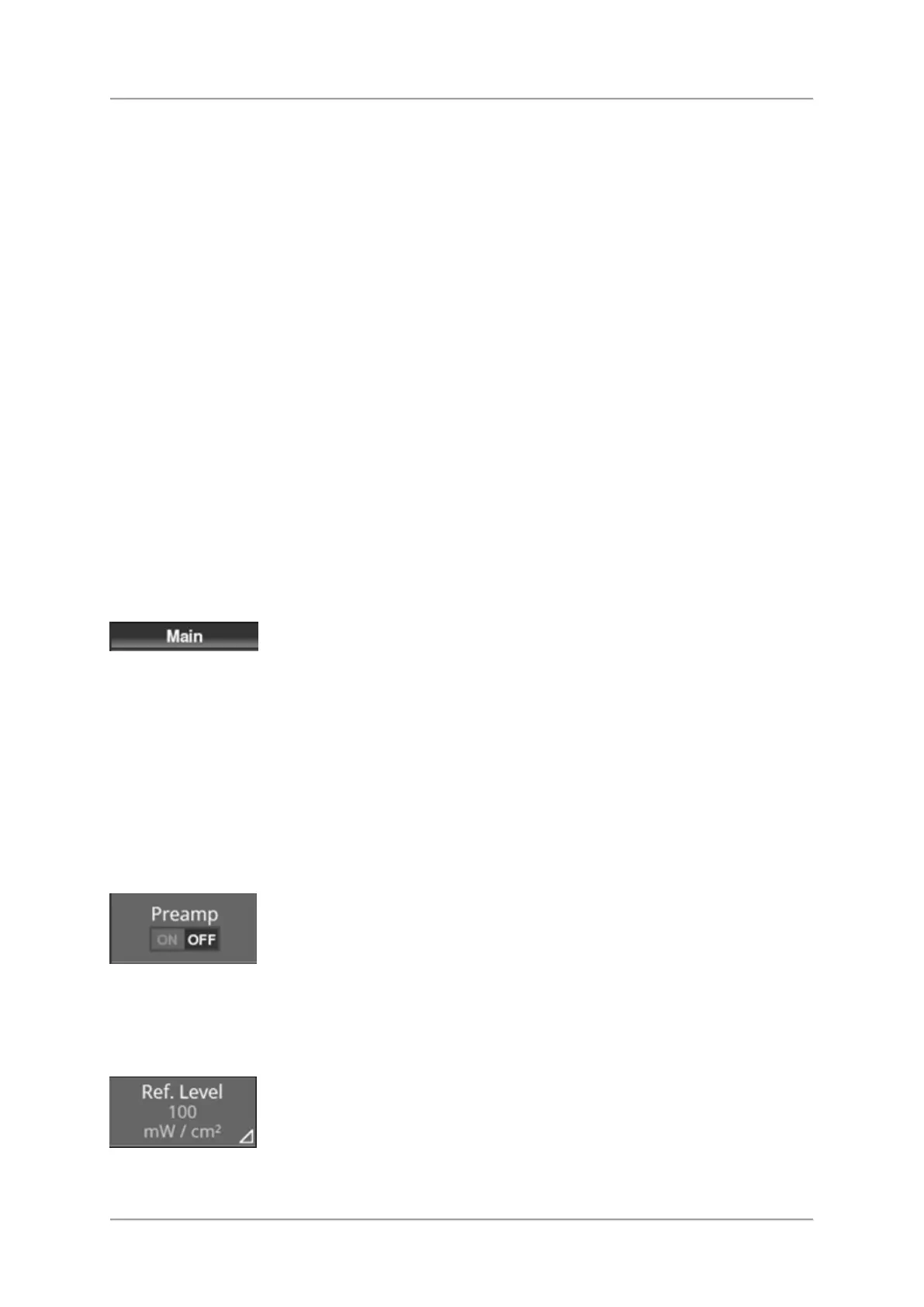
The title of the main menu is displayed on top of the Button bar.
⇒ When you have opened a submenu, tap the title of that menu to get back to the main
menu.
Types of buttons in the button bar
In the button bar there are 3 types of buttons which are distinguished by the triangle in the
lower right corner.
Buttons without a triangle (e.g. Preamp)
These buttons just have the displayed toggle function.
⇒ Tap the button to switch the function (e.g. switch Preamp on/off).
Buttons with an outlined triangle (e.g. Ref. Level)



 To Next Page