31
Smart Surveillance
LiveView
Viewcell Panel
Storage
Notification
Login/Log out
1
Playback
2
Search
3
Settings
4
6
Control &
Display Pane
10
Date & Time
9
7
8
5
Shrink/Expand
11
Page Selector
14
Layout
12
Full Screen
15
Rotation
13
Shrink/Expand
11
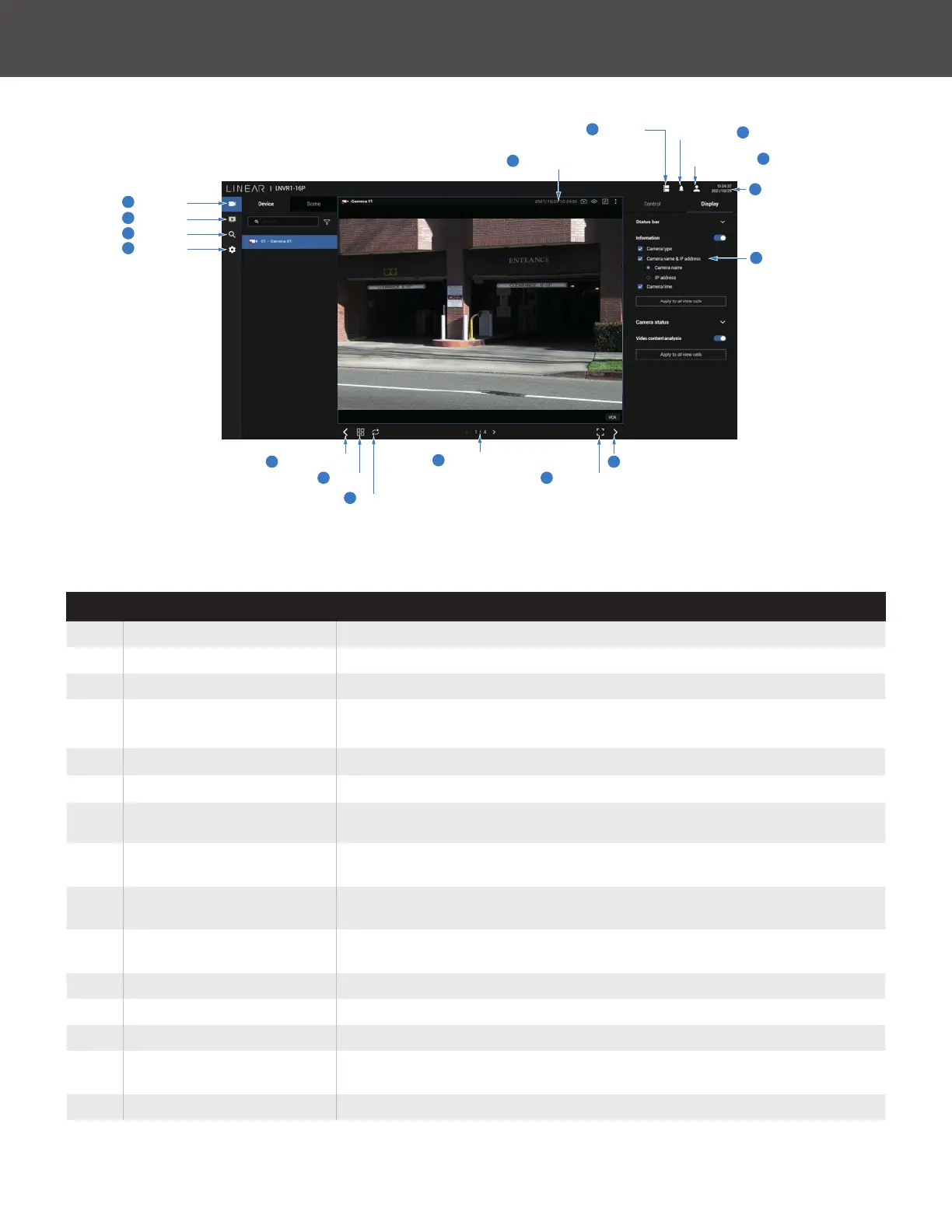
1-2� Graphical Layout and Screen Elements - Liveview
Once you log in, the system defaults to the Liveview page, which provides access to other
conguration utilities, live view screen and other functional panels� The screen elements are
described as follows:
Item Name Description
1 Live view Provides a glimpse of all cameras inserted into your conguration�
2 Playback Provides access to camera recordings�
3 Search Provides access to the Alarm search panel�
4 Device List
All devices (cameras / video servers) that have been recruited into the
conguration will be listed�
5 View cell panel The video feeds from cameras will be placed into view cells�
6 Storage Provides a glimpse of current storage usage�
7 Notication System notications including system events and alarm notications�
8 Login/Logout
You can log out and log in again using another user role� You can
switch to the original interface from here, too�
9 Date & Time
Displays date and time� You can click to enter the date and time
setting page�
10 Control & Display Pane
When a view cell is selected, the camera-specic control (such as
PTZ) and display options will be available here�
11 Shrink/Expand You can display or hide the side panes�
12 Layout Provides functions to extend, rotate and redo the layout�
13 Rotation Mode Click to enter the Rotation mode�
14 Page Selector
Click to move to the other layout page when your live views are
distributed over many pages�
15 Full Screen Enters the full screen with only the live views�



 To Next Page