36
1-2-5� View Cell panel
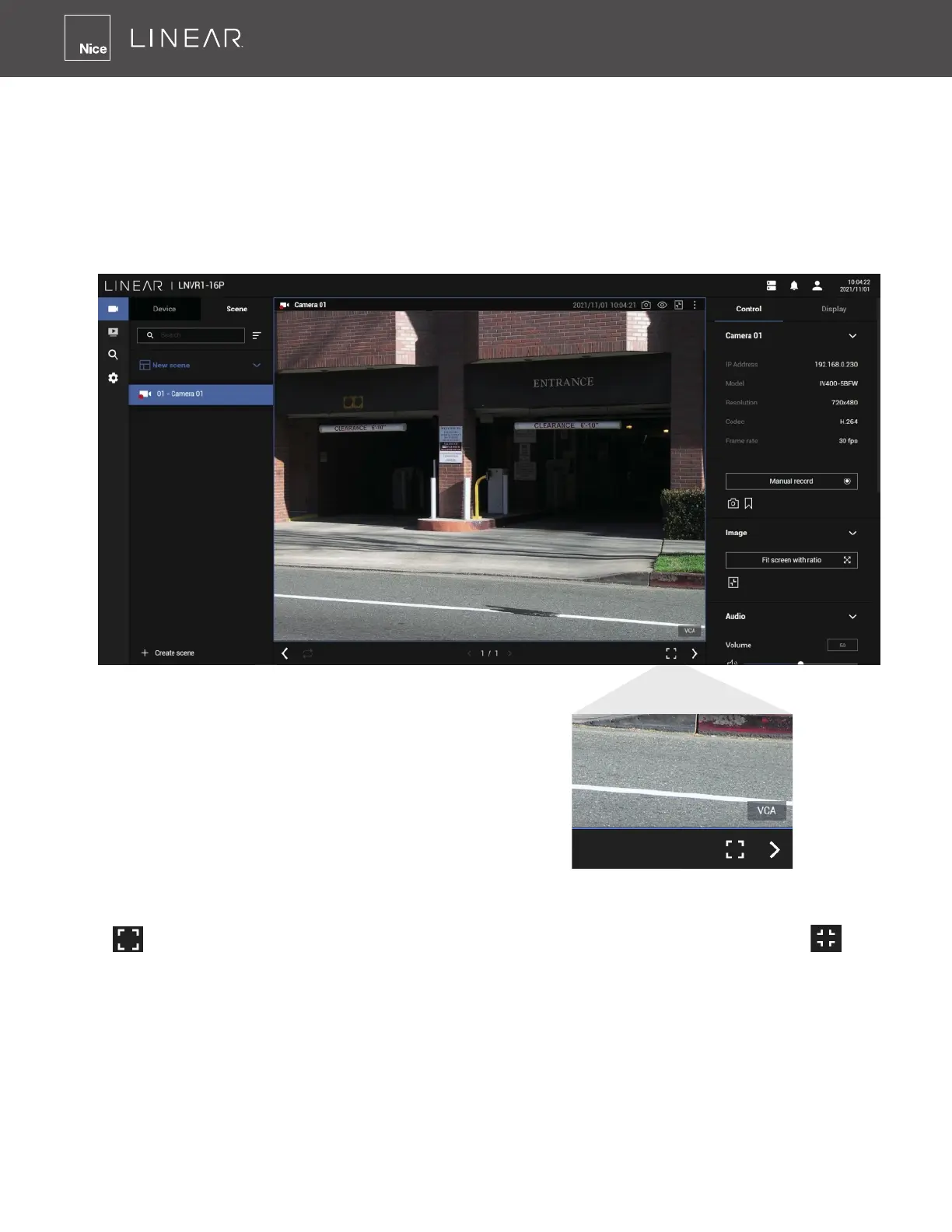
A single view cell is shown below� Each view cell contains a video stream display area, information
and functional buttons� A view cell is displayed in Normal, Focused or Maximized mode�
1� A single click selects a view cell from the View Cell panel, enables its function buttons and
turns it into the Focused mode�
2� The 2nd click maximizes the size of the view cell to the full of the panel�
3� The 3rd click shrinks the maximized view back into the focused mode�
Adding Cameras to View Cells
Although the system automatically selects the video stream to display on the view cell, you can
still manually select a different video stream from the Stream tab below�
Click
to open to Full-Screen view� To return to the normal view, click on the Restore
button at the lower right of the window�
1� Click and drag a camera from the camera list to an unoccupied view cell�
2� Double-click a camera on the camera list� The camera will be added to the rst available view cell�
To deselect a view cell and return to the normal view, double-click on the view cell� You can also
click on another view cell to continue adding other cameras�
The system automatically adds cameras into view cells by their index numbers� If you prefer a
different order and placement, use the Scene mode to create different placements�



 To Next Page