66
2-2-6� Right-click Commands
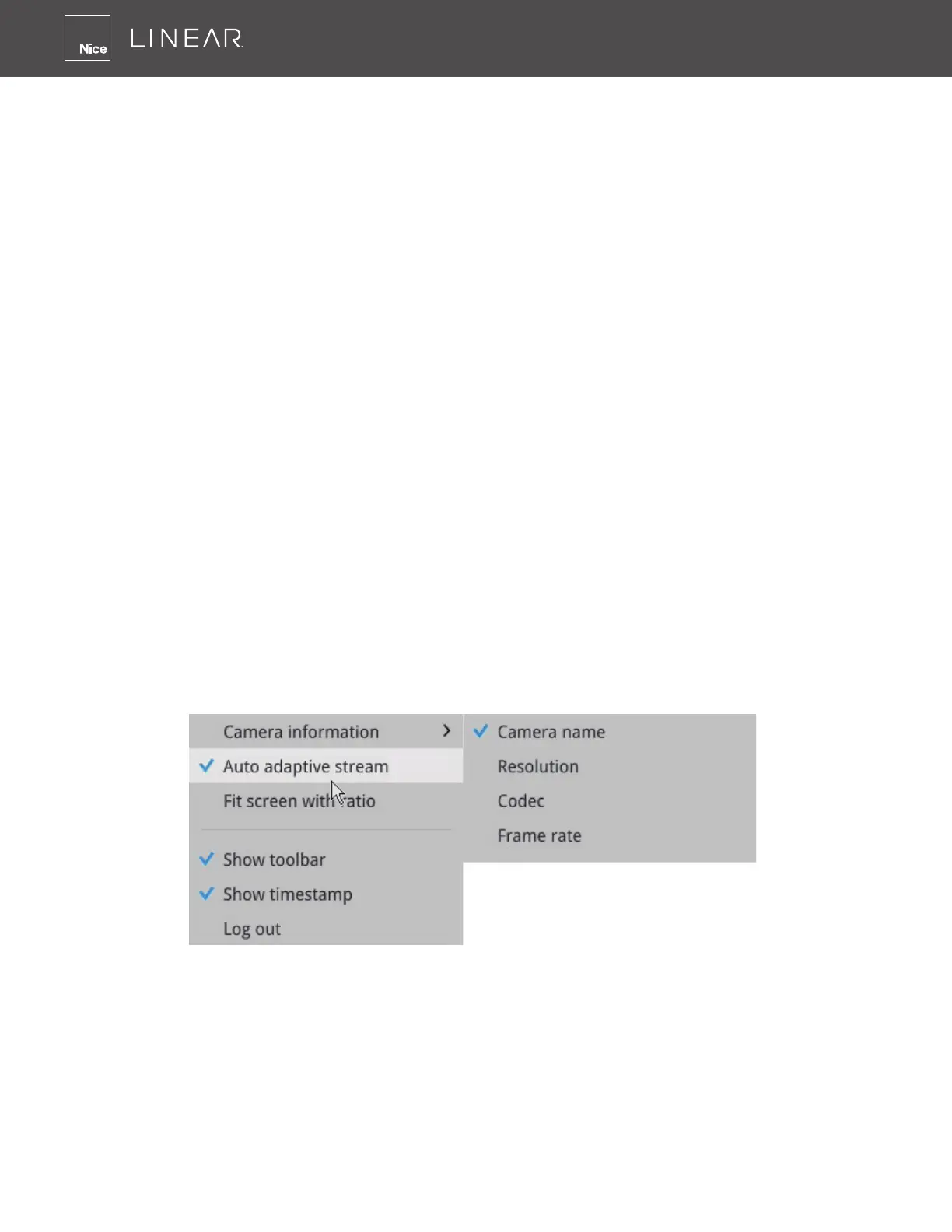
Left-click to select a camera� Right-click to display the selection menu�
1� Camera information: Click to display camera name, resolution, codec or frame rate on the
view cell� The information will display on the upper left corner of a view cell�
2� Auto adaptive stream: Default is enabled� The Auto adaptive stream automatically polls a
video stream of a smaller resolution in order to reduce the streaming efforts� For example,
when a view cell is placed in a 3x3 layout, it may not be necessary to stream the video in its full
resolution� In a full view, the system displays a video in its full resolution� Due to the size of view
cells on your monitor, when in a multi-cell layout, the system automatically polls the camera for
a smaller resolution stream�
The Auto adaptive stream feature can be disabled if you prefer consistent display resolution�
3� Fit screen with ratio: The NVR server automatically optimizes the display of camera view
cells� However, you can still select this option to display the camera’s original aspect ratio: for
example, the original video feed can be 4:3� Without the t screen, every camera’s image will
be expanded to ll the view cell�
4� Show VCA rules: Displays the video analytics detection rules, such as the Line Crossing
detection line, or the detection zone for the Intrusion detection� Note that this feature is not
available for cameras that come without the VCA analytics features�
5� Show tool bar: You can hide the tool bars by deselecting this option�
6� Show timestamp: You can hide the time stamp bars by deselecting this option�
7� Log in/Log out: Log in to enable system conguration�



 To Next Page