Jobs are queued in the order they were entered. You can reorder queued jobs by
dragging individual jobs to place them in the order you prefer. On the TX1 screen,
press and hold the drag icon of the job you want to select, then drag the job to
the desired position in the queue and release.
A fifth area, Media Utilities, displays media utility operations and only appears
when a media utility operation is active. Media utility operations will move to the
Recent area when they are complete. Media utilities cannot be queued like forensic
jobs.
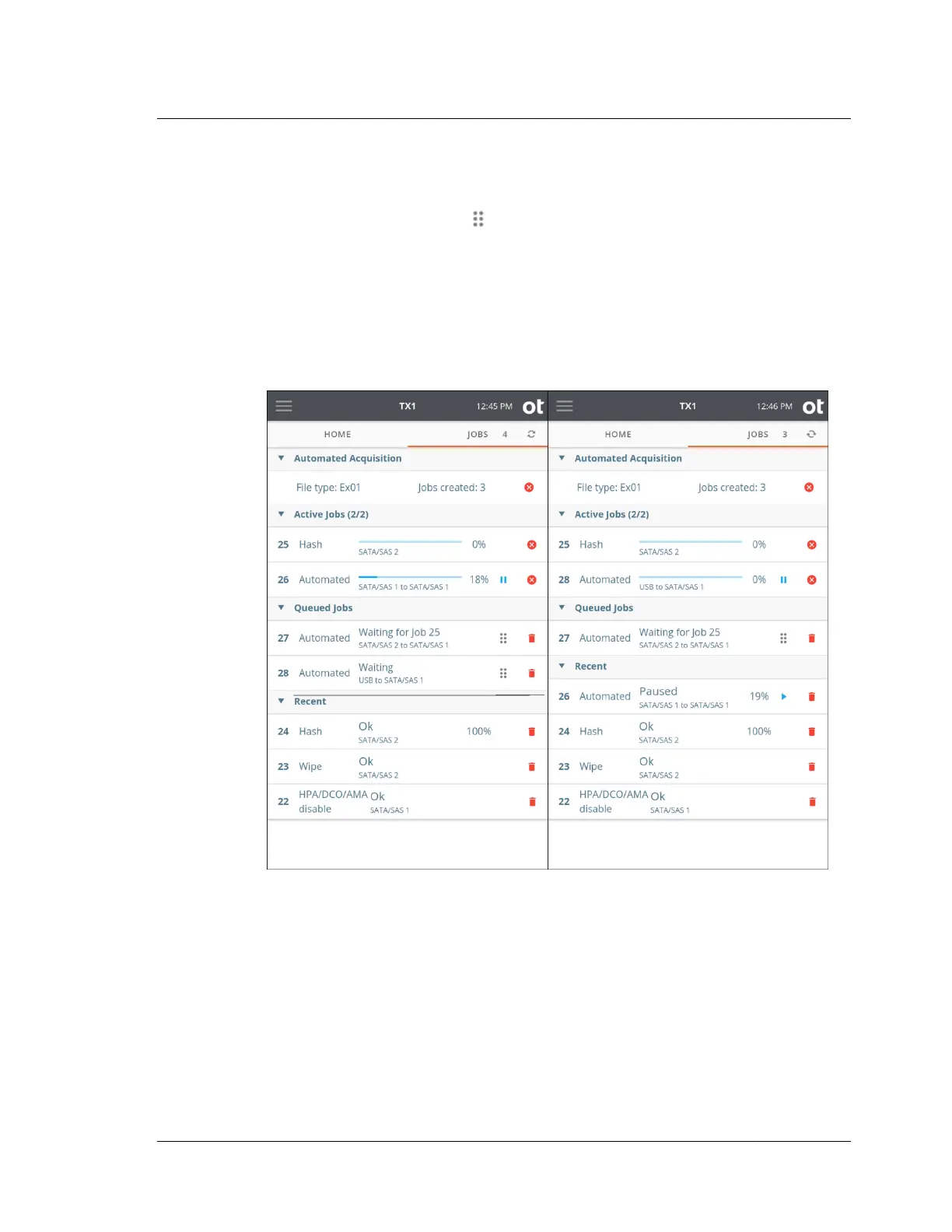
Here are two examples of the Jobs tab in action:
In the first example on the left, there are two active jobs ‒ a hash and an automated
duplication job. There are two automated duplication jobs queued and waiting for
resources to be able to start. Note the textured grab areas in the queued job tiles
which can be used for drag-and-drop job reordering. In the Recent area there are
three jobs, each of which completed successfully. Since jobs pending includes both
active and queued jobs, the Jobs tab counter reads 4.
In the second example, Job 26 has moved from the Active Jobs area down to Recent
(due to being paused), which allowed Job 28 to start as shown in the Active Jobs
area. See “Pausing and resuming a duplication job” on page 106 for more
information regarding that feature.
2.2. Navigating TX1
ISTX240300-UGD-EN-1
User Guide
17



 To Next Page