4.11.3 Filtering logs
TX1 can store up to 100 forensic logs. To make it easier to view, export, and delete
specific logs of interest, a Filter Logs feature has been provided. To filter the log list,
simply tap the log filter icon at the bottom left side of the log list screen. The
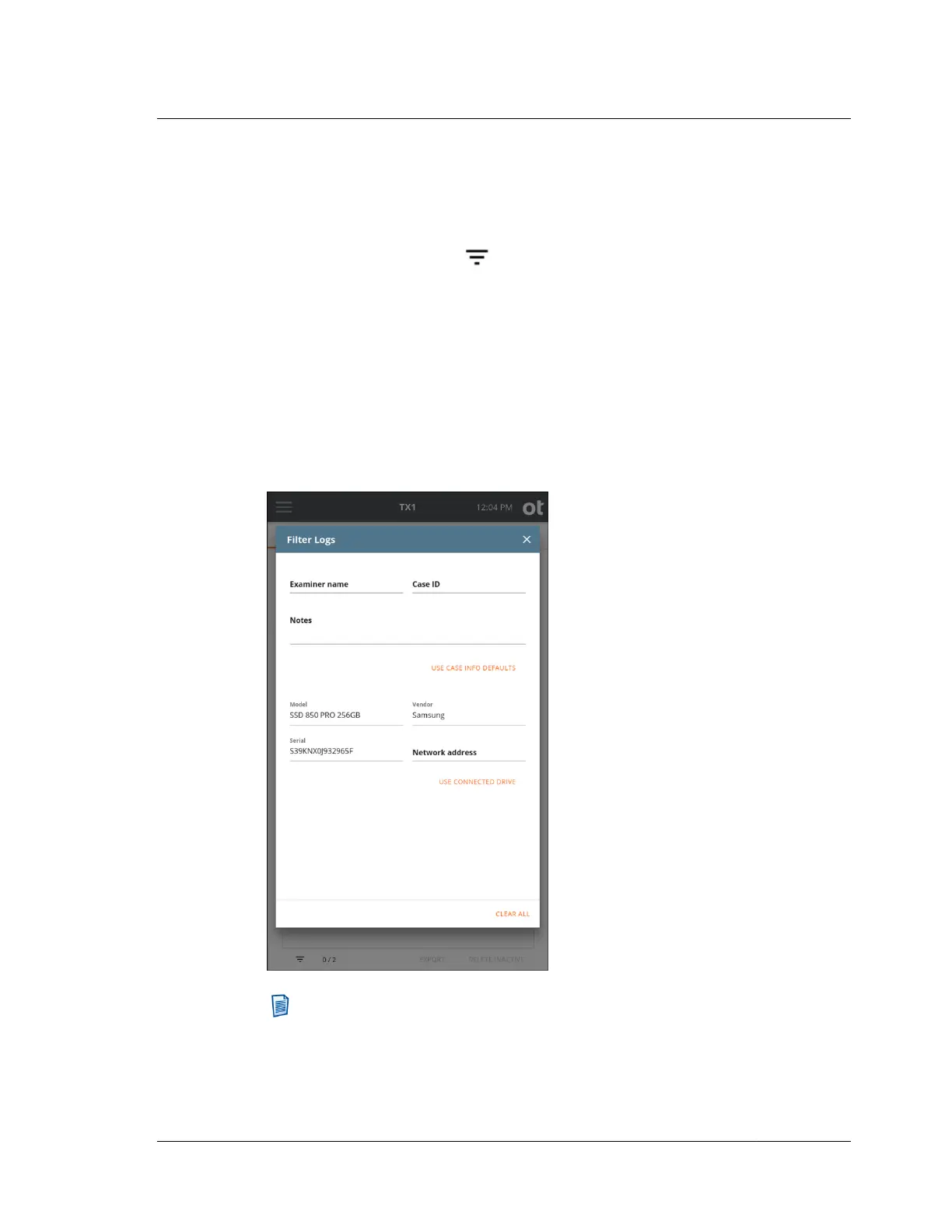
available filter parameters are shown in the screenshot below, and they include case
information (Examiner name, Case ID, and Notes) and drive information (Model,
Vendor, Serial number, and CIFS/iSCSI share information). Each of the filter fields
can be populated manually by typing the desired value in the field(s) of interest.
Alternatively, the fields can be auto-populated from case information default values
or from information from an attached drive or network share. To auto-populate
these fields, simply tap the orange Use Case Info Defaults and/or Use Connected
Drive buttons. Note that you can also auto-populate these fields using the buttons
and then manually override specific fields to match your desired filter parameters.
The screenshot example below used the Use Connected Drive option to fill in the
filtering information for the desired drive.
Note: When using the Network address field to filter the log list, CIFS share
paths may be used (full or partial) as may an iSCSI IQN or target IP address.
Also, when shares are mounted using nicknames, the underlying IP address
information is not stored in the logs and thus cannot be used for filtering.
4.11. Logs module
ISTX240300-UGD-EN-1
User Guide
189



 To Next Page