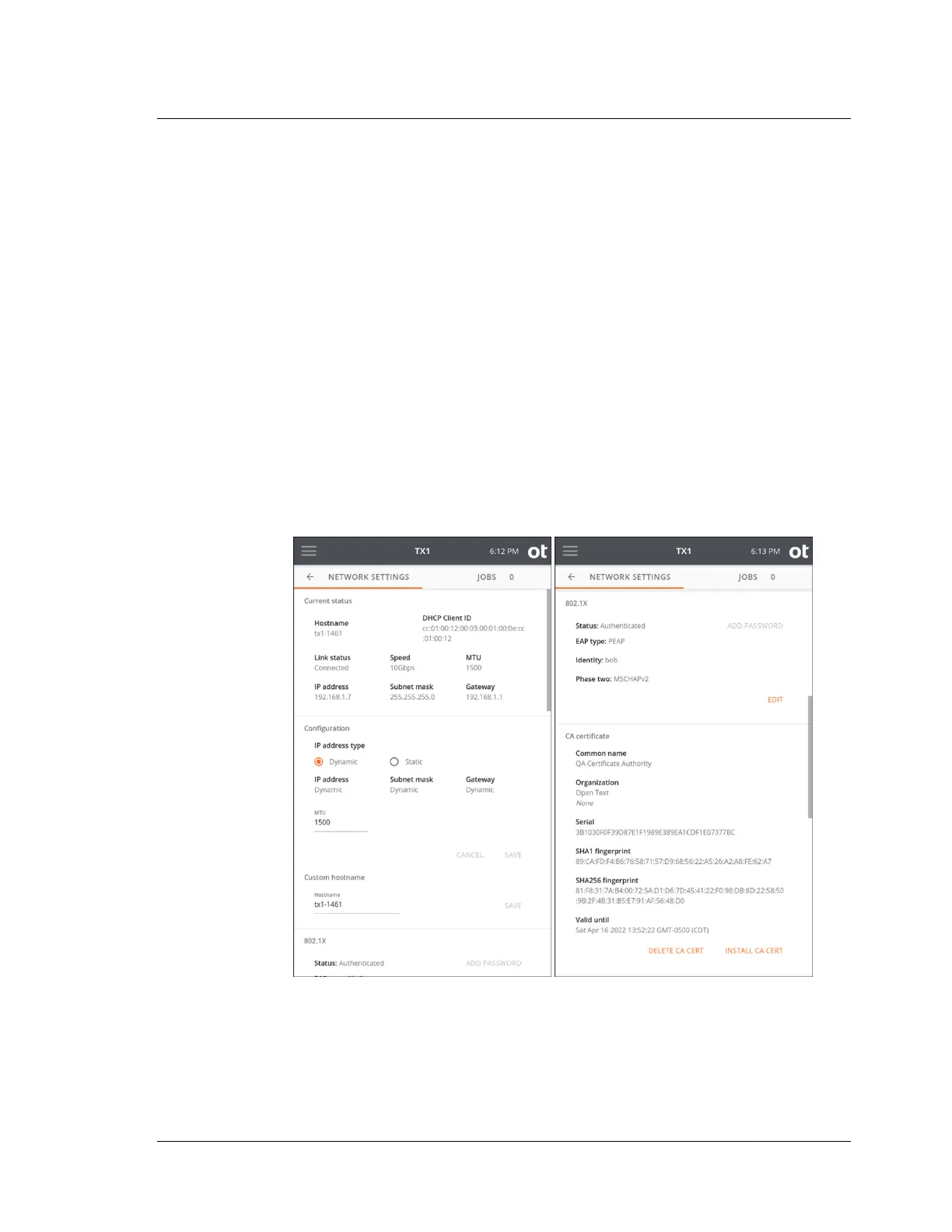
• Network Configuration settings are viewable remotely but can only be changed
directly on TX1.
• Locking the system (PIN lock) from any location (local or any remote user
instance) will lock all the active screens.
4.12.1 SSL certificate setup and installation
TX1 uses SSL certificates to ensure secure communication during remote sessions.
By default, TX1 generates a new self-signed certificate on power up if one does not
already exist on the system. These self-signed certificates expire after one year, and
TX1 will automatically generate a new one before expiration. Users can manually
initiate a new TX1 self-signed certificate or install their own SSL certificates.
To either generate a new self-signed certificate or install a user certificate with
TX1:
1. Open the side navigation menu and click Network settings. Current status,
Configuration, Custom hostname, 802.1X settings, CA certificate, Client
certificate, and HTTPS certificate details are displayed.
2. Scroll to the bottom of the screen.
4.12. Remote web interface
ISTX240300-UGD-EN-1
User Guide
191



 To Next Page