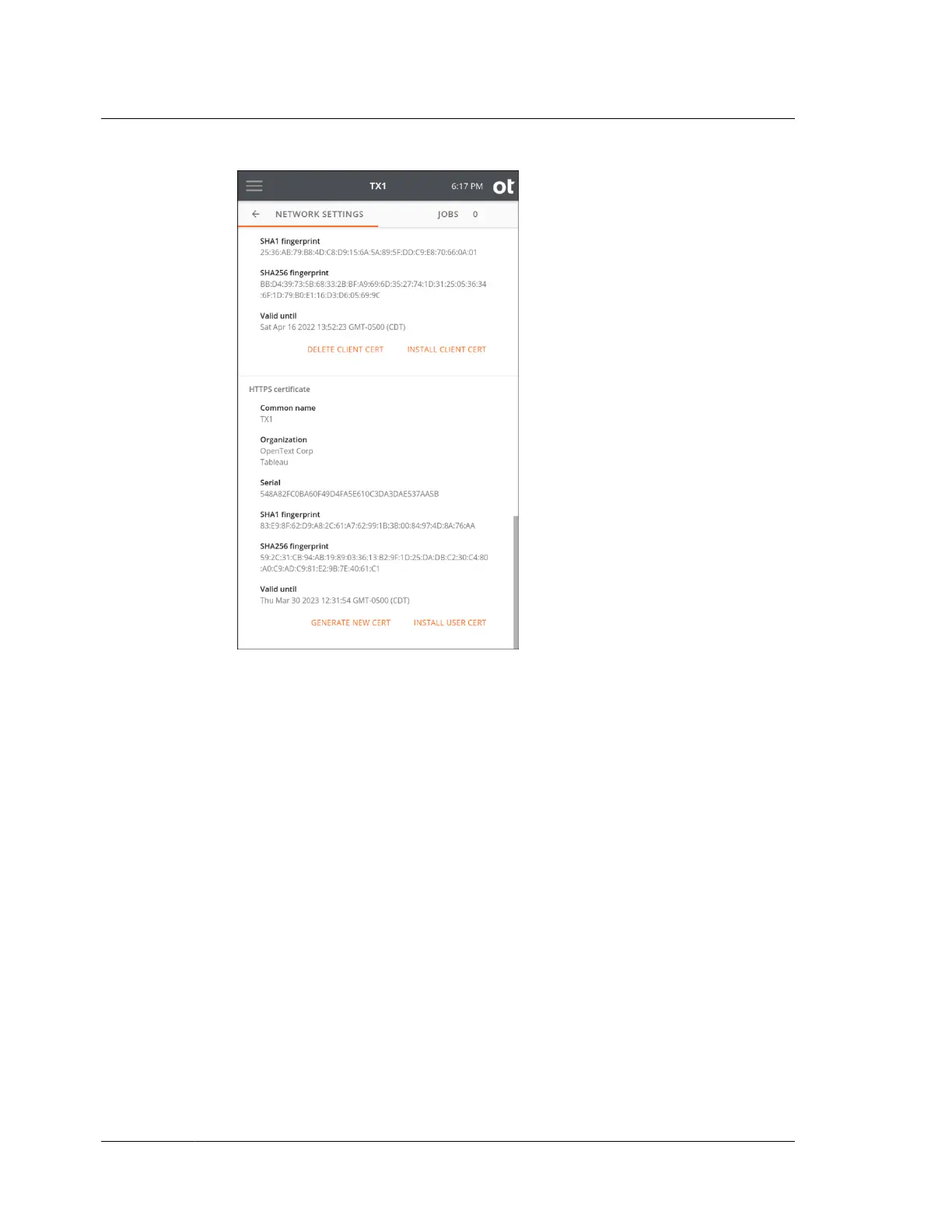
3. You have two options:
• To create a new self-signed certificate:
a. Tap Generate New Cert. A warning modal appears asking you to
confirm generation of a new self-signed SSL certificate and system
reboot.
b. After confirming, the system reboots.
• To install your own SSL certificate on TX1:
a. Tap Install User Cert.
b. Select the desired drive/filesystem from the list, and a file browser
window is displayed.
c. Navigate to and select the .pem SSL certificate file. A warning modal
appears asking you to confirm installation of the SSL certificate and
system reboot.
d. Select Install. The system reboots.
Once you install your own certificate, TX1 will retain it in the event of reboot or
power disruption. Manually generating a TX1 self-signed certificate will
overwrite your own certificate and return TX1 to the default state of generating a
new self-signed certificate upon annual expiration.
Chapter 4 Using TX1
192
OpenText™ Tableau™ Forensic TX1 Imager
ISTX240300-UGD-EN-1



 To Next Page