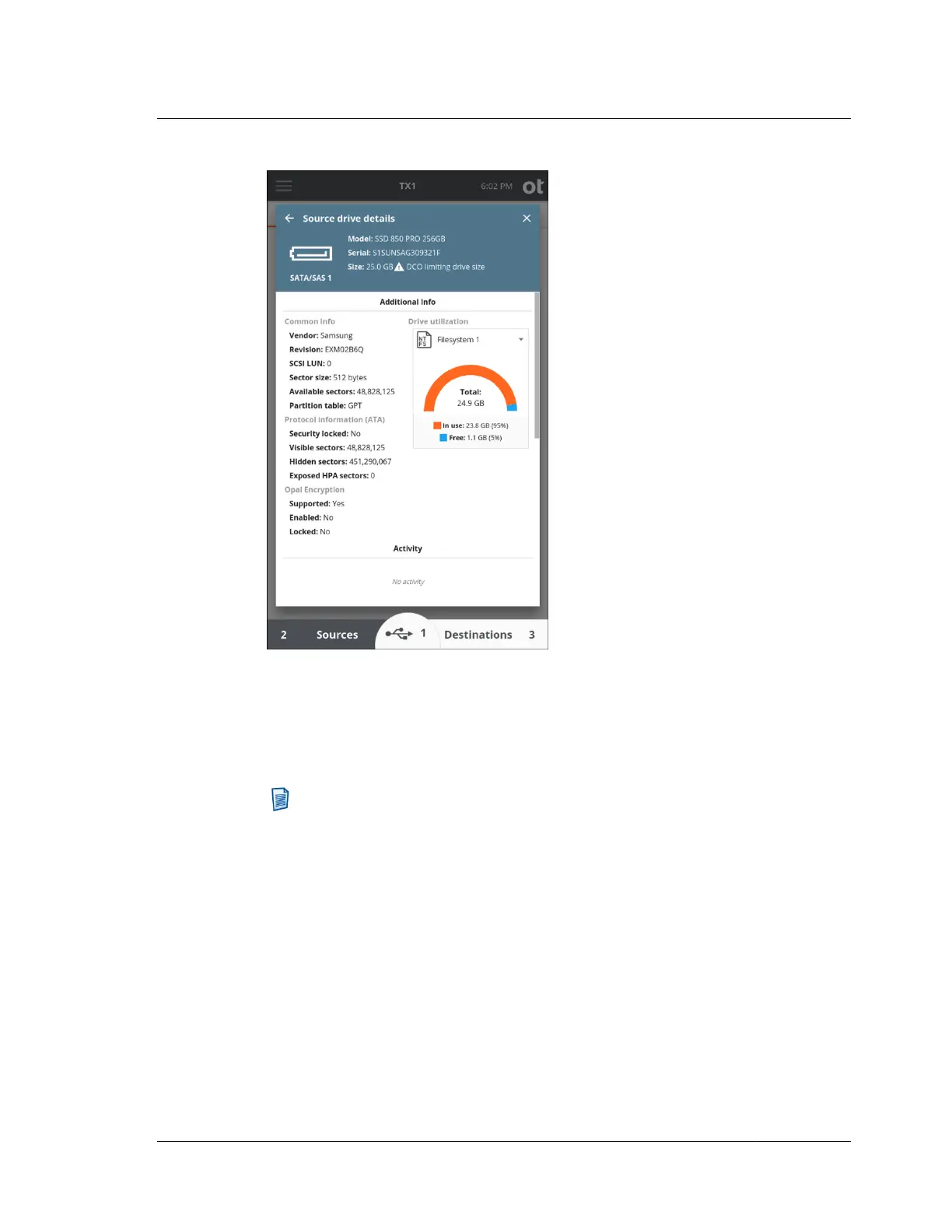
Select a filesystem to display In use and Freeutilization information. Note that
changing this selection from Entire drive to one of the detected filesystems only
changes the utilization information displayed in this specific sub-area of this screen.
All other information on this screen reflects the entire drive, and the media utilities
below will act on the entire drive.
Note: All the information in the section above also pertains to the USB
Accessory drives. The USB Accessory button only appears in the bottom
section of the Home screen when a USB Accessory drive is connected and
detected by TX1.
To help users identify which source drives have already been acquired, a green
checkmark is shown in the bottom right portion of the drive tile for any drives that
have been used in a previous, successful duplication job (clone or image), even in
cases of a disconnected or reconnected drive. For active (incomplete) duplication
jobs, a hollow checkmark will appear which will turn green once the job has
successfully completed. While this acquisition indication method is useful in
general, it was added with the advent of automated acquisition as a means of
helping users keep track of which drives have been acquired in the fast-paced
environment that happens when jobs are automatically started upon source drive
connection. The screenshot below shows an example of this new acquisition
indication method.
4.10. Viewing sources and destinations
ISTX240300-UGD-EN-1
User Guide
171



 To Next Page