User Guide – PERC2000 System Controller
Publication 81-9059-0605-0, Rev. B
November 2010
Proprietary Information of
PESA PESA 8-33
Add Destination – Clicking the Add Destination option inserts a blank line in the spreadsheet
and moves the cursor to the new entry line. From this line a new destination can be added to
the configuration.
Delete Destination – If you wish to remove a destination entry from the configuration
spreadsheet, move the cursor to the destination identifier beneath the Destinations tab in the
Command Screen Window you wish to delete, highlight the destination to be deleted, right
click to open the option box, and select Delete Destination.
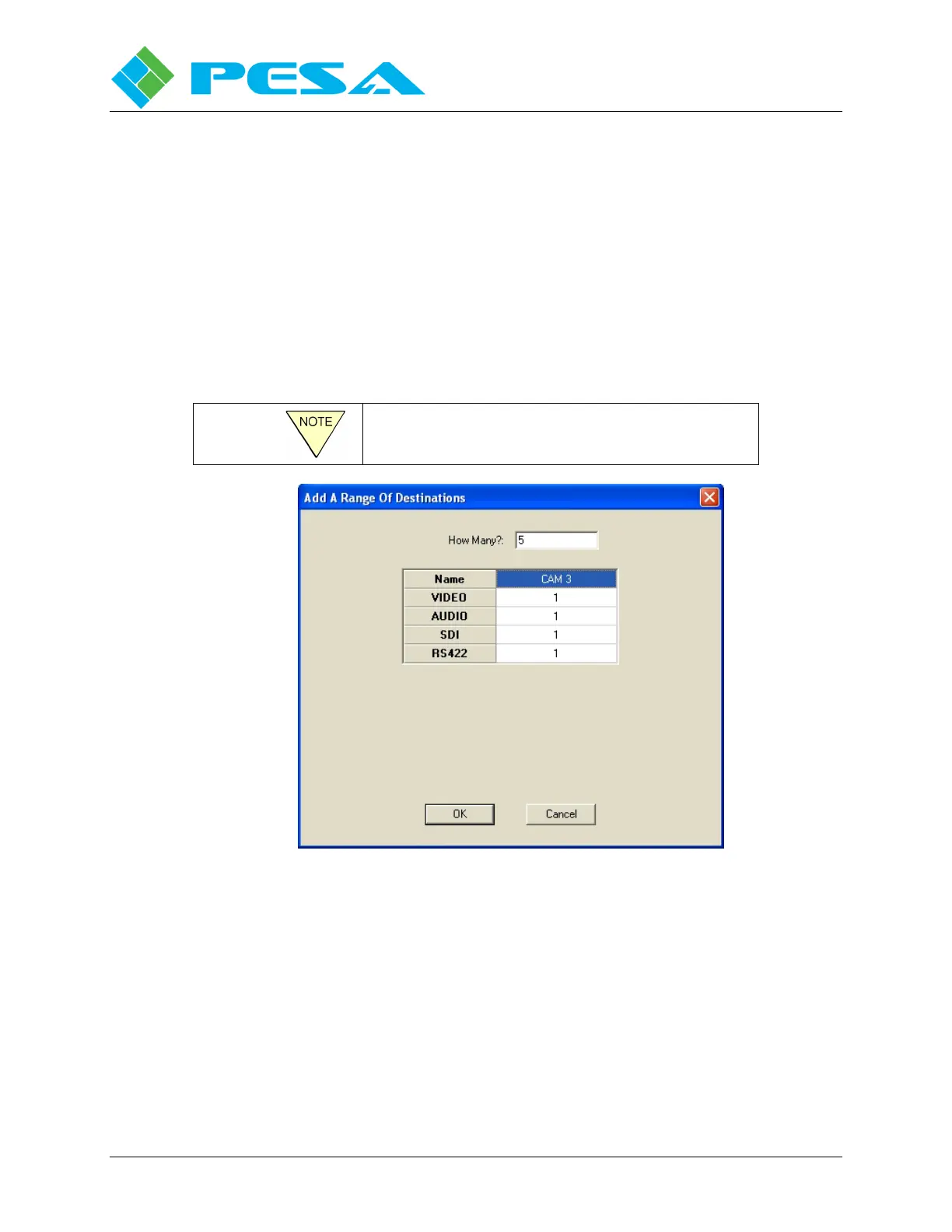
Add Range – Adds a range of destinations using a category index type of naming scheme, as
shown by Figure 8-33. You define the base name, such as “CAM,” the starting index - such as
3 and the number of sources to create – such as 5. This example would create sources “CAM
3:” to “CAM 7.”
The starting index is defined on a level-by-level
basis.
Figure 8-33 Destination Range Entry Box
Right Mouse Click Functions
When you right-click on any cell in the Destination Configuration spreadsheet, a pop-up menu
appears providing command options for the cell, as shown in Figure 8-34. Command options
appearing in the pop-up menu will vary depending on which commands are pertinent for the
data entered in the selected cell. Paragraph 8-4 discusses the function of common commands
available from the pop-up menu. Remember that all commands listed and discussed below may
or may not appear in the pop-up menu for a specific cell.


 To Next Page