2.
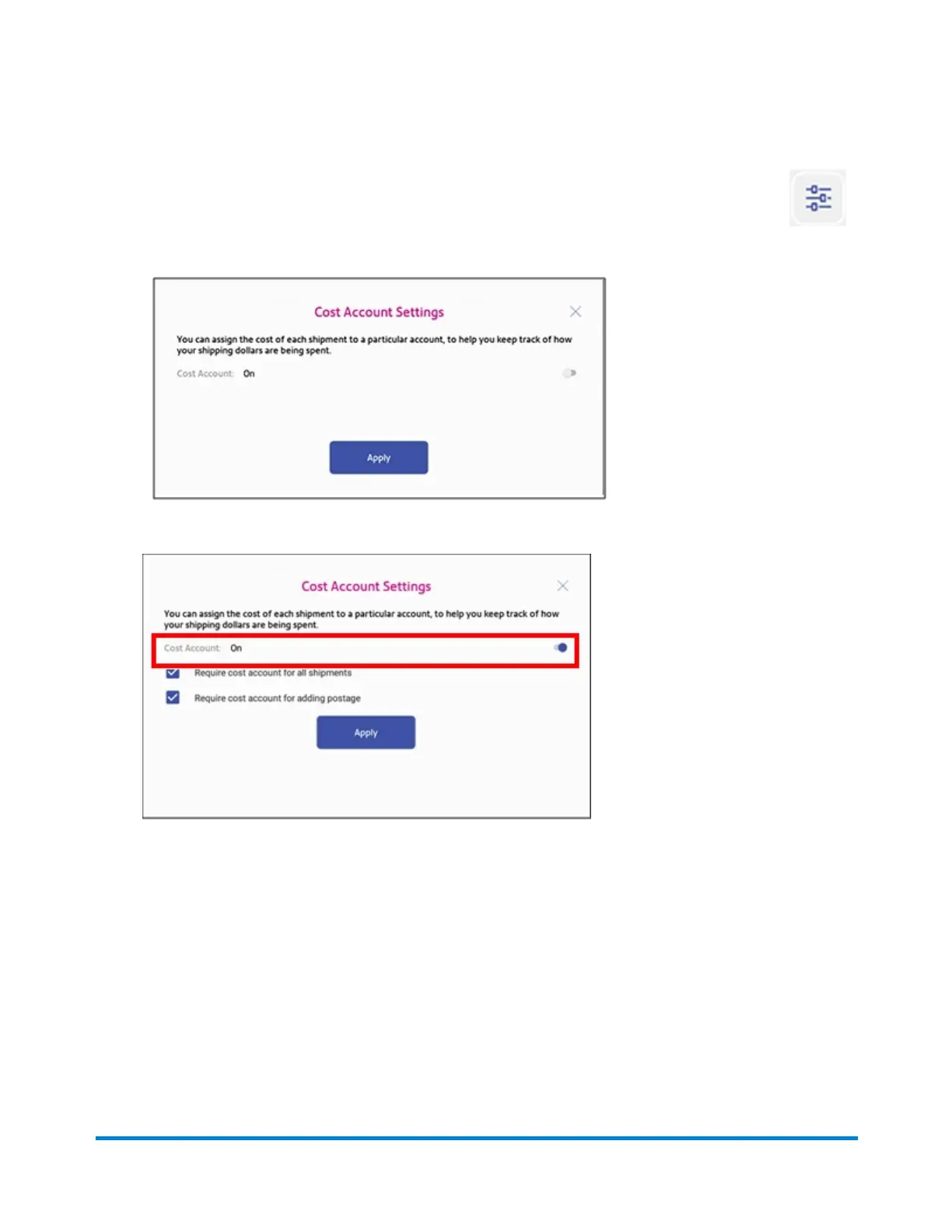
Tap the Cost Account settings icon in the upper right corner of the Cost Accounts screen.
If cost accounts are not enabled, you will see this screen.
3. To enable, tap the slider next to Cost Account and slide it to the right so that it turns blue.
l To assign a cost account to every label, tap the check box for Require cost account for all
shipments.
4. Tap Apply.
Once you turn cost accounts on, you will need to have at least 1 cost account to print a shipping label.
Managing Shipping Labels
Pitney Bowes Operator Guide February 2021 101













 To Next Page