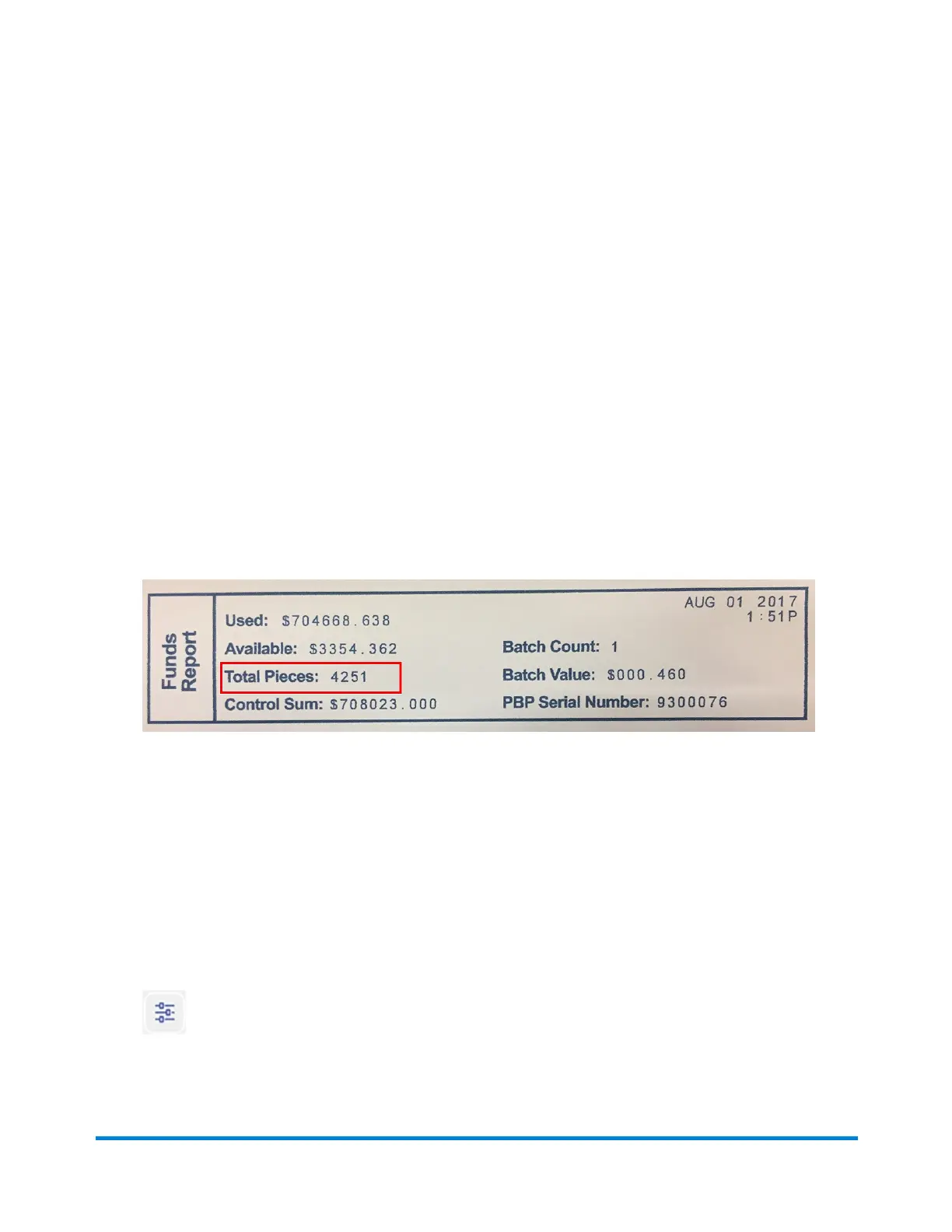
l Used: The total amount used over the lifetime of the device.
l Available: The amount currently available to print.
l Total Pieces: The total number of mailpieces run over the lifetime of the device.
l Control Sum: The control sum is the total of the amount used and available.
l Batch Count: The current Batch Count.
l Batch Value: The current Batch Total.
l PBI Serial No: The serial number of the device.
l The date and time the report was printed.
To print a funds report:
1. Tap Envelope Printing or Print on Envelopes on the Home screen.
2. Tap Pieces.
3. Tap Print Report.
4. Tap SendPro C Envelope Printer.
5. Feed the envelope through the device.
6. Tap the back-arrow to return to the Envelope Printing or Print on Envelopes screen.
Running postage printing account reports
Run account reports to show how you spent your postage for a specific account or for all accounts over
various time periods.
1. Tap Envelope Printing or Print on Envelopes on the Home screen.
2. Tap Account.
3. Tap the Menu icon.
4. Tap Manage Accounts.
View and Print Reports
Pitney Bowes Operator Guide February 2021 159













 To Next Page