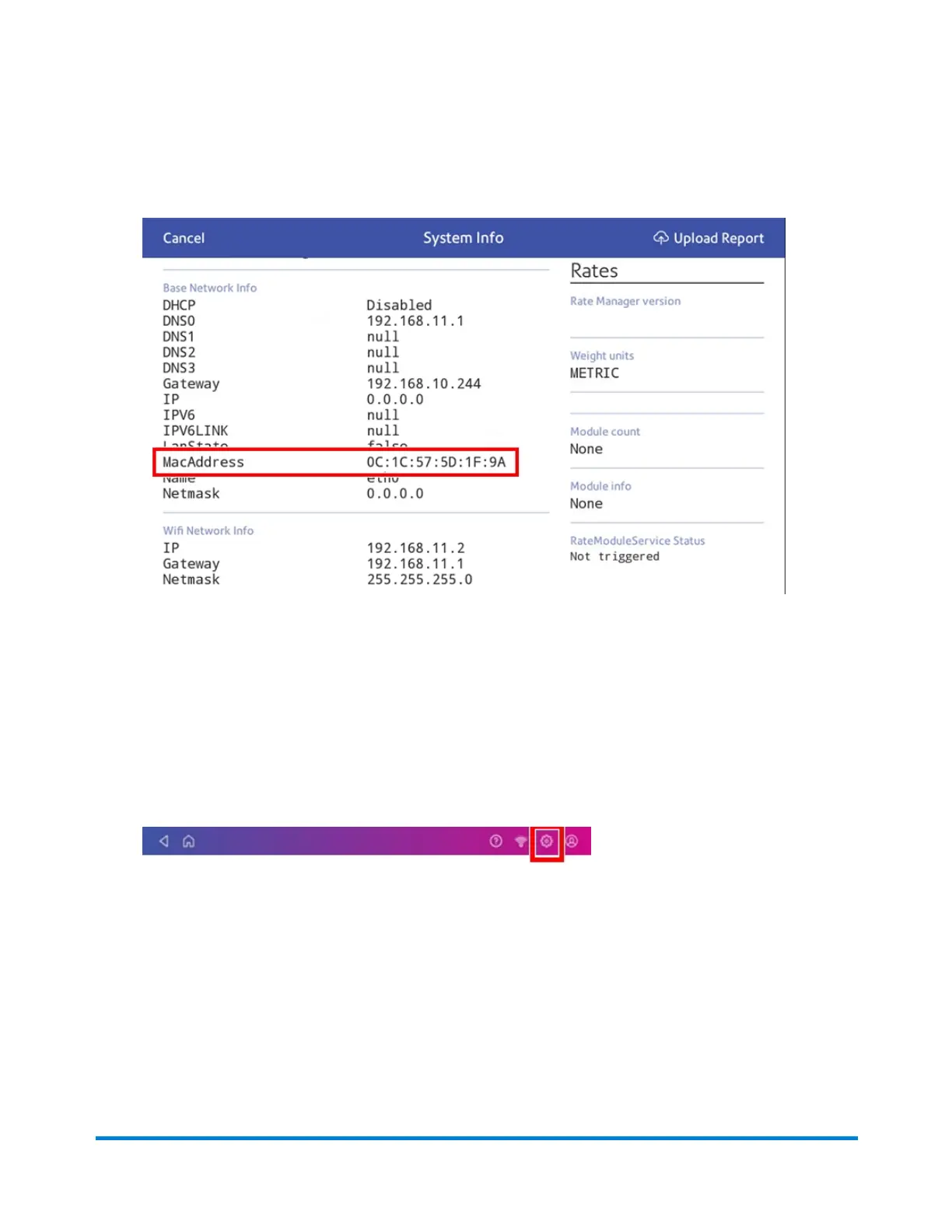
2. Scroll down to the "Advanced Device Options" section and tap About this C-Series.
3. Scroll down to the "Base Network Info" section to locate the MAC Address.
4. Tap Cancel in the upper left corner to return to the Home screen.
Setting up a proxy server
A proxy server is a computer that acts as a gateway between your local network, your device and a
larger-scale network, such as the internet. Proxy servers provide increased performance and security.
1. Tap Settings on the toolbar.
2. Tap the Wi-Fi or Wired (Ethernet) option in the in the Device & Network section.
3. For Wi-Fi:
a. Select the network from the list.
b. Tap on the Advanced Options checkbox to select it.
c. Scroll down and tap the arrow next to Proxy, then select Manual.
For Wired (Ethernet):
a. Select either DHCP or Static IP.
b. If you select DHCP, tap on the drop-down arrow next to Proxy Setting and select Manual.
Connectivity information
Pitney Bowes Operator Guide February 2021 54













 To Next Page