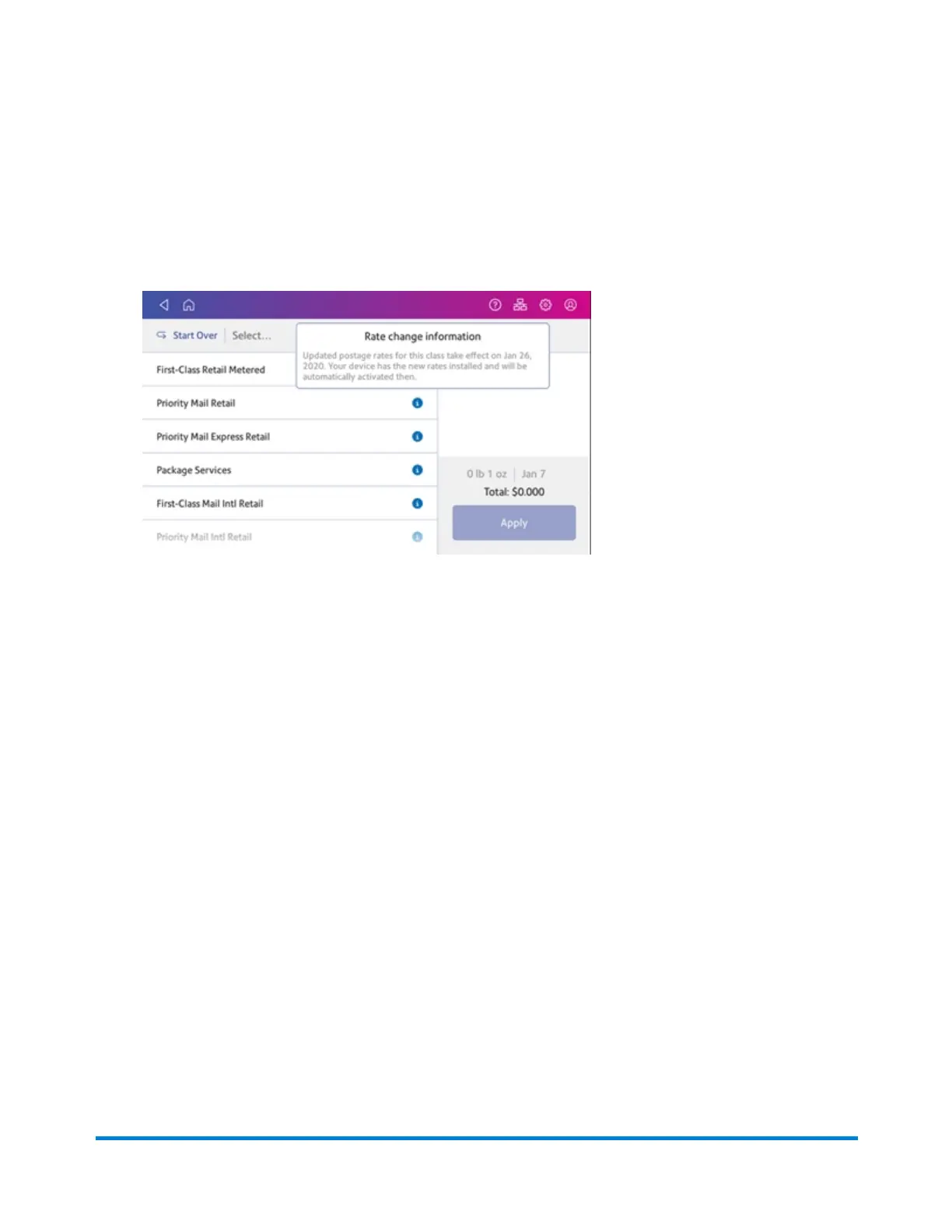
1. Tap Envelope Printing or Print on Envelopes.
2. Tap Class.
3. Tap Start Over to display a list of all the available classes.
4. Tap the information icon (i) next to the class you wish to check, for example First-Class Retail
Metered. The rate change information appears for the class.
Setting the low funds warning for printing postage
Set the low funds warning to warn you when your available funds for printing postage reaches a certain
amount. Use this warning as a reminder to add more postage to your device.
1. Tap Envelope Printing or Print on Envelopes on the Home screen.
2. Tap Postage Balance.
3. Tap Refill Settings.
4. Tap the Low postage threshold button.
5. Tap the back key on the keypad to remove the existing amount.
6. Enter the new amount.
7. Tap Apply.
8. Tap the back-arrow to return to the Envelope Printing or Print on Envelopes screen.
Setting up a mailer ID
Your mailer ID is a 9-digit number that you need when using Electronic Return Receipt (ERR). To get
your mailer ID, submit Form 5053, Bulk Proof of Delivery to the USPS.
Managing Printing on Envelopes
Pitney Bowes Operator Guide February 2021 148













 To Next Page