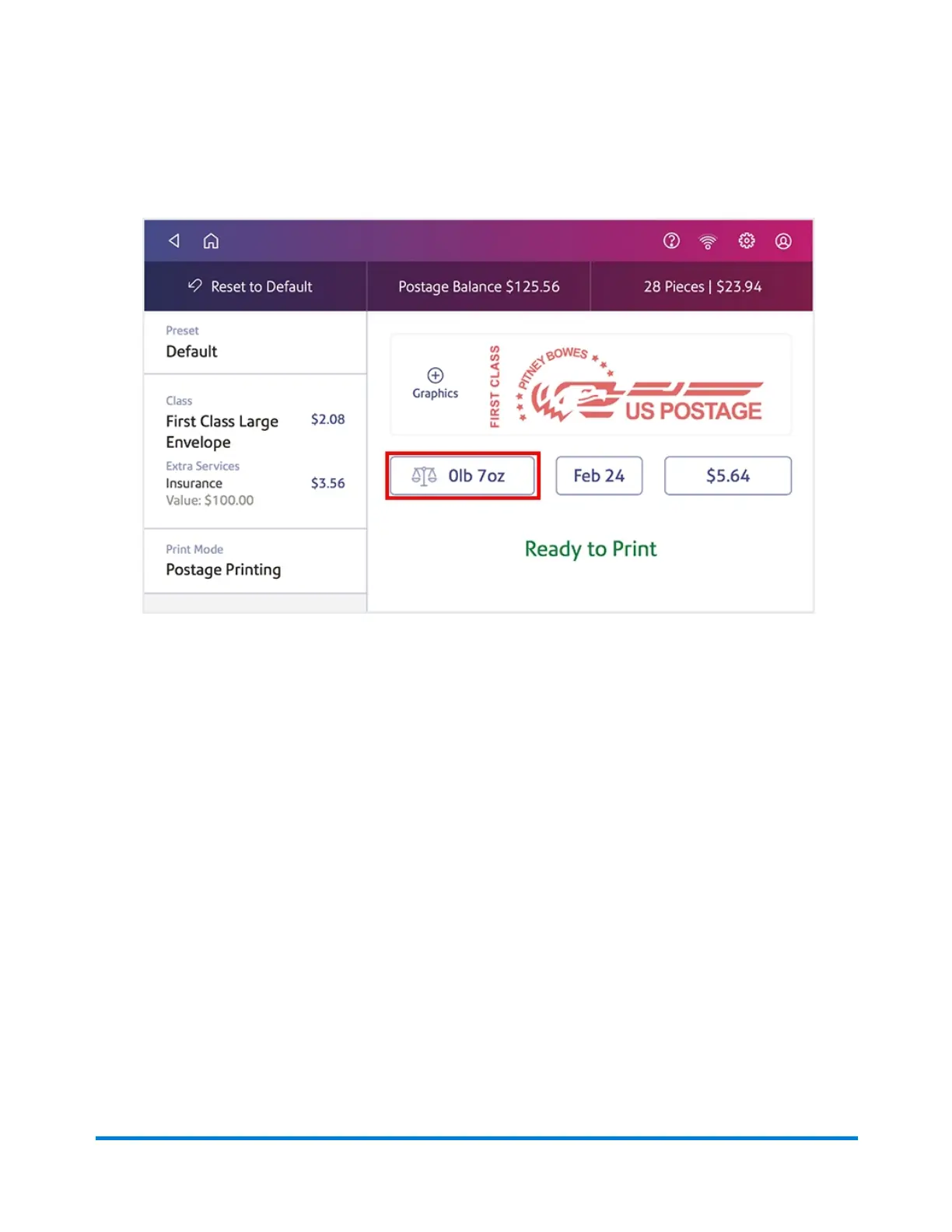
1. Tap Envelope Printing or Print on Envelopes on the Home screen.
2. Tap the weight button.
3. Tap Scale on the weighing method screen.
4. Tap Zero Scale.
5. Tap Cancel to return to the Envelope Printing or Print on Envelopes screen.
Adding insurance to your mail
You can purchase insurance for your mailpiece to protect against loss, damage or missing contents. The
insurance covers only the actual value of the mailed contents.
1. Tap Envelope Printing or Print on Envelopes on the Home screen.
2. Tap Class. If this is the class you need, tap the Insurance box, enter the amount, and tap Apply.
If you need another class, go to step 3.
3. If you need a different class:
a. Tap Start Over and select a new class and any special services you need. Tap Apply after
adding special services.
b. Tap the Insurance box, enter the amount, and tap Apply.
4. To confirm, tap Apply.
Printing on envelopes
Pitney Bowes Operator Guide February 2021 131













 To Next Page