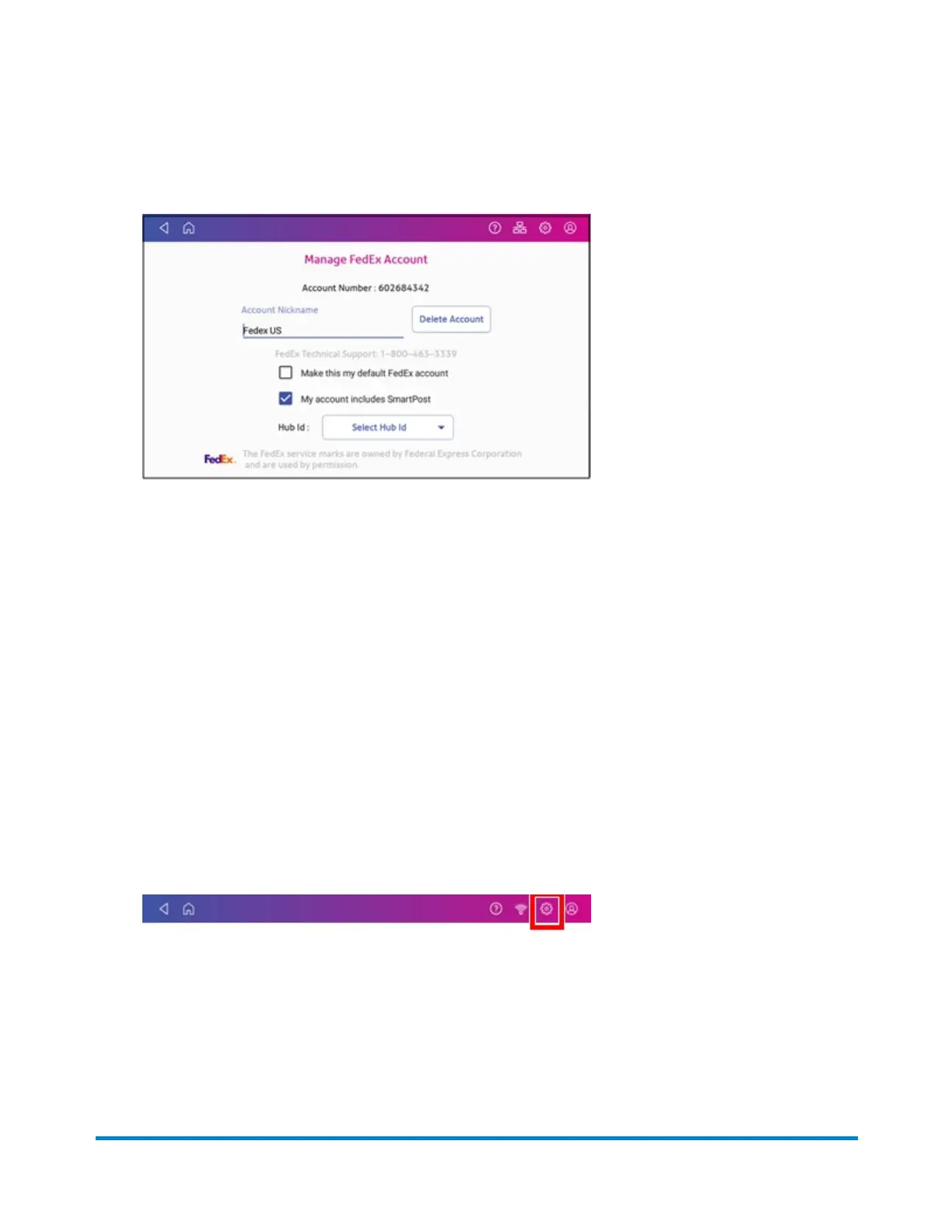
6. Tap the My account includes SmartPost box if your account includes SmartPost and you wish
to use this service.
7. Tap the Select Hub Id button and select the appropriate carrier location from the drop-down list.
8. Tap Apply to confirm and save your selection.
Setting up your UPS account
Use SendPro® Online to set up your UPS account. You must do this before you use UPS for trackable
labels.
You cannot set up a UPS account on your SendPro® C, SendPro®+device. In your web browser, go to
https://login.pitneybowes.com/sendpro and sign in with your SendPro C, SendPro+ user ID and
password.
Once you have set up your UPS account using SendPro Online, you can view your account information
on your device:
1. Tap Settings on the toolbar.
2. Scroll down to Shipping Settings.
3. Tap Carrier Settings.
4. Tap the Manage button next to UPS.
Managing Shipping Labels
Pitney Bowes Operator Guide February 2021 108













 To Next Page