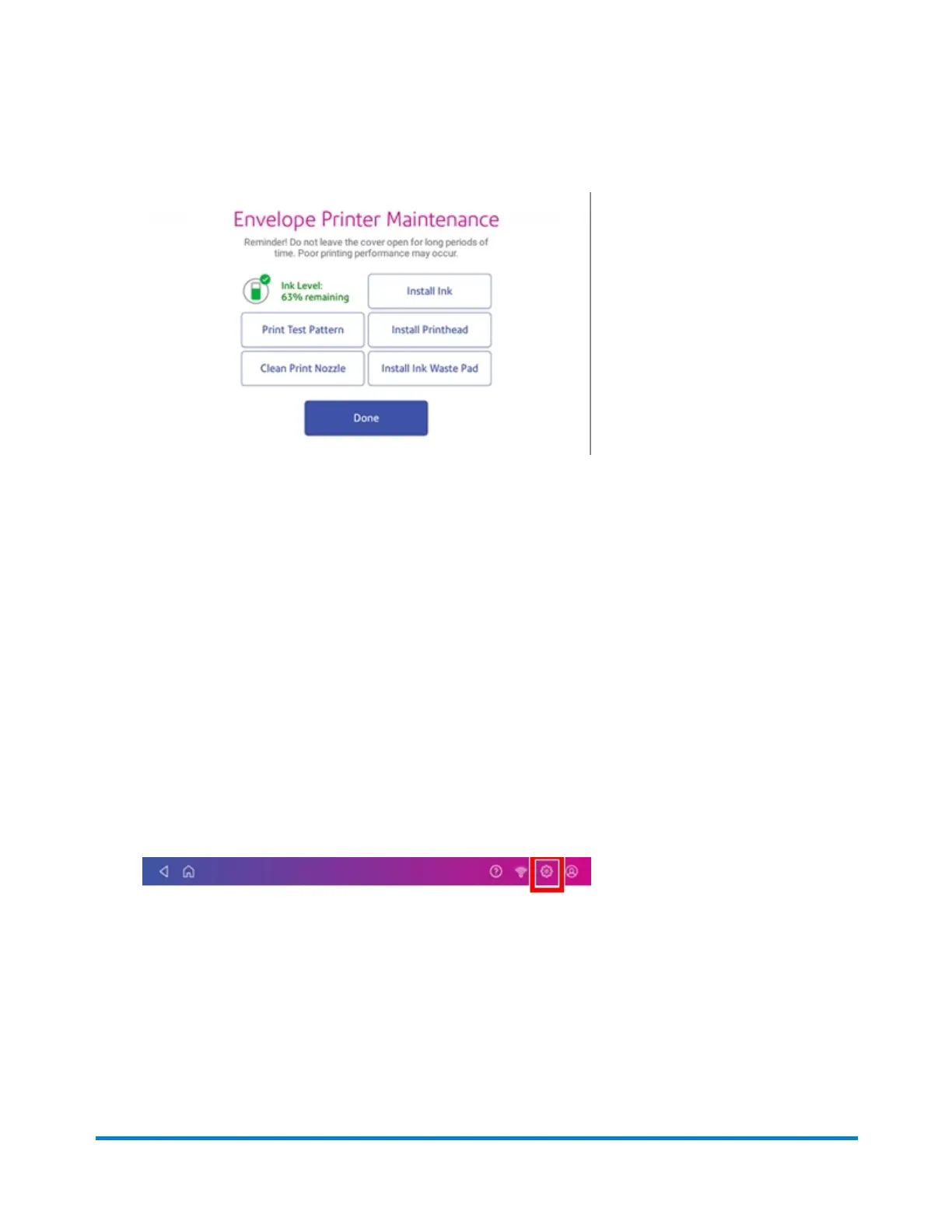
3. Tap on Install Ink Waste Pad.
4. The instructions for replacing the existing pad display on the screen.
5. Follow the steps in each screen. To advance from one screen to the next, swipe to the left on the
screen.
6. After you slide the waste tray with the new pad back in place, tap Reset Ink Waste Counter to
continue.
7. Use the keypad to enter the reset code.
8. After you enter the code, the message "Your Ink Waste Pad is Ready to Use" displays. If you do
not see this message, or if you still get a message that the waste tank is full, restart the device. If
that fails to clear the message, contact Pitney Bowes support.
Cleaning the printhead
If you clean the print nozzle and you still get a bad test print pattern, try cleaning the printhead.
1. Tap Settings on the toolbar.
2. Scroll down and tap Mail Printer Maintenance.
3. Tap Install Printhead.
4. Lift the cover; the ink cartridge moves to the front position.
5. Flip the ink cartridge guard open.
6. Remove the ink cartridge as shown on the label to the right of the cartridge holder.
Maintenance
Pitney Bowes Operator Guide February 2021 172













 To Next Page