Uploading system logs
Your device creates a series of system logs that monitor a variety of operations on your device. Pitney
Bowes Technical Support may ask you to upload one or more of these logs.
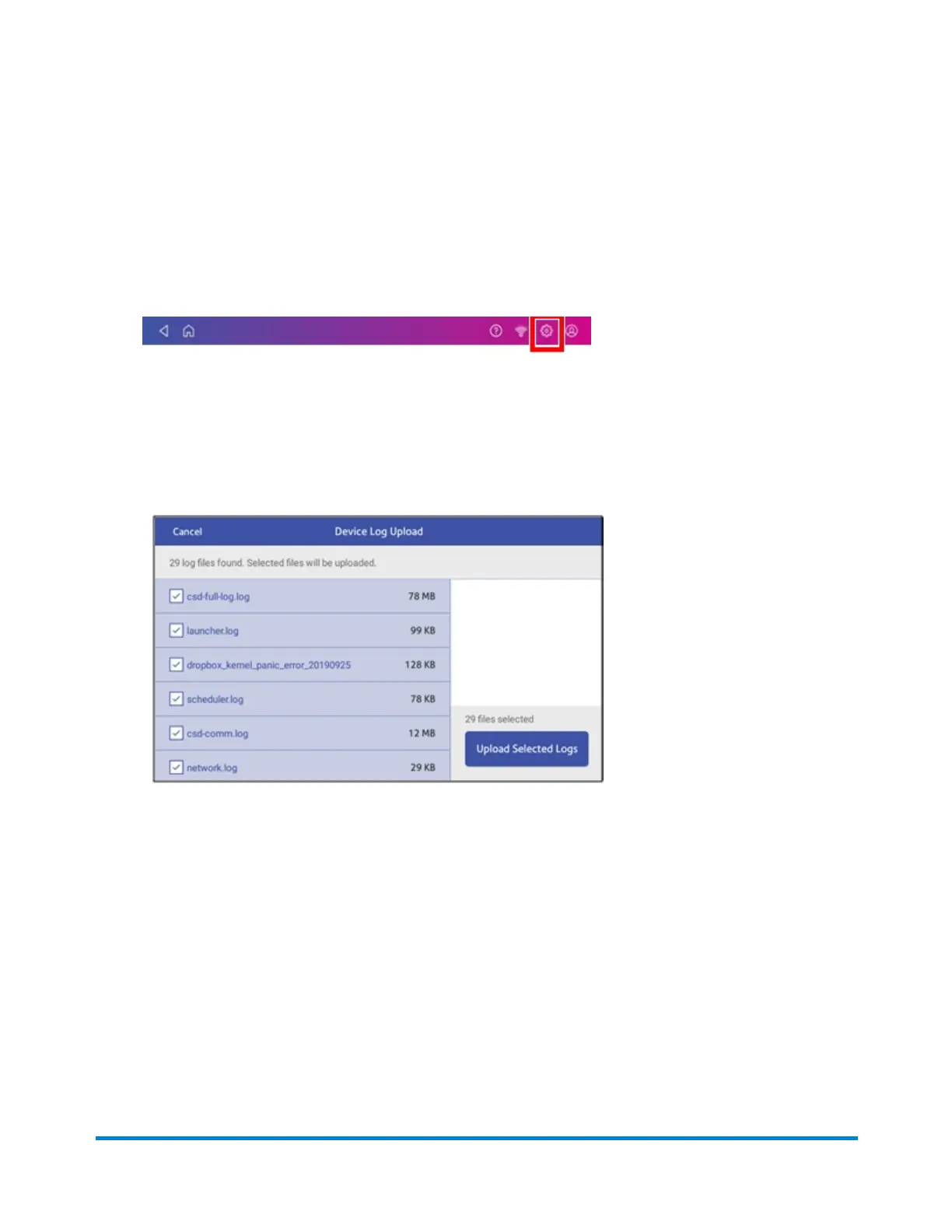
1. Tap Settings on the toolbar.
2. Scroll down to the Advanced device Options section.
3. Tap System Log Upload to see a list of the available logs. It may take a few minutes to collect all
the log files.
4. Tap the check box in front of any log that you wish to deselect.
5. Tap the Upload Selected Logs button.
6. The message "Sending Log Files" appears. Once the upload is complete, the message "Upload
Complete" displays.
7. Tap Got It to return to the Home screen.
Managing your device
Pitney Bowes Operator Guide February 2021 81













 To Next Page