Check the postage print quality
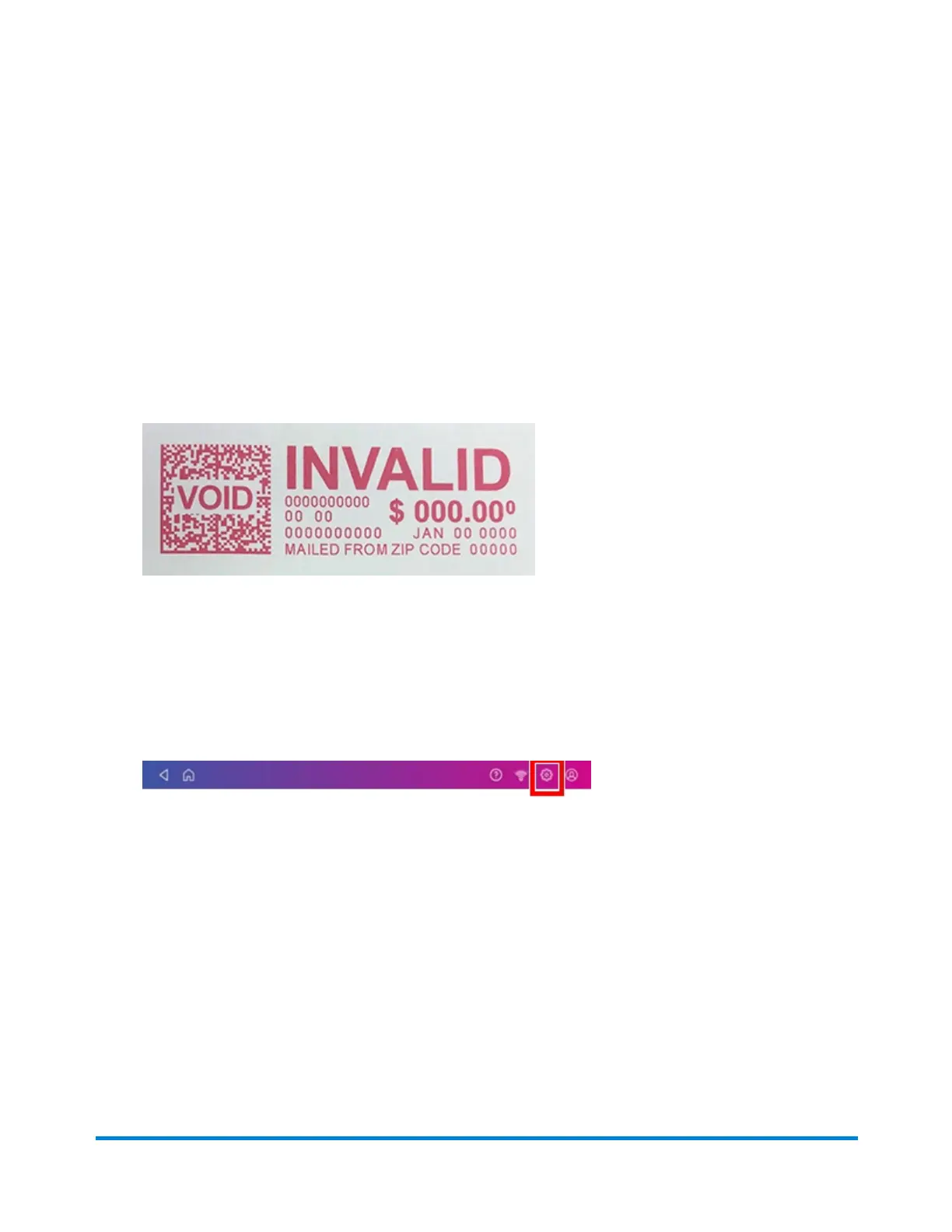
You can make a test print to check the quality of the postage printed on an envelope or tape strip.
1. Tap Envelope Printing or Print on Envelopes on the Home screen.
2. Tap Print Mode.
3. Scroll down and tap Test Print.
4. Tap Apply.
5. Feed an envelope or tape strip through the machine.
6. Check the print quality.
Printing a test pattern
Print a test pattern to see if the printhead is working properly or if you have enough ink in the cartridge.
1. Tap Settings on the toolbar.
2. Scroll down and tap Mail Printer Maintenance.
3. Tap Print Test Pattern.
4. Feed the envelope through the device when the message "Print a Test Pattern?" appears.
5. Examine the pattern printed on the envelope:
l Tap Done if the lines are unbroken and match the "Good" test pattern shown on the display.
l Tap Clean Print Nozzle if the test pattern has missing or incomplete lines
n Once the cleaning operation completes, you must print another test pattern.
n If this new pattern still has broken or missing lines, you may need to replace the ink
cartridge or clean or replace the printhead.
n If you see no improvement in print quality, do not repeat the cleaning, as cleaning the print
nozzles consumes ink.
Maintenance
Pitney Bowes Operator Guide February 2021 166













 To Next Page