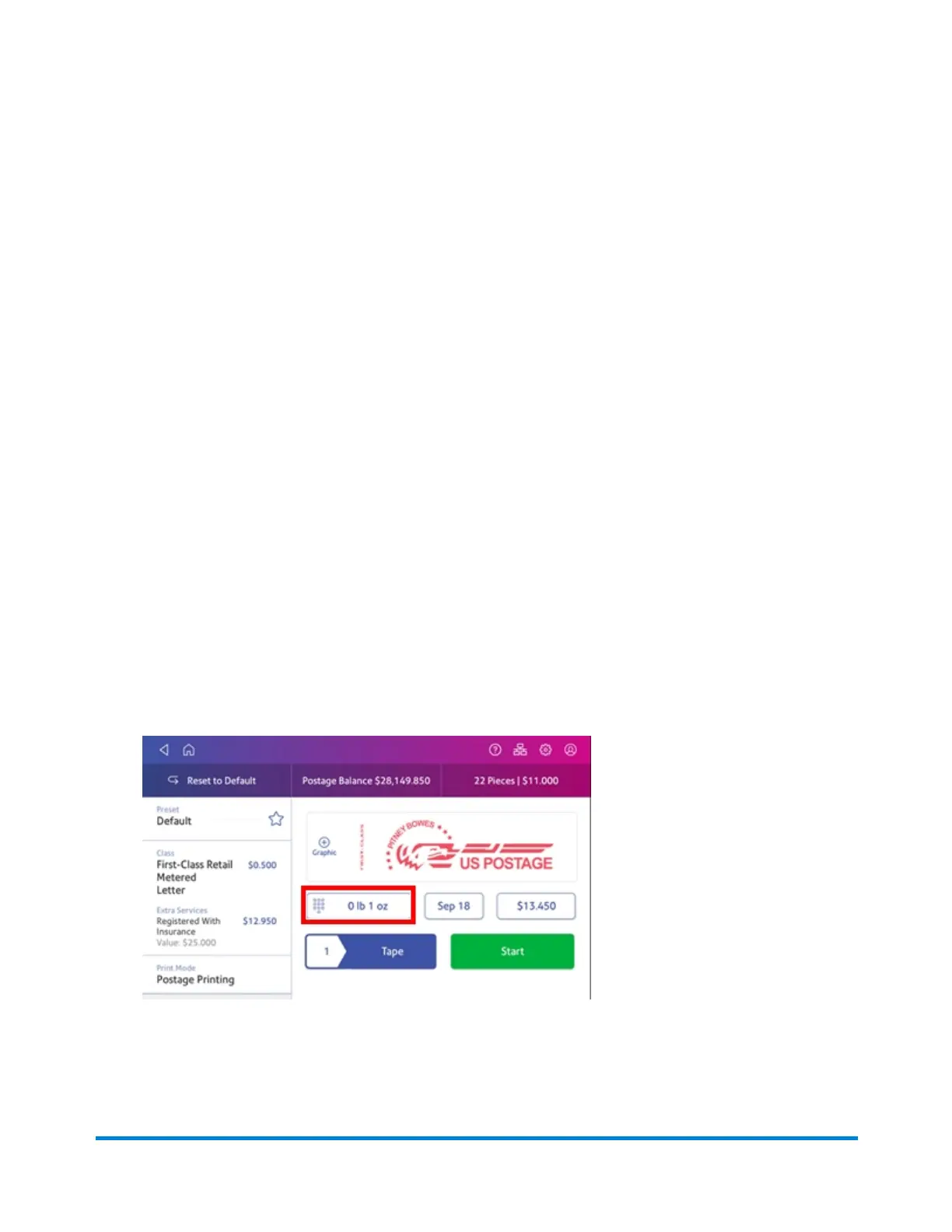
If your mailpiece weighs more than 3.5 oz, the device automatically sets the class to Large Envelope
regardless of the dimensions. If the mailpiece weighs less than 3.5 oz but has the dimensions of a flat,
you need to manually select Large Envelope when you choose the class.
To determine if your mailpiece meets all the criteria for a flat (dimensions and weight), use the Postal
Advisor app.
To open the Postal Advisor:
l Tap Postal Advisor in the application drawer at the bottom of the Home screen, or,
l Tap SendPro Apps on the Home screen, then tap USPS Postal Advisor.
The Postal Advisor also provides information for multiple types and classes of mailpieces, including
postcards, letters, and parcels.
Weigh the mailpiece and measure the dimensions
1. Tap Envelope Printing or Print on Envelopes on the Home screen to open the Envelope
Printing screen.
2. If you have the accounting feature enabled, tap Account and select an account.
If your device's model number is 8H00 or 9H00 and if you have only a single account, once you
select that account the device will remember that account the next time you start Envelope Printing
or Print on Envelopes.
3. Place the mailpiece on the scale. The weight appears in the weight button on the screen. You can
also weigh the mailpiece using any external postal scale.
4. Measure and record the dimensions of the mailpiece.
5. Tap Home to return to the Home screen.
Printing on envelopes
Pitney Bowes Operator Guide February 2021 119













 To Next Page