Ordering supplies from your device
You can order supplies directly from your device using the Supplies app.
1. On the Home screen, tap SendPro Apps, then tap Supplies.
2. If this is the first time you are using the Supplies app, read the Terms & Conditions and tap the box
to agree to the terms.
3. Enter the email address and password you use for your device. The Supplies app opens.
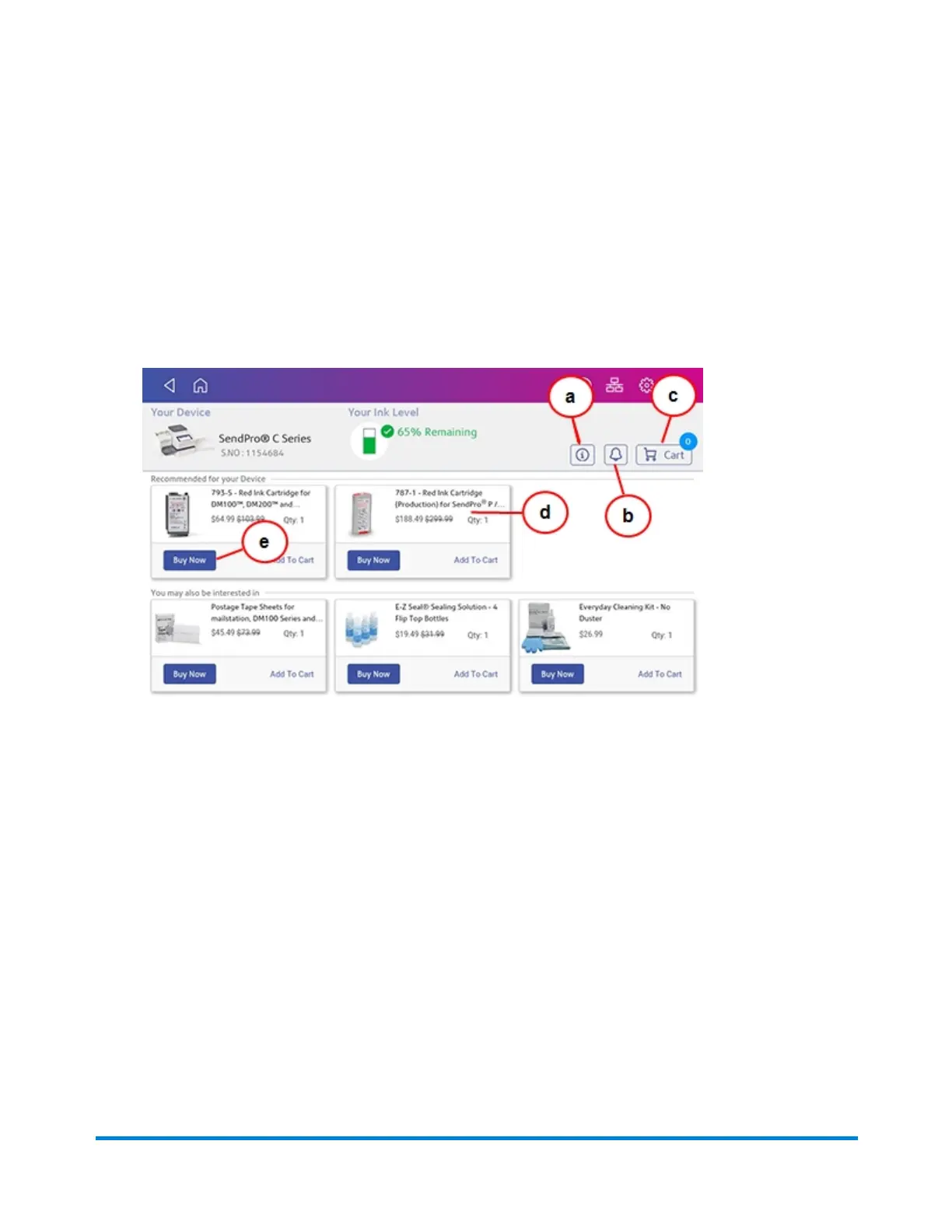
The Supplies app home screen displays your device's serial number, the current ink level, and how many
items are in your cart. From this screen you can perform the following tasks.
a. Obtain detailed help
Tap the "i" to open the online operator guide. This contains detailed information on using the
Supplies app.
b. View alerts and notifications
Tap the Bell icon to view your order status or any notifications.
c. View the items in your cart
Tap the Cart icon to view all the items in your shopping cart. You can increase or decrease the
quantity of each item, remove it completely, or tap Start Checkout to go to checkout.
d. View product details for any item
Tap anywhere on the product card for an item to view detailed information. This information also
appears when you tap the Buy Now button.
Supplies
Pitney Bowes Operator Guide February 2021 190













 To Next Page