Powered by Safety
®
26
Usage
01.4IB.48041
BriteSpot® Plus
Table F Menu Navigation
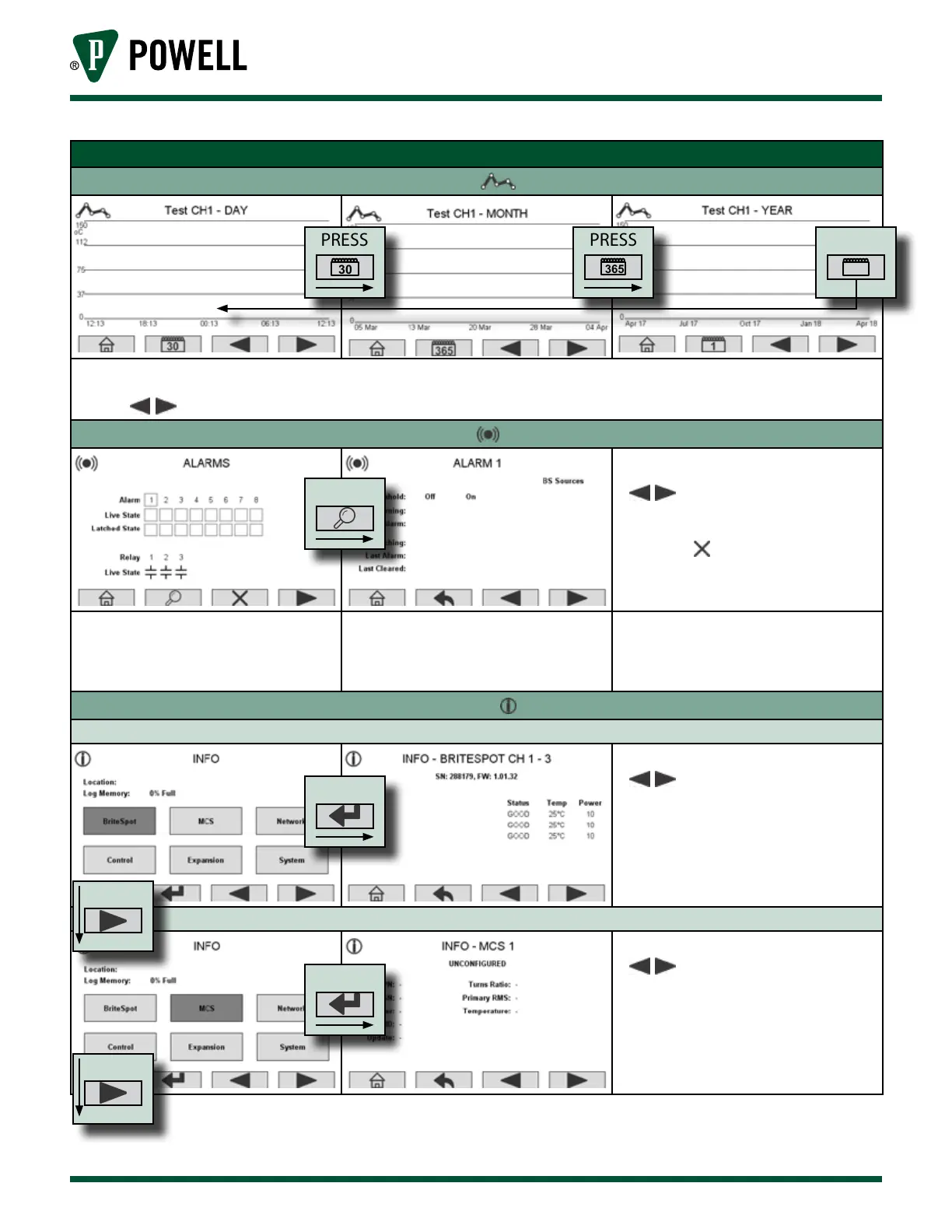
Trending Screens - Press From Main Screen
These screens display plots of the logged data for a given BriteSpot® channel. The channel and timespan of the plot are
indicated at the top of the screen. The timespan is the last day, month, or year.
Note:
navigation forward and backward though BriteSpot sources for the trending screens.
Alarm Screens - Press From Main Screen
• Navigate forward and
backward through alarms 1-8 and
relays 1-3
• Press the button to clear the
latched state of the selected alarm.
The main alarm screen displays the
present and latched states of the alarms
and the present state of the output
relays.
This screen displays the settings for
each alarm and relay. The given alarm
or relay is displayed at the top of the
screen.
Information Screens - Press From Main Screen
BriteSpot® Information
• Navigate forward and
backward through BriteSpot channels
• This screen allow the user to see
the status, measured temperature,
and optical power of each BriteSpot
channel.
MCS Information
• Navigate forward and
backward through MCS devices
• This screen allow the user to see
relevant information about attached
MCS devices as well as the measured
current.
PRESS
PRESS
PRESS
PRESS
PRESS
PRESS
PRESS
PRESS



 To Next Page