Powered by Safety
®
39
Usage
01.4IB.48041
xiii. Uploads
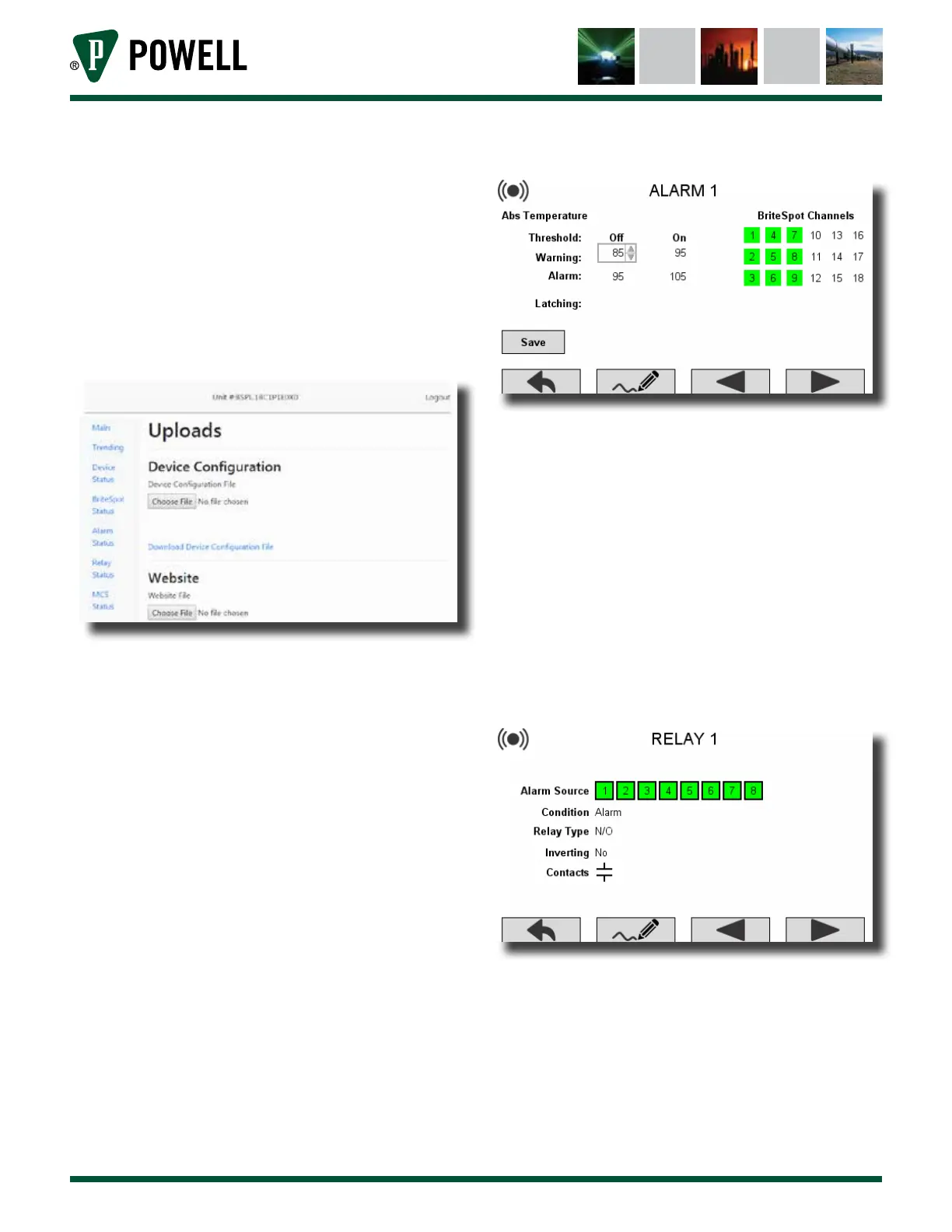
The uploads page (Figure 53) can be
accessed via the navigation bar on
the left of the main page. This page
allows the user to upload a
pre-existing device configuration
file, or a new website file to device.
Figure 53 Uploads Web Page
2) Device User Interface
The LCD screen provides an alternate
method to configure some of the system
settings. The system for navigation and
entering data is described in Table F Menu
Navigation.
There are three settings screens:
• Alarms
• Relays
• User Interface
a. Alarm Settings
The alarm settings screen (Figure 54)
allows the user to edit the warning/
alarm thresholds, latching/non-latching
and the sources for the alarm. Fields
can be edited using the edit and arrow
buttons. Save must be selected after
making any changes for them to be
stored.
Figure 54 Alarms Settings Screen
b. Relay Settings
The relay settings screen (Figure 55)
allows the user to edit which alarms will
trigger the relay, whether it is triggered
by a warning or alarm state and
whether the relay is inverting or not.
Fields can be edited using the edit and
arrow buttons. Save must be selected
after making any changes for them to
be stored.
Figure 55 Relay Settings Screen
c. User Interface Settings
The user interface settings screen
(Figure 56) allows the user to edit the
screensaver delay and the temperature
display units. Fields can be edited using
the edit and arrow buttons. Save must
be selected after making any changes
for them to be stored.



 To Next Page