113
MBOX® USER MANUAL
Every effect has a txfx le that denes the parameters of the effect. For the effects that are built into the Mbox
application, these txfx les can be found in the application’s bundle. To open the application bundle rst nd the Mbox
application’s executable le; it should be in the /Applications/Mbox Designer folder. Right-click on the application
and select “Show Package Contents” from the menu that appears. The Finder window will show a single folder called
“Contents”. Look inside that folder to nd the folder with the path of: Contents/Resources/Plugins/texture effects. All
the txfx les for the application are in this folder. Find the existing ASCII Art txfx le and make a copy of it outside of the
application bundle.
Note: In order to edit the txfx le either the Apple Property List Editor, Xcode, or one of several commercially available
property list editing applications can be used. Change the le extension to “.plist” temporarily may be required in order
to be able to open the le.
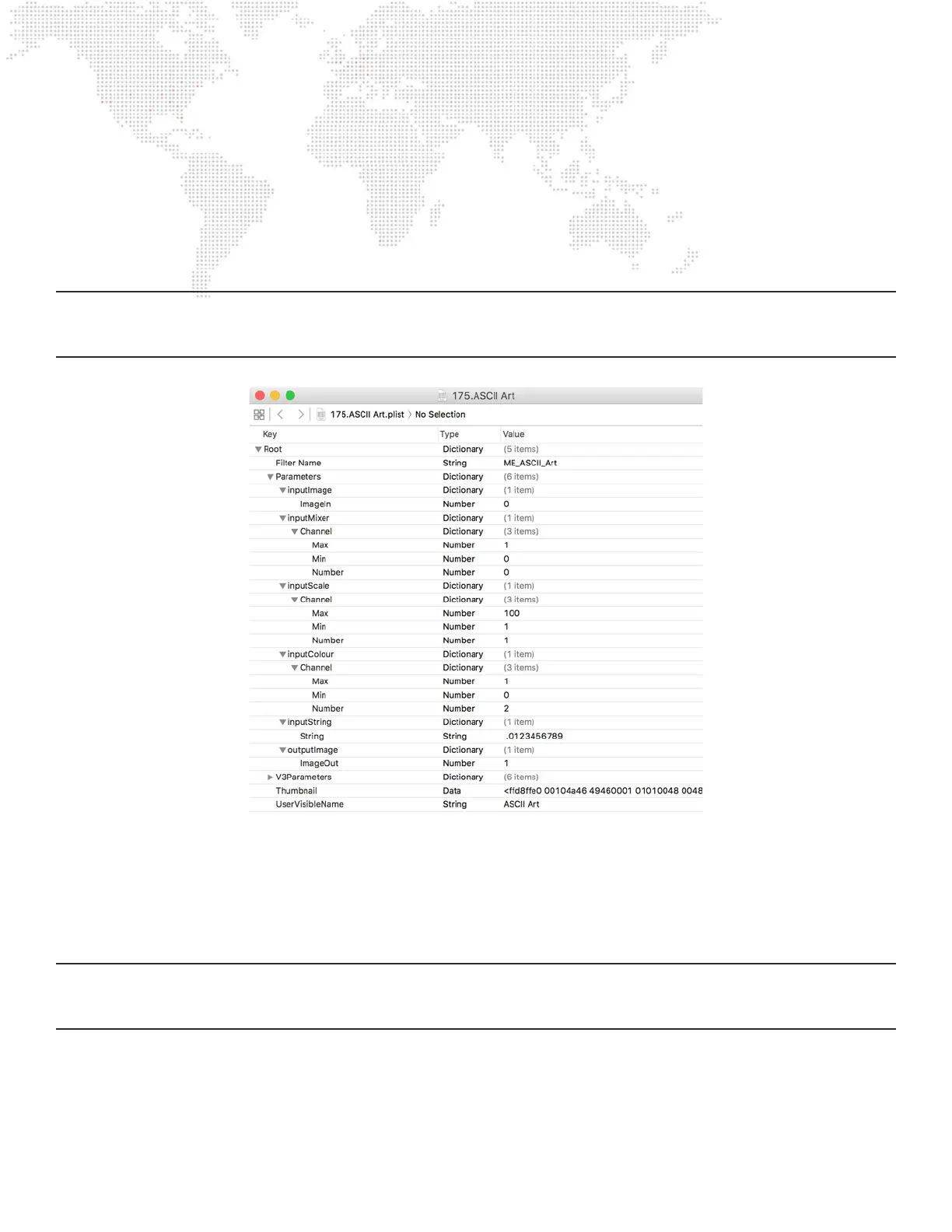
This is what the data in the txfx le looks like:
The root of the plist has been expanded to show the key:value pairs in the plist. Each key:value pair holds information
critical to the operation of the effect, and both the key name and its value must be formatted correctly for the effect
to work. To modify how an existing effect works, all that is required is to edit the appropriate values. Most values are
simple numbers that describe a range for parameters of the effect, but they can get more complicated in some cases.
CAUTION! The txfx les for Mbox v4 hold parameter data for Mbox when in v4 mode, but also when it’s in v3 emulation
mode. The txfx le’s root has two primary keys: Parameters (for v4 operation) and V3Parameters (for v3 emulation).
Make sure to edit the data in the correct location - in Parameters, not V3Parameters
For the ASCII Art effect, the value that needs to be edited is the “inputString” dictionary’s “String” value. The default
value, as seen in the illustration above, is “ .123456789”. In order to change the string, it’s just a case of double-clicking
on the current value and typing in the new string - “ .!-+*oO0@$#” and then saving the le with a new and unique index
number, a descriptive name, and the correct le extension: e.g. “200.ASCII Art Modied.txfx”.



 To Next Page