58
MBOX® USER MANUAL
Name
Outputs also have a name. Each output is given a default name when it is added - “Output ###” where the “###”
represents the unique index number of the output. Output names can be modied as desired and have no impact on the
remainder of their conguration.
Size, Origin, Flip and Rotation
Outputs have conguration parameters that affect how large they are (width and height in pixels) and where they are
located (based on their top-left corner) on the global surface. Flip and rotation parameters allow an output’s imagery to
be mirrored and/or inverted for projection, or to have its orientation adjusted for various creative congurations. Sub-
outputs have additional X and Y offset parameters that indicate the offset of the sub-output’s top-left corner from the
top-left corner of its parent output - on the parent output, not on the global surface.
An output’s size is only adjustable using the width and height text elds, but its origin on the global surface may be
adjusted either in the corresponding text elds or by dragging the output on the top layout view. A sub-output’s position
on its parent can either be edited in the offset text elds or by dragging the sub-output on the bottom layout view. When
making text edits to size or position, values should be whole numbers, not decimal values. Rotation values can use
numbers with up to two decimal places.
CAUTION! Resizing an output to be more than 2x larger than the global surface requires the auto-resize preference to
be enabled or for the global surface to be resized in advance.
Display
Outputs need to have a display assigned to them so that their imagery will be visible on a display device when Mbox is
in Fullscreen mode. It is possible to congure and program a show in Window mode without the actual show display
devices connected, but at some point the display devices will need to be connected to the computer and outputs
assigned to them.
CAUTION! If an output has no assigned display then the output will not be rendered when Mbox enters Fullscreen
mode! If an assigned display is disconnected and/or reconnected on a different physical video connector of the
computer, it will not be rendered in fullscreen mode. In such cases, a yellow warning icon will appear in yellow next to
the display pop-up for the output, indicating that corrective action is needed.
Display devices can include monitors, projectors, LED processors, scan converters, multi-head adapters, and
Blackmagic Design Decklink or Ultrastudio devices with output capabilities. Every display device connected to the
computer has a name. And because display names may not be unique, connected displays are also given a unique
index number based on where or how they are plugged into the computer. Display devices connected directly to the
computer using DVI, HDMI, or DisplayPort will have an index in the range of 1 – 8. Blackmagic devices will have an
index of 9 or higher. A display’s index number will depend on which physical video connector it is attached to on the
computer or the order in which it was found if it is a Blackmagic device.
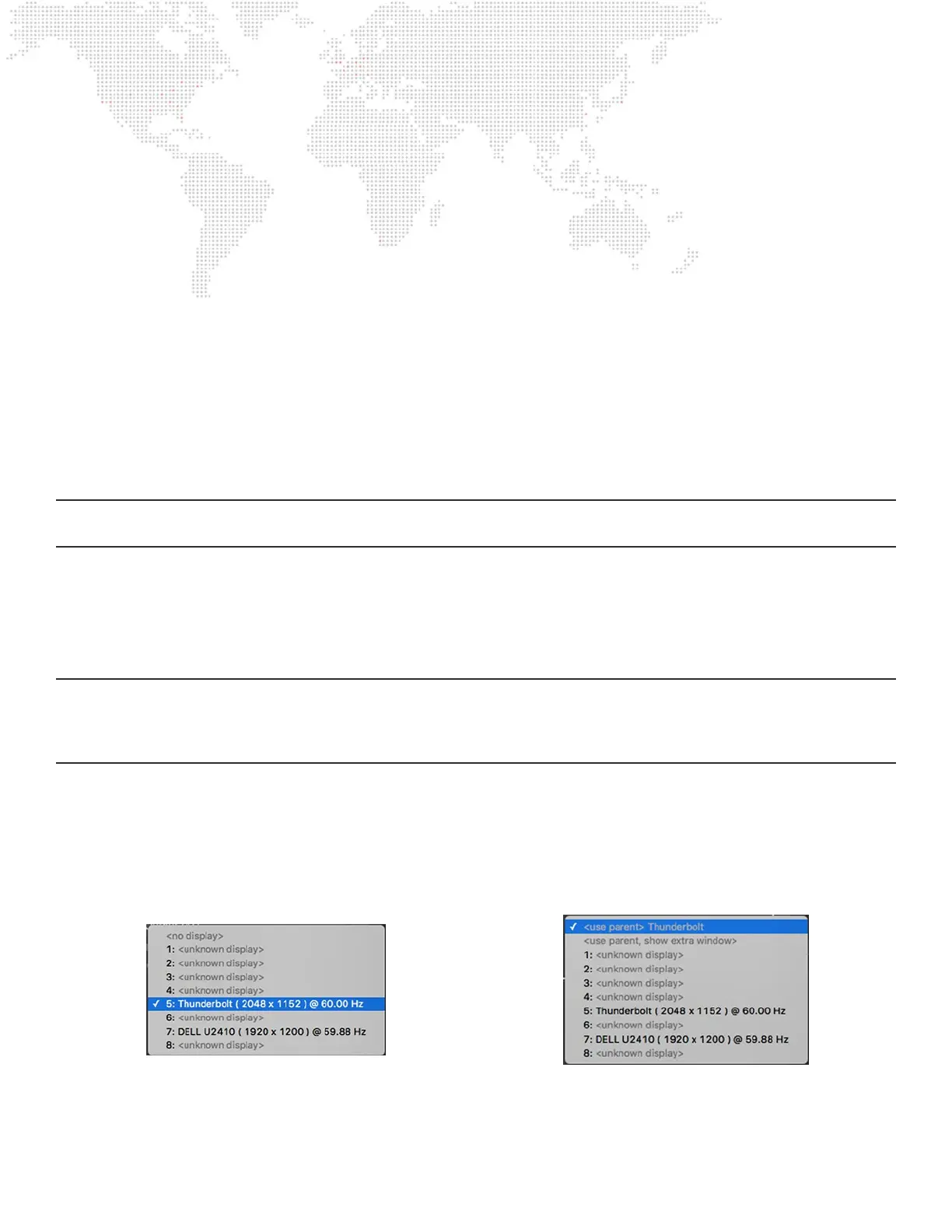
Clicking on the display pop-up for an output will show the list that includes all connected displays, and an option for “no
display”. In the case of sub-outputs, the “no display” option is replaced by two options: “use parent” and “use parent,
show extra window”.



 To Next Page