59
MBOX® USER MANUAL
The menu item for each connected display will also show the display’s current resolution and frequency. A display’s
resolution and frequency can only be modied in the computer’s System Preferences > Displays pref pane. Mbox v4 will
always use this resolution and frequency for a display when going into Fullscreen mode, as Mbox v4 makes no attempt
to modify these settings. (Refer to “Connected Displays and Fullscreen Mode Interactions” on page 68)
Assigning a display to an output will cause the output’s imagery to be placed on that display when Mbox enters
Fullscreen mode. Assigning no display to an output allows the output to have a window when Mbox is in Window mode,
but when the application enters Fullscreen mode, the output’s imagery will not be rendered, even in a window. For sub-
outputs, the “use parent” option causes the imagery to be copied into the parent output (which would then be assigned
to a display) and the “use parent, show extra window” option yields the same result but an extra output window is shown
when the application is in Window mode.
By default, sub-outputs use their parent output as a display, which allows their imagery to be copied into the output as
noted above. However, outputs don’t have to have displays assigned to them. Outputs can be used with sub-outputs
in a situation where the output is purely a grouping device in the layout to allow the sub-outputs to be moved as a unit.
In this case, the output would be congured to have no assigned display, and each sub-output would have a display
assigned to it.
Connected displays can be identied by name in the list. However, if multiple displays having the same name are
connected this may not work. Therefore each display also has a unique index number. The “identify displays” button at
the bottom of the window can be used to determine the index number and name of every connected display, Blackmagic
devices included. (Refer to “Outputs Tab: Add, Delete, Identify, and Archive” on page 62)
Output Master
All outputs can have an output master assigned to them. Output masters add parameters for mastering properties of the
output such as intensity, color, effects, etc. (Refer to “Output Master Fixture” on page 174) Multiple outputs can use the
same output master if desired.
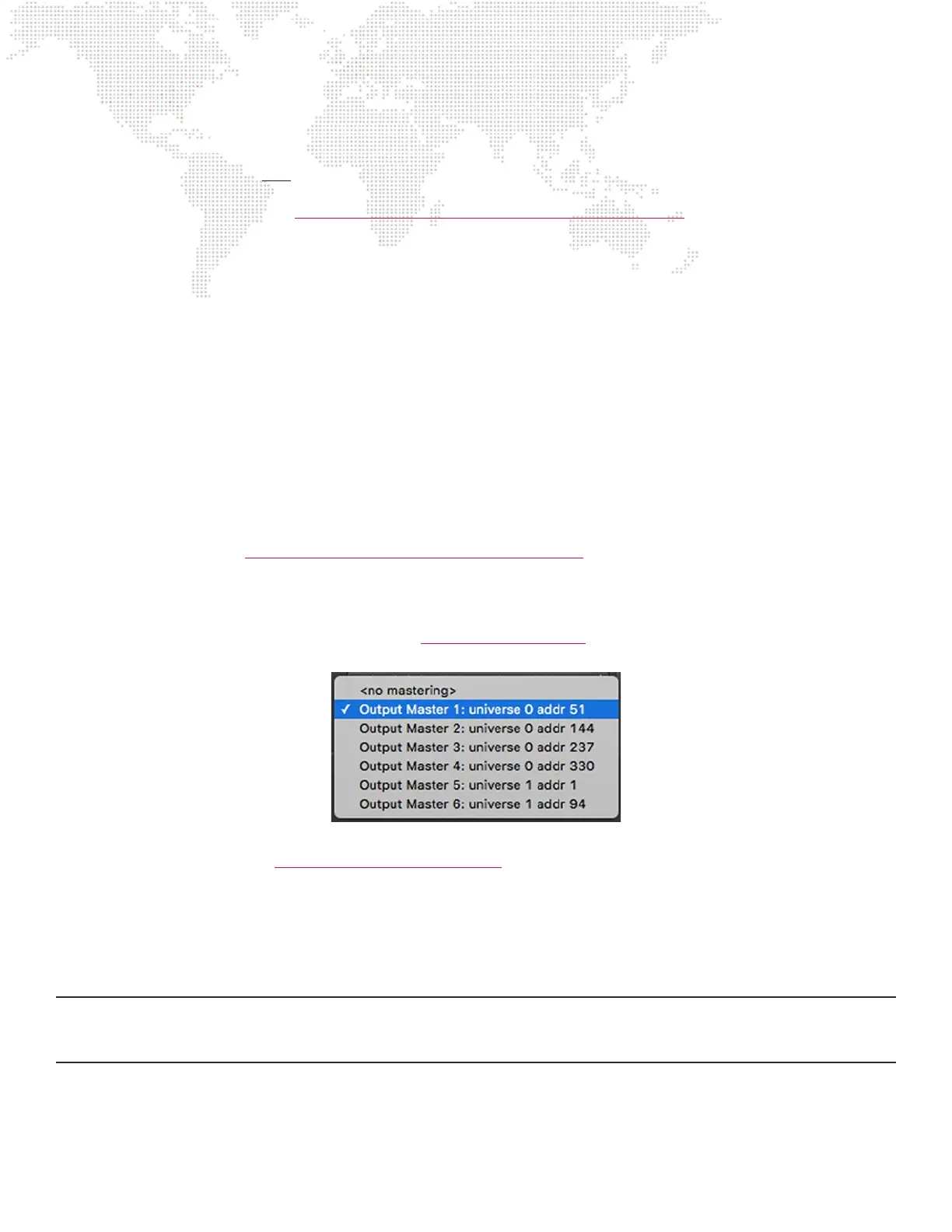
The output master assignment pop-up will show a list of the active output masters. The number of active output masters
is set on the Patch tab (refer to “Patch Tab: Control Input Setup” on page 46), and the total number of available output
masters is limited depending on the version of Mbox (Designer/Studio/Mini). Each output master has a patch universe
and address that is pre-assigned and shown beside the output master’s name in the list.
If an output master is assigned and the corresponding universe is active, the words “universe active” should appear
below the pop-up. This only denotes that Mbox is receiving the correct universe, not that the data in the universe is
correct.
CAUTION! As soon as an output has an output master assigned, it will start responding to data on the corresponding
channels of that universe. Therefore, if the control console is not sending any data (or the wrong data) the output’s visual
properties may immediately change or the output may go completely black.



 To Next Page