60
MBOX® USER MANUAL
HUDs
Mbox is able to display HUDs (Heads Up Displays) showing performance and feedback data overlaid on top of the video
outputs of the server. In previous versions of the software, HUDs were shown on every output. Mbox v4 includes the
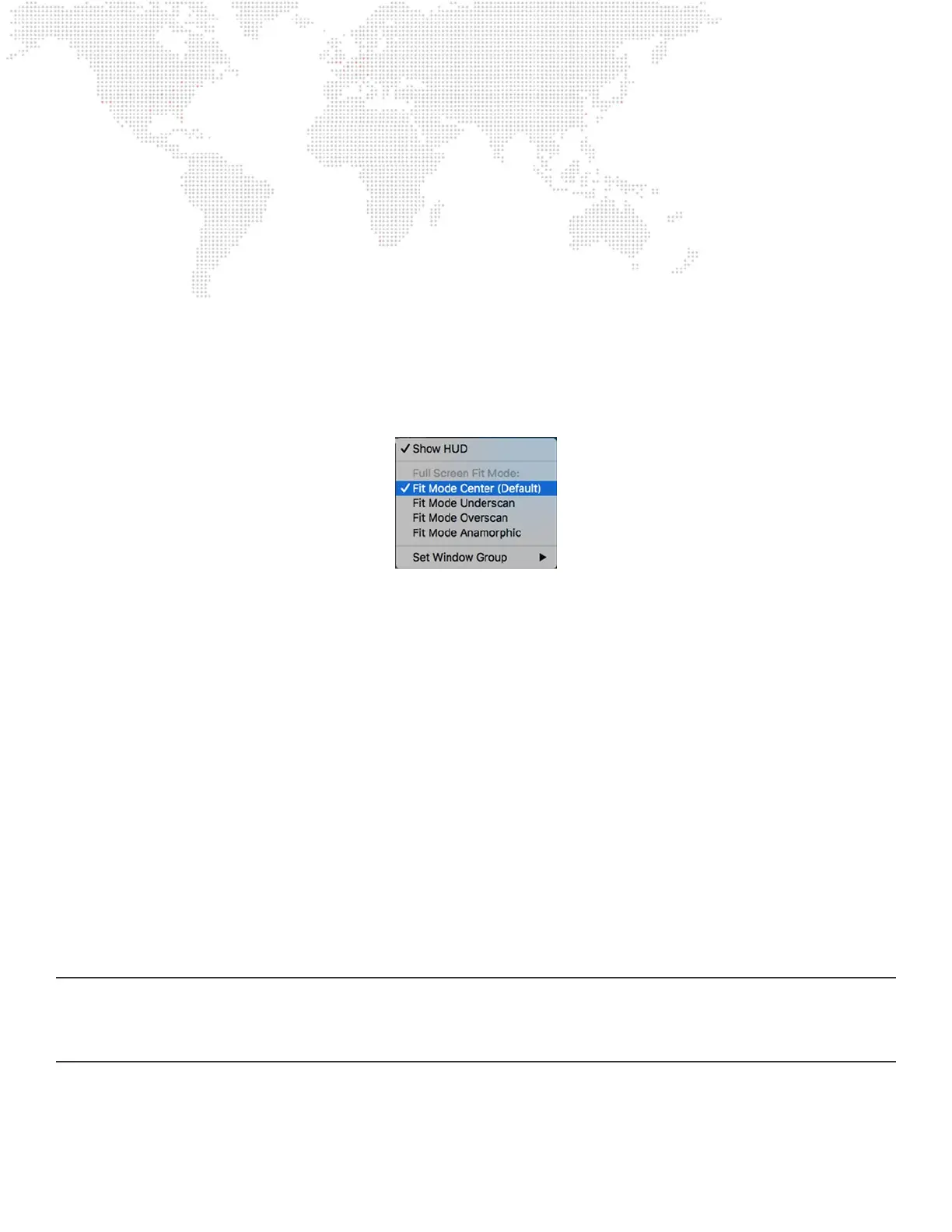
option to enable or disable HUDs for that output only. HUDs are enabled by default, to turn them off for an output, click
on the gear icon and uncheck the “Show HUD” item in the menu.
Fit Mode
When the Mbox application goes into fullscreen mode, each output that has a display assigned to it will be shown on the
corresponding display. If the output’s size is exactly the same as the display’s current resolution, then the fullscreen view
will be exactly the same as what was seen in the window. If the output’s size is different from the display’s resolution,
then the output will not look exactly the same when Mbox goes into fullscreen mode; it may over/underll the display,
either clipping the imagery or showing a black border. In most cases conguring an output be a different size to its
assigned display is not typical operation and would be undesirable. However, it may be unavoidable in some situations,
or useful for formatting previously programmed shows to t onto a differently-sized display.
Each output can have its t mode adjusted independently from other outputs. The output’s t mode affects how it’s
imagery will be scaled to t a display that is a different size. There are four modes that control the t – center (default),
underscan, overscan, and anamorphic t.
+ Center (default): the output is not scaled at all and maintains its aspect ratio. If the output is bigger than the display
then it will be clipped; if the output is smaller then it will have a black border around it.
+ Underscan: the output is scaled so that its largest dimension (width or height) matches the same dimension (width or
height) of the output. The output may show letterbox or pillarbox bars, but its aspect ratio is not affected.
+ Overscan: the output is scaled so that its smallest dimension matches the same dimension of the output. The
output may be clipped on the sides or top/bottom, but its aspect ratio is not affected.
+ Anamorphic: the output is scaled so that its width and height match the width and height of the output. The entire
output will always be visible, but the aspect ratio may be affected.
Window Group
Window groups are used to organize Mbox’s output windows when the application is in Window mode only. Output
windows that belong to the same window group will automatically be arranged with appropriate spacing - in respect to
each other - based on their actual spacing on the global surface and will move together if one of the group is moved. All
output windows default to window group 1 when they are created, but can be assigned to groups 2 – 8 instead, or have
no window group assigned.
CAUTION! Mbox Studio and Mini have limits on the total pixel count for outputs. Mini supports up to 4.6 millions pixels
(2x 1920x1200). Studio supports up to 8.85 million pixels (4096 x 2160). If the output pixel limit is reached, any outputs
using pixels beyond the limit will be disabled and a warning “Total Output Resolution Exceeded” will be shown on the
Outputs and Mixes tabs.



 To Next Page