88
MBOX® USER MANUAL
Step 8. Before saving the gobo le, consider where the center of the le should be. The center of a digital gobo will
be placed in the center of the Mbox window and the gobo will rotate around that center point. The rotational
center of the gobo will default to the center of the artboard. In some cases it may be possible to adjust the
size of the artboard to change the center of the gobo.
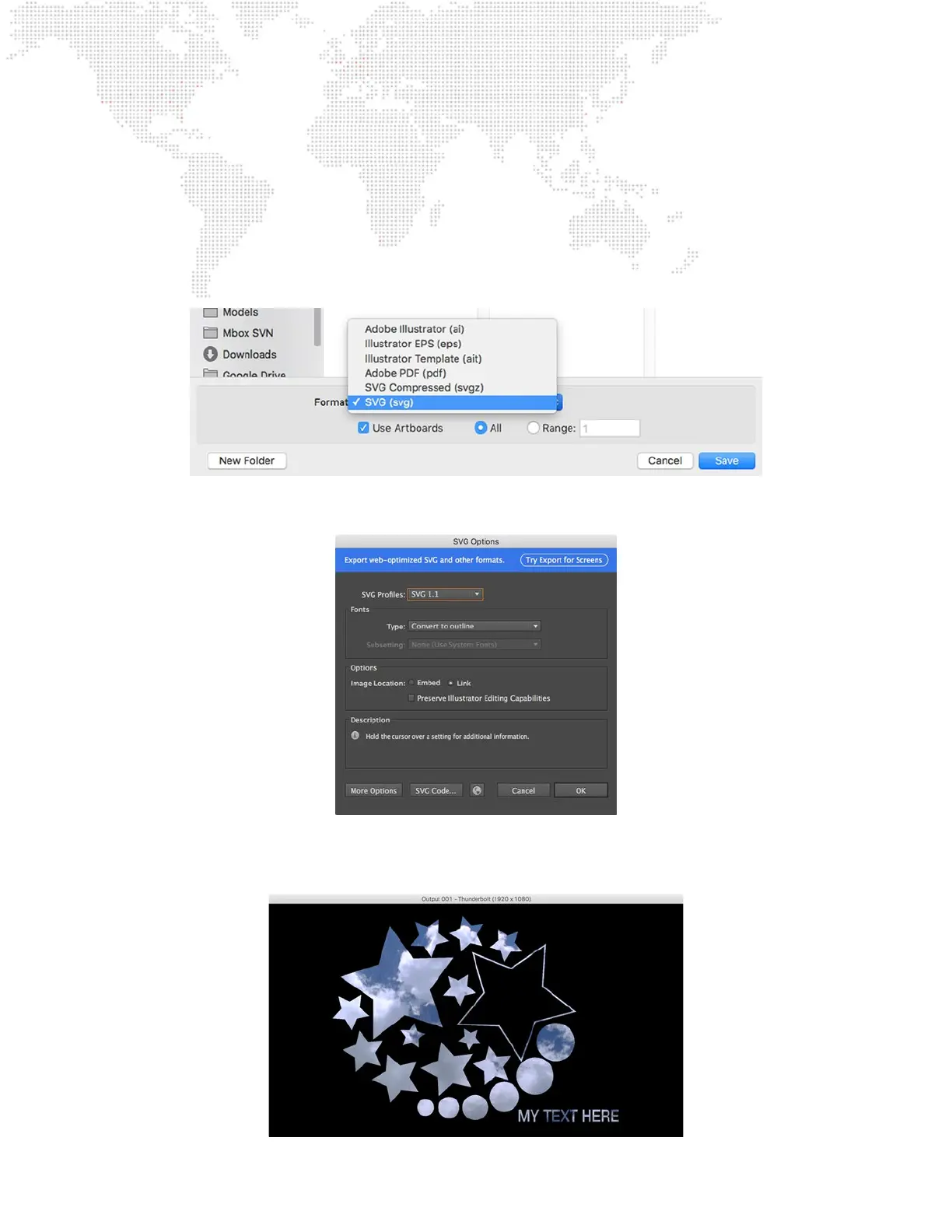
Step 9. Save le, choosing the SVG format, and making sure that the “Use Artboards” option is checked. If the
Illustrator only has one artboard (recommended) then the radio button labeled “All” can be selected.
Otherwise, the “Range” button should be selected, and a single artboard’s number entered in the eld to the
right of the button.
Step 10. Selecting the SVG le type will prompt a secondary pop-up window to set options when saving the le.
When saving as an SVG le, the default values should be OK.
Step 11. After creating an digital gobo, changing the gobo’s le extension from .svg to .svge will allow Mbox Daemon
to generate thumbnails of the SVG le.



 To Next Page