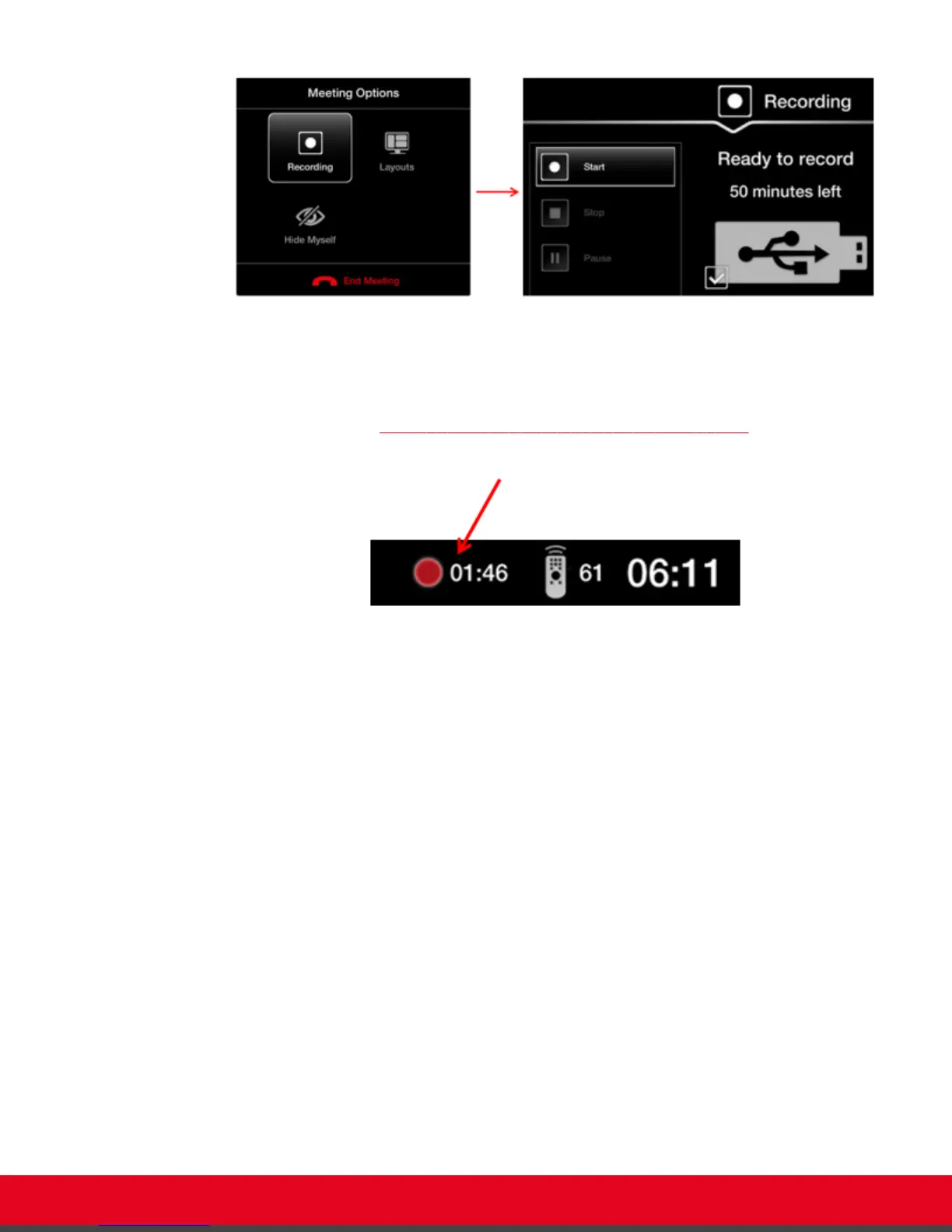
Figure 32: Starting a recording
2. Start your recording by selecting Start from the menu on the left.
The recording icon appears at the top of the endpoint interface, next to the remaining time
available for the recording. In the web interface, the remaining time appears at the bottom of
the recording page (Figure 35: Viewing a Recording from the Web Interface on page 51).
Figure 33: Recording icon and time remaining on this USB drive
3. To pause the recording during a videoconference, select Pause from the Recording menu.
4. To stop the recording during a videoconference, select Stop from the Recording menu.
If you started the recording at any time after the videoconference started, the recording
automatically stops when the videoconference ends. Otherwise, stop the recording by
selecting Stop.
User Guide for Scopia XT5000 Series Version 3.2 During Your Videoconference | 49



 To Next Page