Alternatively, you can manually start presenting content (for details, see Sharing Content during a Call
on page 68 and Sharing Content in the Local Conference Room on page 67).
Procedure
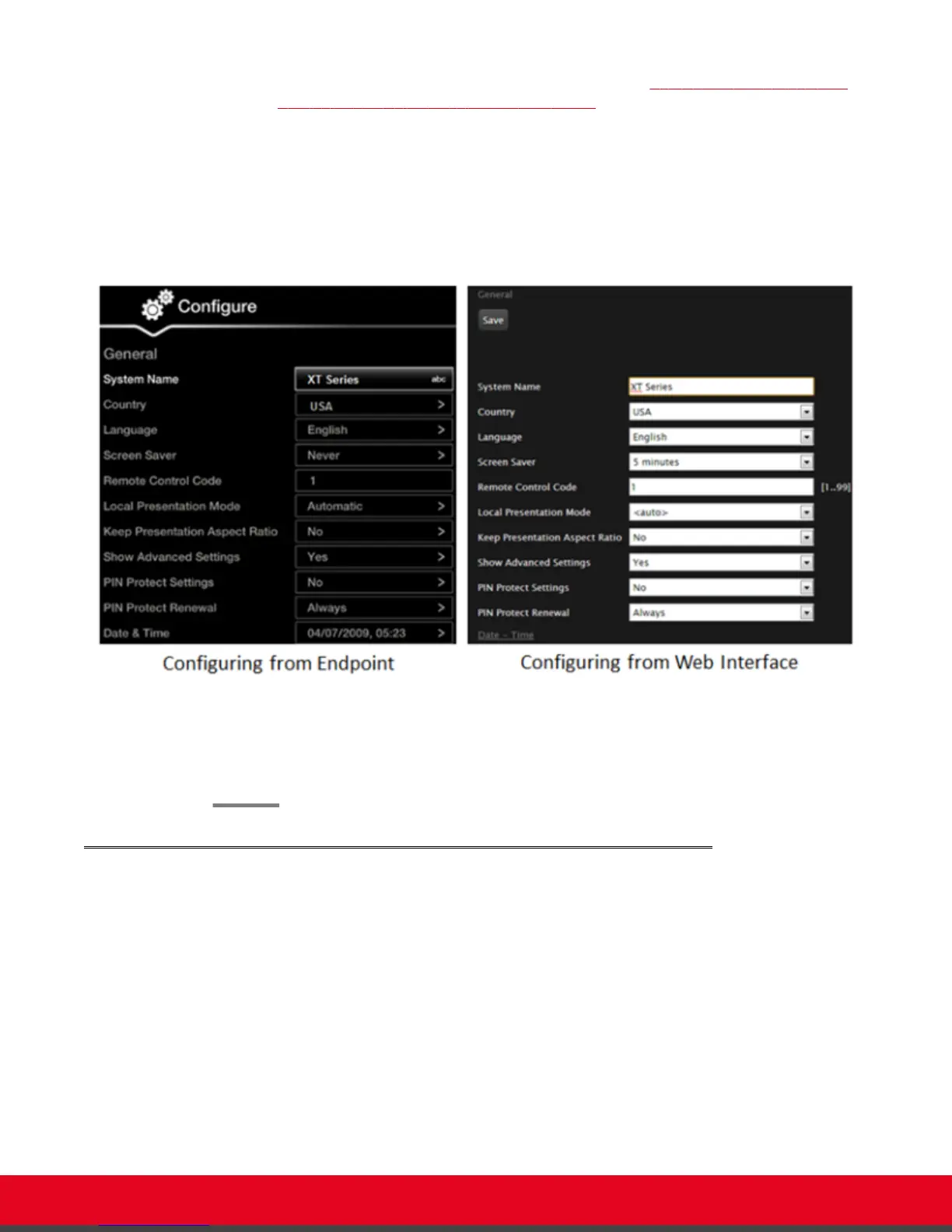
1. Access the general settings, as follows:
•
From the web interface, select Basic Settings.
•
From the endpoint's Main menu, select Configure > General.
Figure 49: General settings
2. Select Auto from the Local presentation mode list.
3. From the web interface only, select Save.
Sharing Content in the Local Conference Room
About this task
You can share the content of your computer screen with other participants in the local conference room
when the Scopia XT Series is not in a call. This mode is called local presentation. When in the local
presentation mode, the XT Series:
•
Does not automatically accept incoming calls.
•
When you have an incoming call, local presentation mode is suspended and you are asked how to
handle the call (accept/reject/do not disturb).
User Guide for Scopia XT5000 Series Version 3.2 During Your Videoconference | 67



 To Next Page