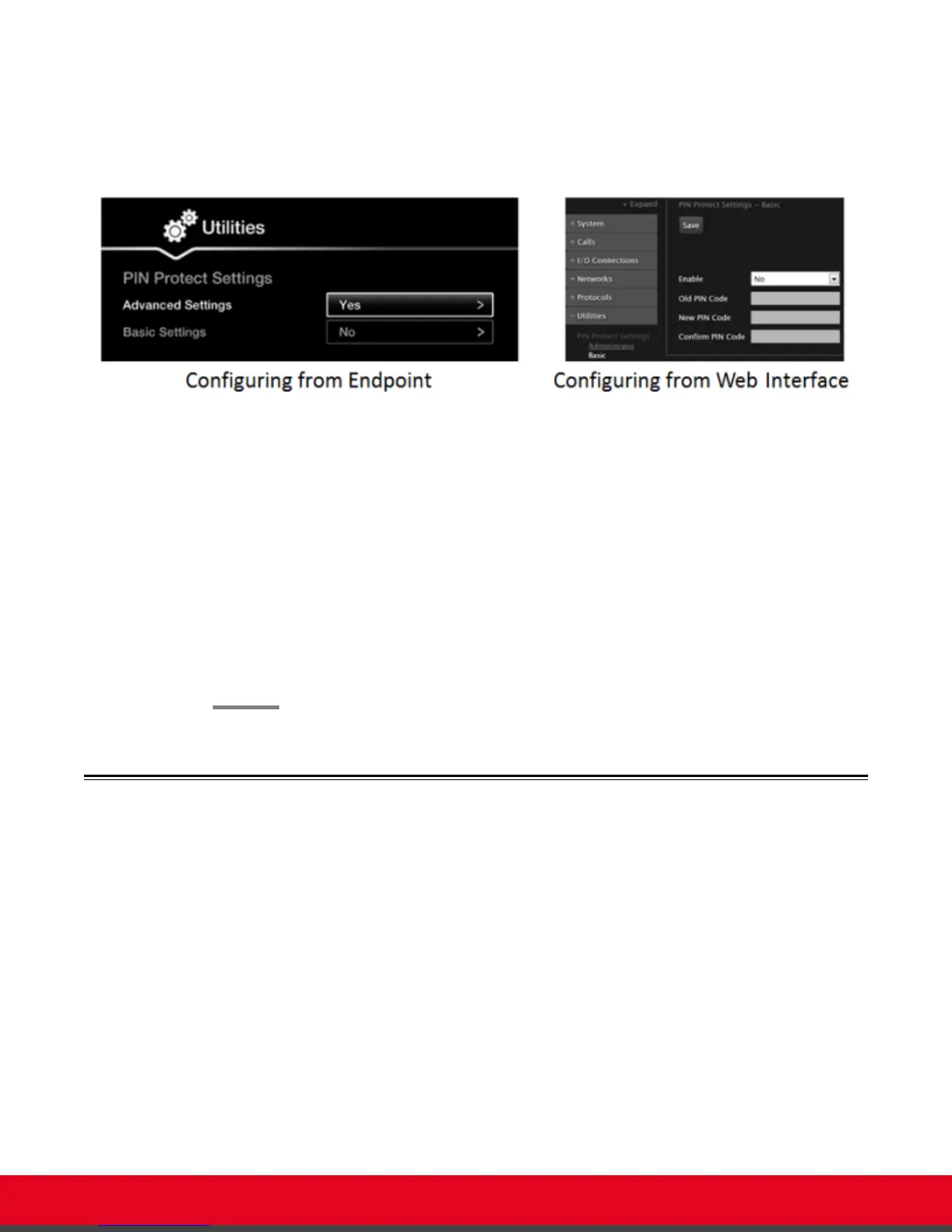
You need to enter the PIN required to access the Advanced settings. The default PIN
is 1234.
•
From the XT Series web interface, select Administrator Settings > Utilities > PIN
Protect Settings > Basic.
Figure 63: Modifying the user PIN
2. Set Enable to Yes.
3. If you previously set a user PIN, enter it in the Old PIN Code field.
4. Enter your new 4 digit PIN code.
From the web interface only, re-enter your new PIN in the Confirm PIN Code field.
5. Save your changes as follows:
•
From the endpoint, select Done.
•
From the web interface, select Save.
Use this new PIN the next time you are required access basic settings.
Setting Call Answering Preferences
About this task
This procedure describes how to define your preferences when receiving calls. By default, the endpoint
never answers calls automatically. You can configure the system to, for example, always automatically
answer calls when you are available. If you enable automatic answering, you can define the number of
rings until the system automatically answers the call.
You can do this procedure from the endpoint itself or from the XT Series web interface.
Procedure
1. Access the call settings, as follows:
•
From the XT Series web interface, select Basic Settings > Call-Answer Mode >
General.
User Guide for Scopia XT5000 Series Version 3.2 Customizing Your User Experience | 82



 To Next Page