Resolving Problems with PC Presentations
Problem
I cannot send a presentation from my PC.
Solution
Make sure the VGA/DVI cable is properly connected between the PC and the XT Codec Unit,
as described in Connecting a Computer to the Scopia XT Series on page 63.
Solution
Make sure the resolution of the PC output is supported by the XT Codec Unit (see
Selecting
the Computer Display Resolution on page 65).
Resolving XT Remote Control Unit Problems
Problem
The XT Remote Control Unit does not function.
Solution
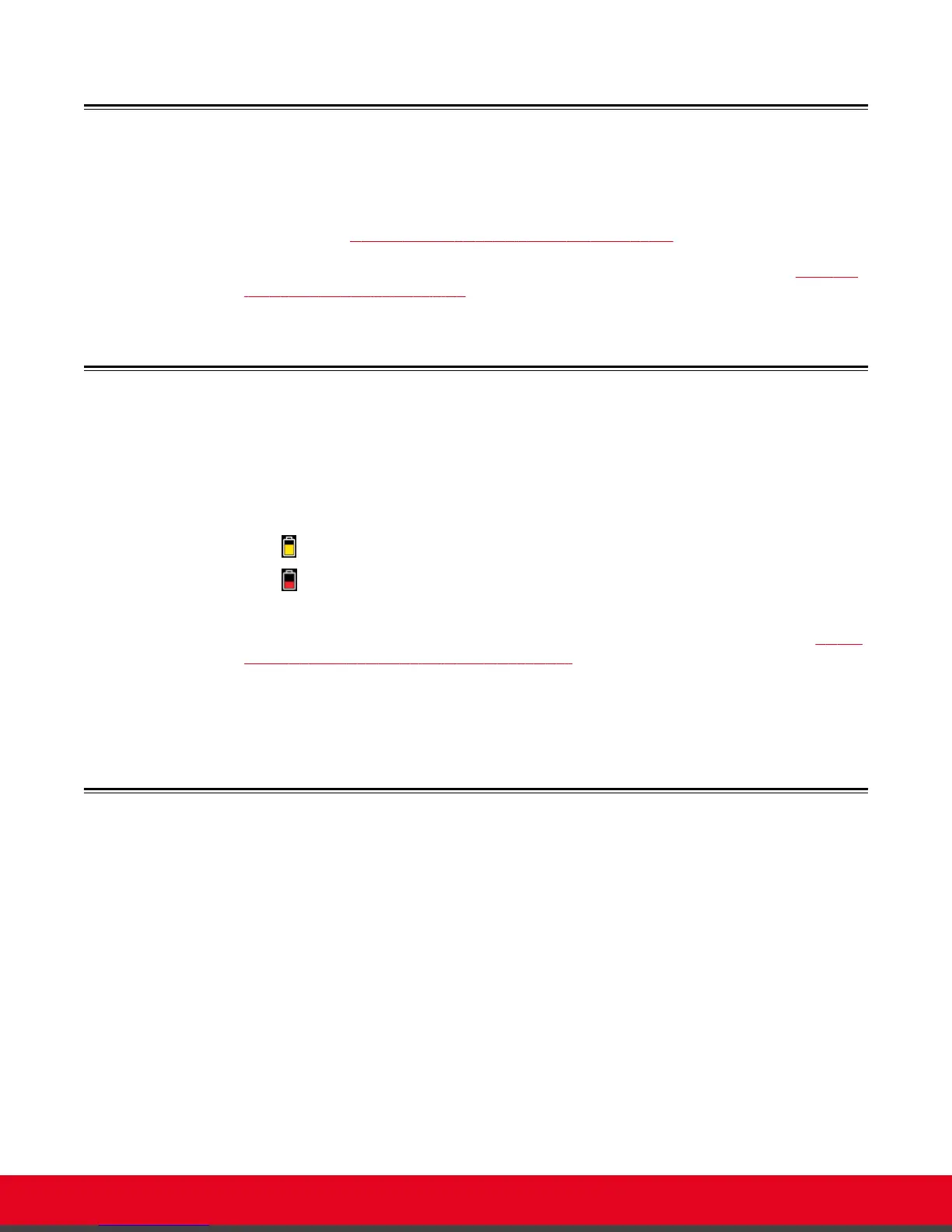
Replace the battery, as described in Scopia XT Series Installation Guide. When the XT
Remote Control Unit's battery power is low, an icon appears in the system menus letting you
know that you should replace the battery:
•
Half-charged Battery
•
Low Battery
Solution
If the battery power is not low, configure the XT Remote Control Unit code on the XT Codec
Unit to the same number that it is set on the XT Remote Control Unit, as described in Pairing
an XT Remote Control Unit with a XT Codec Unit on page 20).
Solution
If you still experience problems, reconfigure the XT Remote Control Unit code to be a
number between 01-04, inclusive.
Restoring Default User Settings
About this task
This procedure explains how to restore the default settings if necessary. You can do this from the
endpoint itself only.
Before you begin
•
Turn on the Scopia XT Series unit.
•
Verify that you have the four-digit PIN code required to make changes to the system settings. The
default PIN code is 1234.
User Guide for Scopia XT5000 Series Version 3.2 Troubleshooting the Scopia XT Series | 92



 To Next Page