•
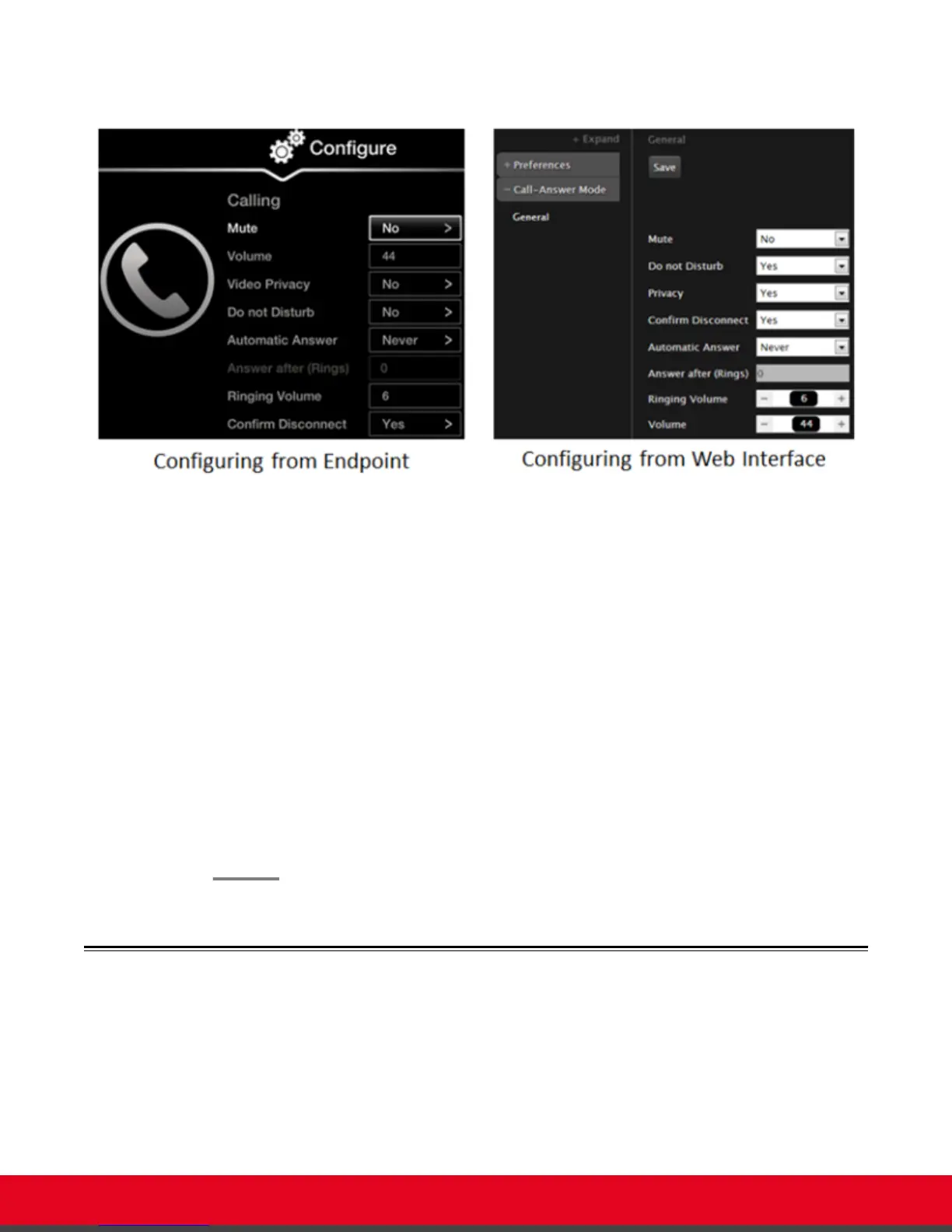
From the endpoint's main menu, select Configure > Calling.
Figure 64: Calling preferences
2. Select the required option from the Automatic answer list:
•
Yes always: Enables automatic answer to an incoming call. The system will not prompt
you to accept a call if the display shows the Home page.
•
Never: Disables automatic answer to an incoming call. The system will always prompt
you to accept a call.
•
Yes if not in a call (available only for XT Series with a built-in MCU): Enables
automatic answer only if the system is not in a call. If the system is in a call, it displays a
notification about another incoming call, allowing you to accept it. When you are already
in a call and accept an incoming call, the built-in MCU is activated, adding the caller to
a videoconference.
3. (Optional) Enter the number of rings in the Answer after (Rings) list to specify after how
many rings the system accepts a call. This option is relevant only if automatic answering is
enabled.
4. From the web interface only, select Save.
Confirming Call Disconnections
About this task
To prevent accidental disconnection from a call, you can configure the system to confirm before a call is
disconnected. By default, calls are disconnected when a participant ends the call, without requiring a
confirmation.
User Guide for Scopia XT5000 Series Version 3.2 Customizing Your User Experience | 83



 To Next Page