Answering and Ending a Video Call
You can answer calls manually or set the system to answering the call automatically:
•
If you set your system to automatic answering, the endpoint answers after the predefined number
of rings (see Setting Call Answering Preferences on page 82 for details).
•
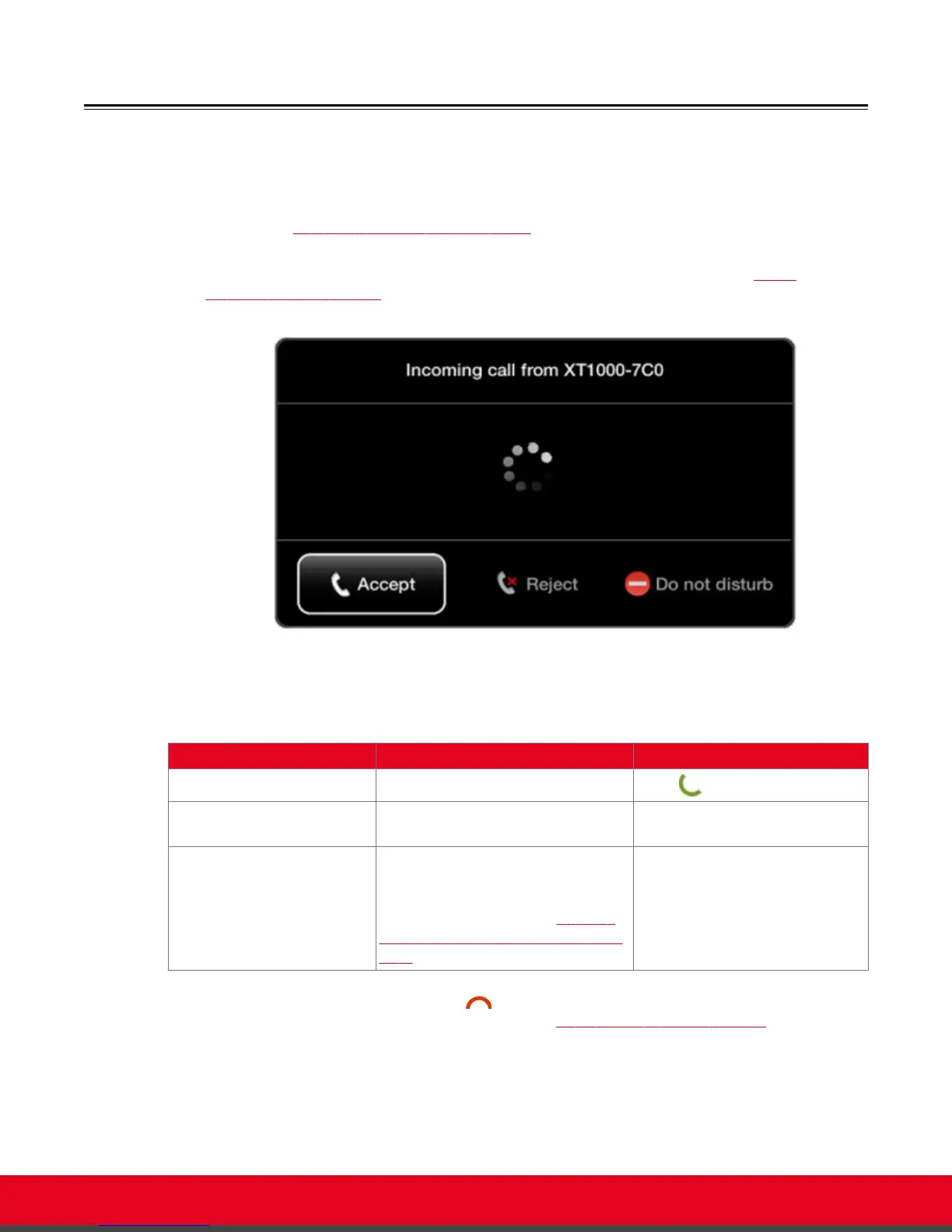
If you set your system to manual answering, you can either accept or reject the incoming call.
When there is an incoming call, the system displays a window with these options (Figure
28: Answering a video call on page 43):
Figure 28: Answering a video call
Table 6: Accepting and rejecting calls using XT Remote Control Unit
Action Description Using XT Remote Control Unit
Accept Select to answer the call.
Press or ok/menu.
Reject Select to reject the call. Press the right arrow key and
ok/menu.
Do not disturb Select to reject the call and set the
system to automatically reject all
future incoming calls without prompt.
For more information, see Enabling
Do Not Disturb to Block All Incoming
Calls on page 84.
Press the right arrow key twice
and ok/menu.
Disconnect the call by pressing Disconnect on the XT Remote Control Unit. If your system is set to
Confirm disconnection, select ok/menu to confirm (see Confirming Call Disconnections on page 83
for details).
If your system administrator defined a time limit for videoconferences, a message appears when the limit
is reached, and you can select one of the following:
User Guide for Scopia XT5000 Series Version 3.2 Starting a Videoconference | 43



 To Next Page