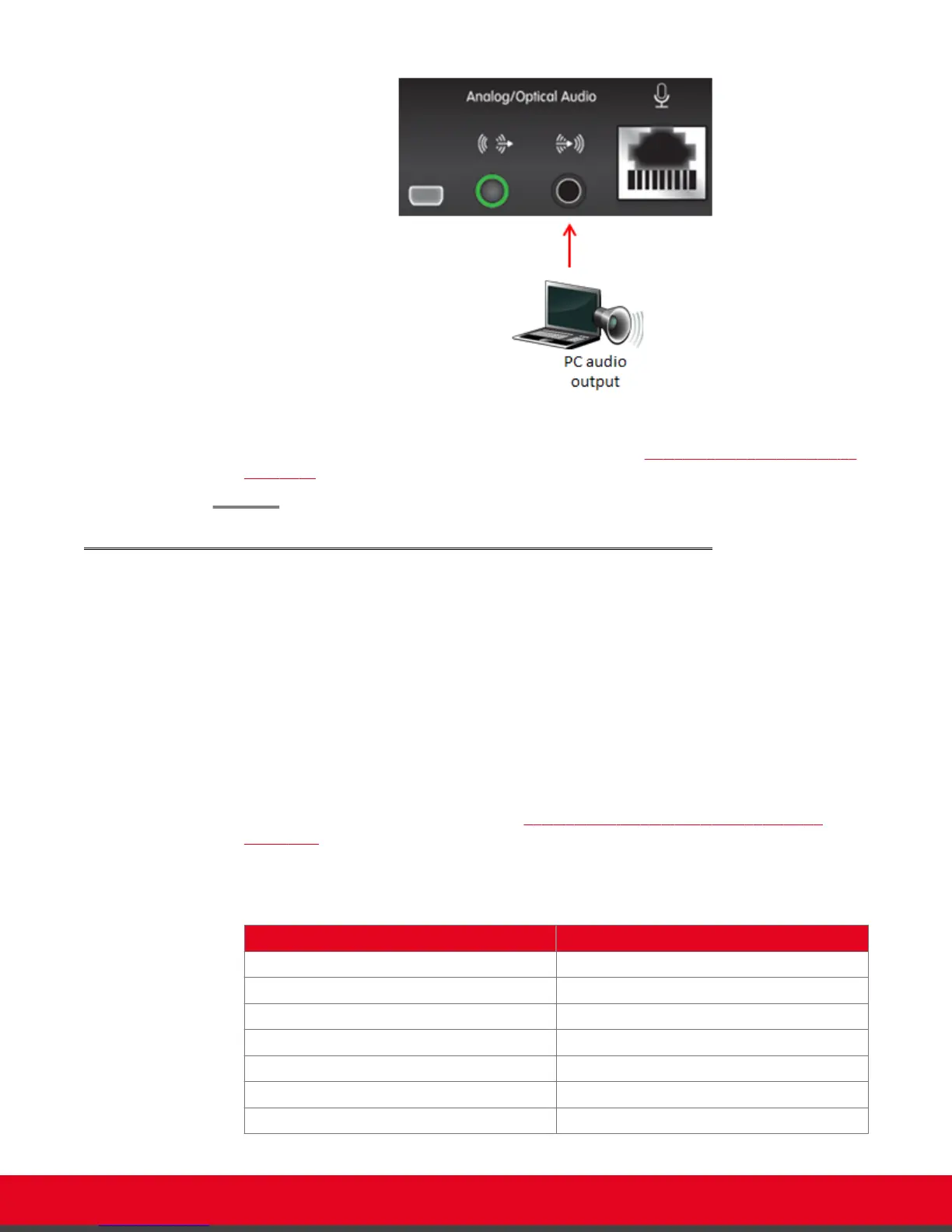
Figure 48: Connecting the computer's audio to the XT Codec Unit
3. Continue with setting the display resolution, as described in Selecting the Computer Display
Resolution on page 65.
Selecting the Computer Display Resolution
About this task
For optimal display quality, and to prevent the screen from flickering during the videoconference, set the
computer display to one of the supported picture resolutions and refresh frequencies. This procedure
assumes computers running Microsoft Windows.
Procedure
1. From the Windows Control Panel, navigate to the screen resolution settings.
2. Select the desired screen resolution. See
Table 11: DVI input formats supported by XT
Codec Unit on page 65 for the list of resolutions supported by the XT Codec Unit.
Table 11: DVI input formats supported by XT Codec Unit
Name Resolution
1080p 1920x1080
SXGA 1280x1024
HD+ (900p) 1600x900
WSGA 1440x900
UVGA 1280x960
WXGA 1280x768/ 1280x800
720p 1280x720
User Guide for Scopia XT5000 Series Version 3.2 During Your Videoconference | 65



 To Next Page