Starting a Recording
About this task
You can record videoconferences and store them to a connected USB storage device. This section
describes how to start, pause, and stop a recording during a videoconference. This may require a
license, depending on your model. For more information, see Installation Guide for Scopia XT Series.
You can do this procedure from the endpoint itself or from the XT Series web interface.
You can play the recordings using any standard media player. The system saves the file as an MP4, and
records the video in H.264 format and audio in AAC-LC format.
You cannot record videoconferences when encryption is enabled. For more information, see
Administrator Guide for Scopia XT Series or contact your administrator. When recording a
videoconference on a system with an embedded MCU, you can include up to 6 remote endpoints. The
Scopia XT Series SMB Edition edition can include up to 5 remote endpoints.
You cannot (at present) record to a network disk, or to Scopia Desktop's Recording Server. This is
planned for future versions.
Before you begin
•
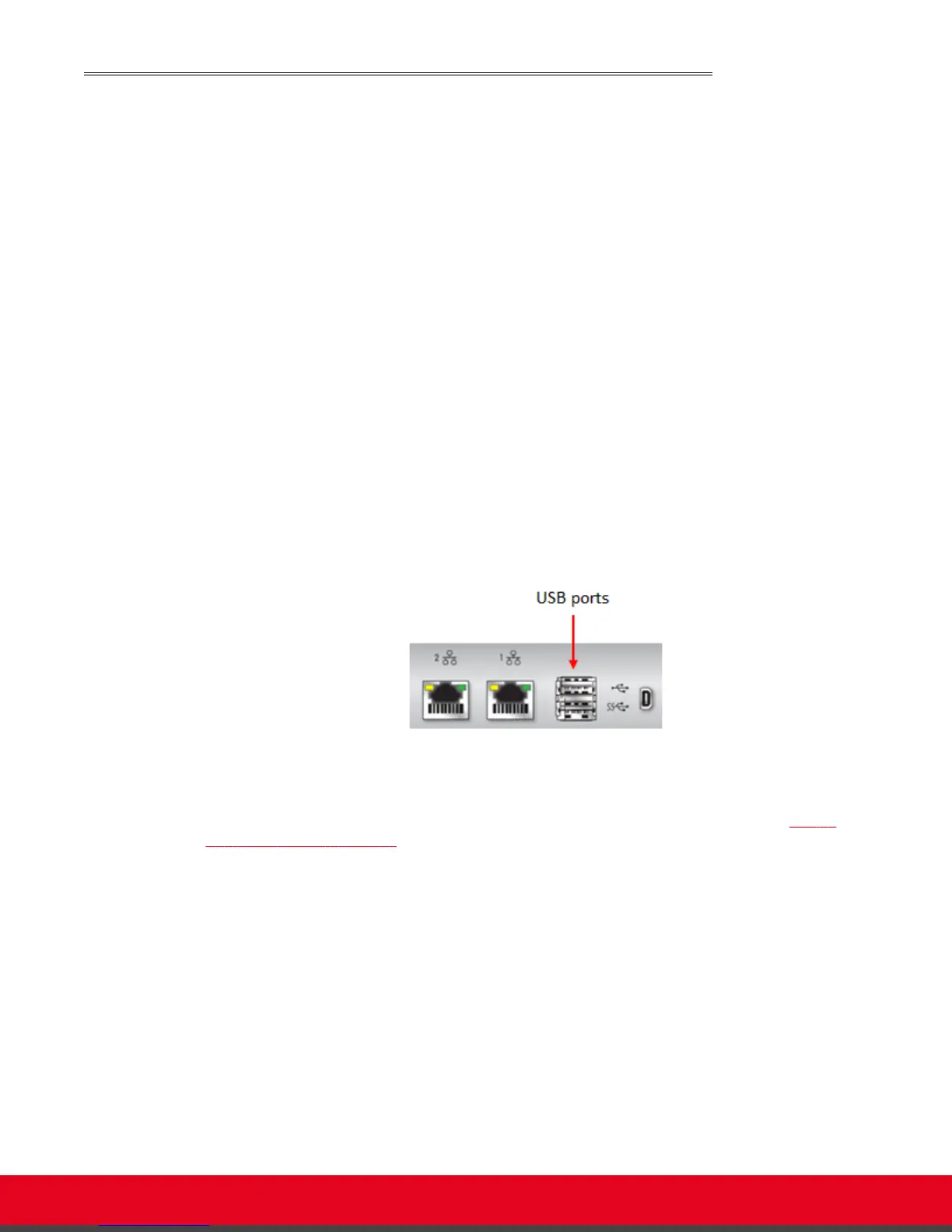
Insert a USB storage device (either an external hard drive or a USB key) into any of the USB ports
of the XT Series:
Figure 31: Connecting a USB drive to the XT Series
You cannot start the recording before connecting a USB storage device.
•
(Optional) Customize your recording settings, such as video resolution, as described in Setting
Your Recording Preferences on page 45. For example, to increase the recording time allowed,
lower the recording bitrate.
You can see how much recording time is available on your USB storage device when you access
the Recording menu as described in the procedure below.
Procedure
1. Access the Recording menu as follows:
•
From the XT Series web interface, select More Actions > Recording.
•
From the endpoint's main menu, select Recording.
During a videoconference, press ok/menu on the XT Remote Control Unit, and select
Meeting Options > Recording.
The Recording menu appears, indicating the amount of time you can record based on the
available space on your USB storage device.
User Guide for Scopia XT5000 Series Version 3.2 During Your Videoconference | 48



 To Next Page