Moderating a Hosted Videoconference
About this task
When you host your videoconference using the Scopia XT Series's built-in MCU, you are the moderator
of conferences hosted on this XT Series. This procedure describes how to invite and manage the
participants in the videoconference. You can do this procedure from the endpoint itself or from the XT
Series web interface. You can also change the layout, as described in Changing the Video Layout from
the Scopia XT Series MCU Edition on page 73.
Alternatively, to moderate a videoconference hosted by another Scopia XT Series, see Moderating a
Videoconference Hosted by Another Scopia XT Series on page 77.
Before you begin
Start the videoconference and invite participants as described in Starting a Locally Hosted
Videoconference on page 71.
Procedure
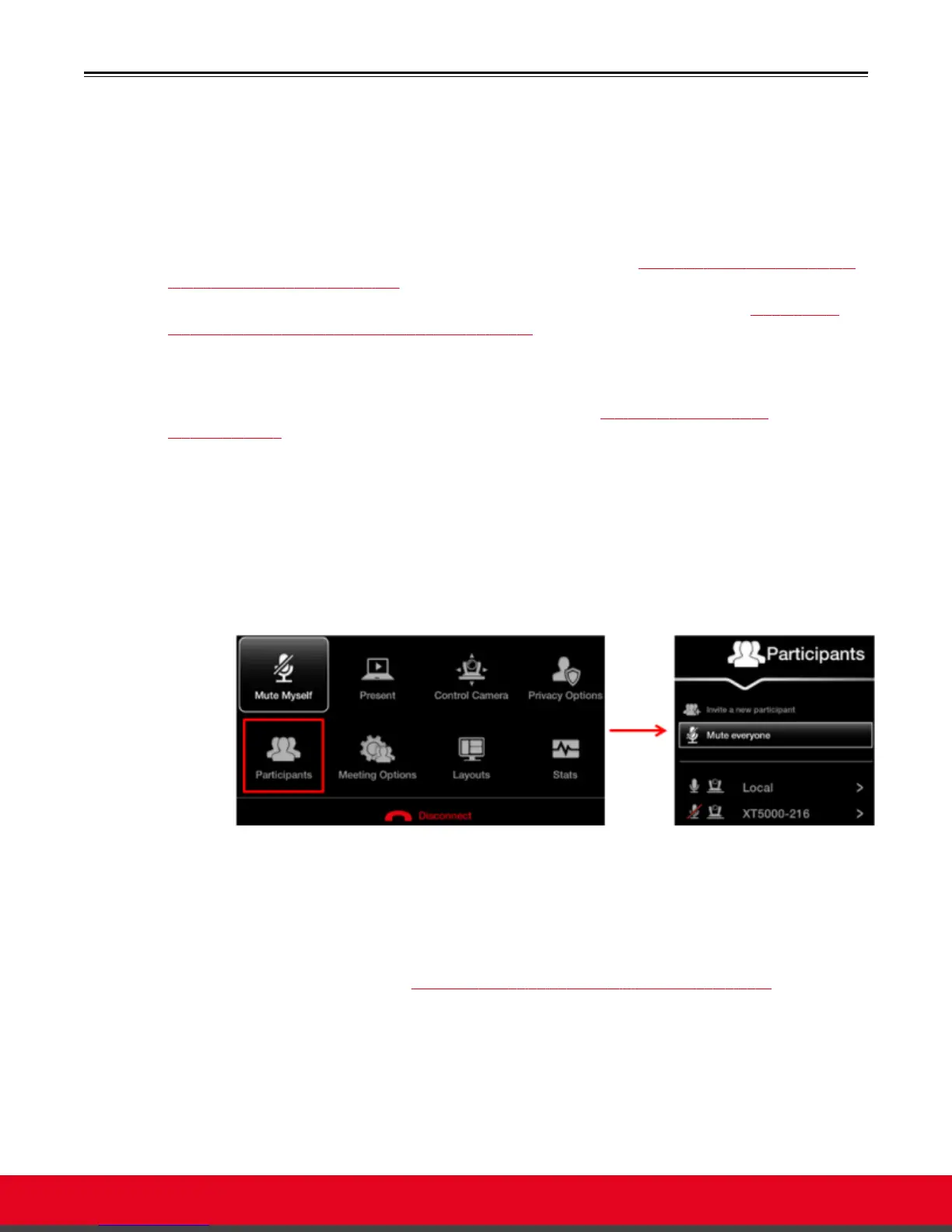
1. Access the active videoconference:
•
From the XT Series web interface, select Make your call > Meeting Call.
•
From the endpoint, press ok/menu to access the videoconference menu, and select
Participants.
Figure 56: Moderating a hosted videoconference
2. You can moderate the videoconference as follows:
a. To mute all participants, select Mute everyone. This is typically used to eliminate
background noise from participants.
b. To manage a specific endpoint, select it from the list of endpoints and choose from the
options described in Table 14: Managing endpoints in the videoconference on page
77. To manage your own endpoint, select Local.
User Guide for Scopia XT5000 Series Version 3.2 Hosting Videoconferences with the Built-in MCU | 76



 To Next Page