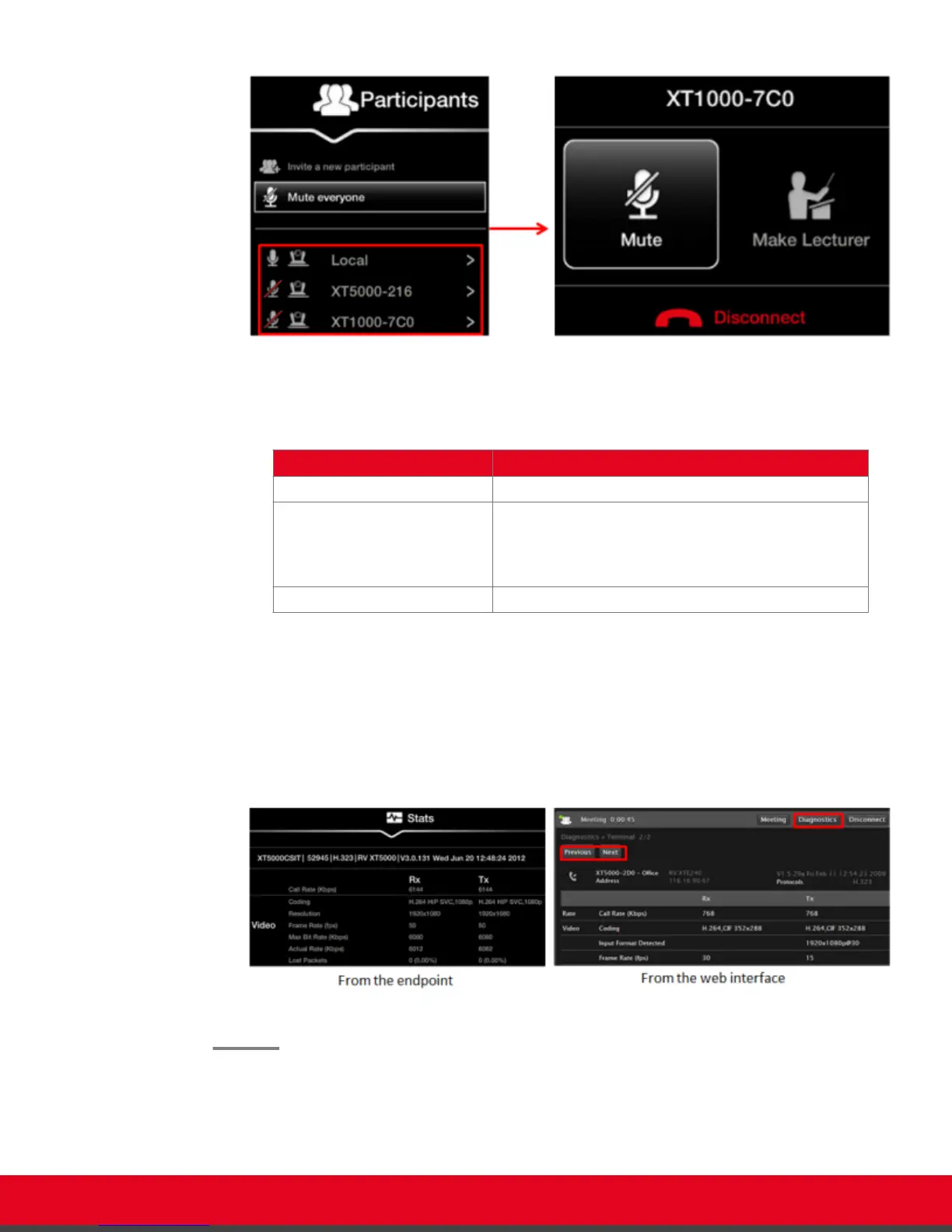
Figure 57: Managing participants
Table 14: Managing endpoints in the videoconference
Field Description
Mute Select to mute the selected endpoint.
Make Lecturer Select to assign the participant as the lecturer. All
participants in the videoconference can see the
lecturer's video in the main part of the screen, while a
smaller image shows the most recent active speaker.
Disconnect Select to disconnect the selected endpoint.
c. To view detailed information about an endpoint in the videoconference, such as it's
name, dialing number and call rate:
•
From the XT Series web interface, select Diagnostics. Select Previous or Next to
scroll through the endpoints.
•
From the endpoint, press ok/menu to access the videoconference menu, and
select Stats. Use the arrow keys on your XT Remote Control Unit to scroll through
the endpoints.
Figure 58: Viewing the remote endpoint's information
User Guide for Scopia XT5000 Series Version 3.2 Hosting Videoconferences with the Built-in MCU | 77



 To Next Page