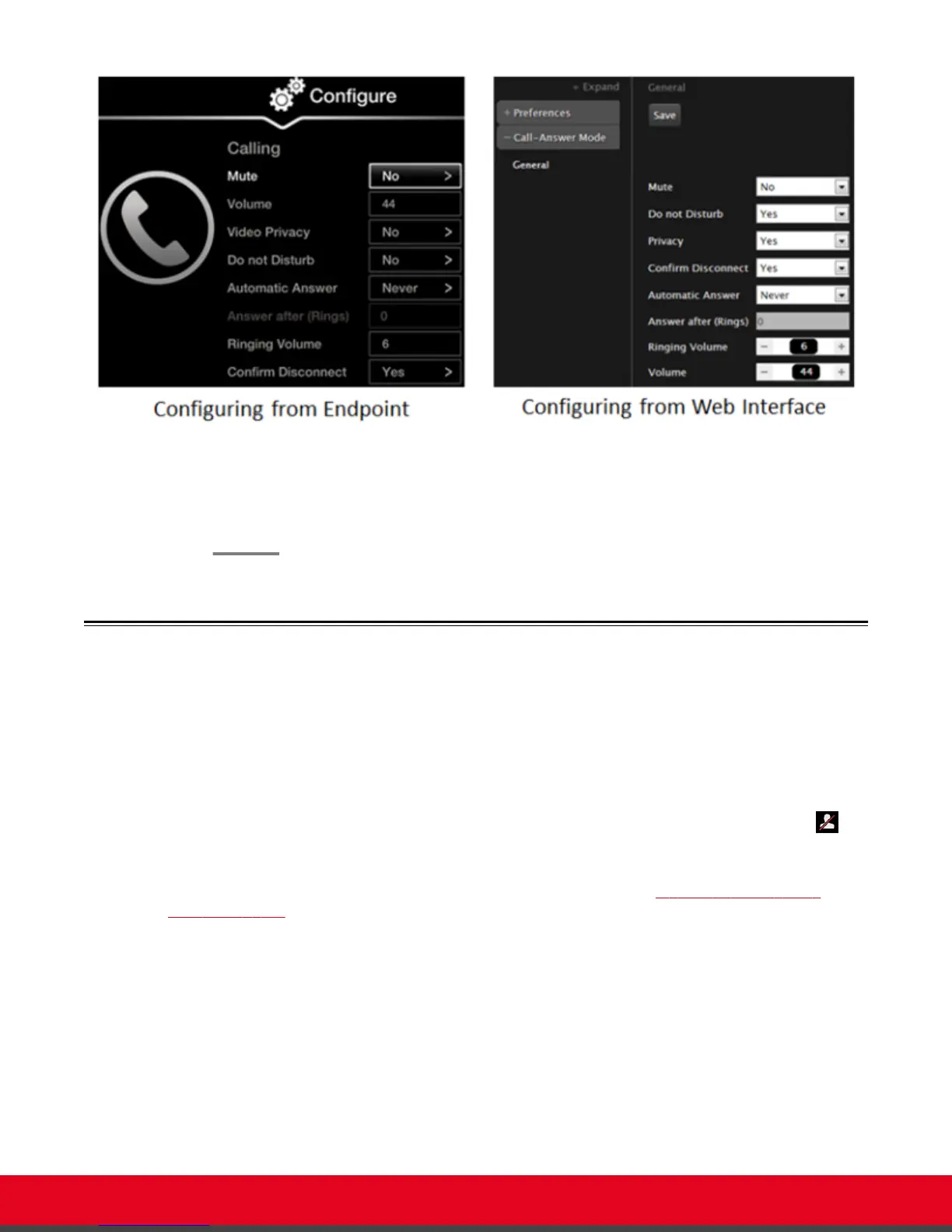
Figure 67: Calling preferences
2. Set Do Not Disturb to Yes.
3. From the web interface only, select Save.
Blocking Video Input by Default
About this task
You can configure the Scopia XT Series to transmit audio only by default at the start of each call. You
can do this, for example, to ensure privacy. You can do this procedure from the endpoint itself or from
the XT Series web interface.
When configured in this way, the system sends a pre-defined image to the remote endpoint. The
icon appears on your display, indicating that the remote endpoint no longer receives video from your
local endpoint.
Alternatively, you can block video manually during a call, as described in Blocking Video From the
Scopia XT Series on page 51.
Procedure
1. Access the call settings, as follows:
•
From the XT Series web interface, select Basic Settings > Call-Answer Mode >
General.
•
From the endpoint's main menu, select Configure > Calling.
User Guide for Scopia XT5000 Series Version 3.2 Customizing Your User Experience | 86



 To Next Page