All participants in the videoconference can see the lecturer's video in the main part of
the screen, while a smaller image shows the most recent active speaker.
•
Select Disconnect to disconnect the endpoint.
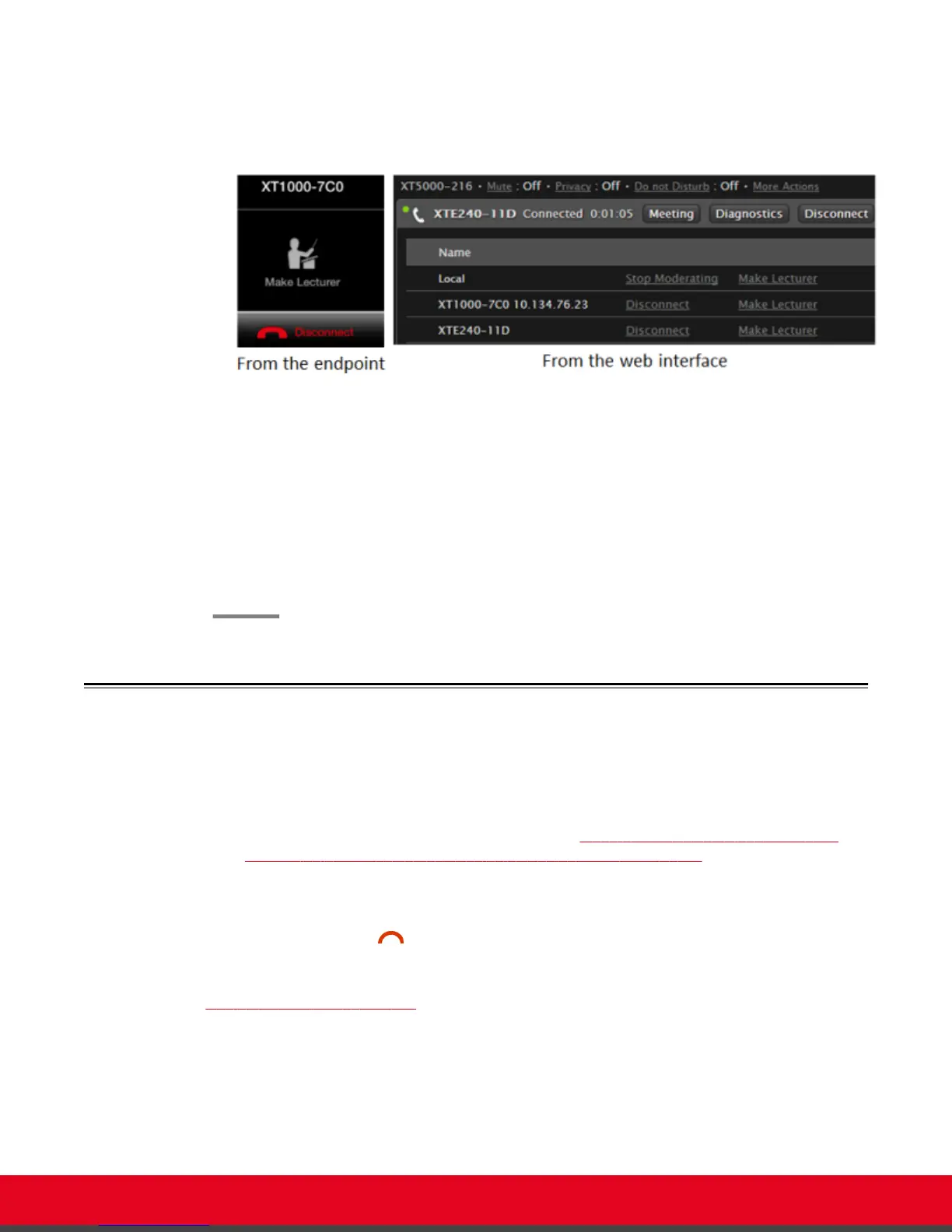
Figure 60: Managing the meeting
5. To stop moderating this meeting:
•
From the endpoint, press ok/menu and select Participants > Stop Moderating.
•
From the XT Series web interface, select Stop Moderating in the participants list, next
to Local.
--Or--
To end the videoconference, access the videoconference menu, and select Disconnect >
End Meeting.
Ending a Videoconference
About this task
If you are hosting a conference, you can end the meeting and disconnect all endpoints in the
videoconference. To disconnect a specific endpoint only, see Moderating a Hosted Videoconference on
page 75 or Moderating a Videoconference Hosted by Another Scopia XT Series on page 77.
Disconnect the videoconference in one of the following ways:
•
From the XT Series web interface, select Disconnect.
•
From the endpoint, press on the XT Remote Control Unit, or select Disconnect > End
Meeting in the videoconference menu.
If your system is set to Confirm disconnection, press ok/menu to confirm (for details, see
Confirming Call Disconnections on page 83).
User Guide for Scopia XT5000 Series Version 3.2 Hosting Videoconferences with the Built-in MCU | 79



 To Next Page