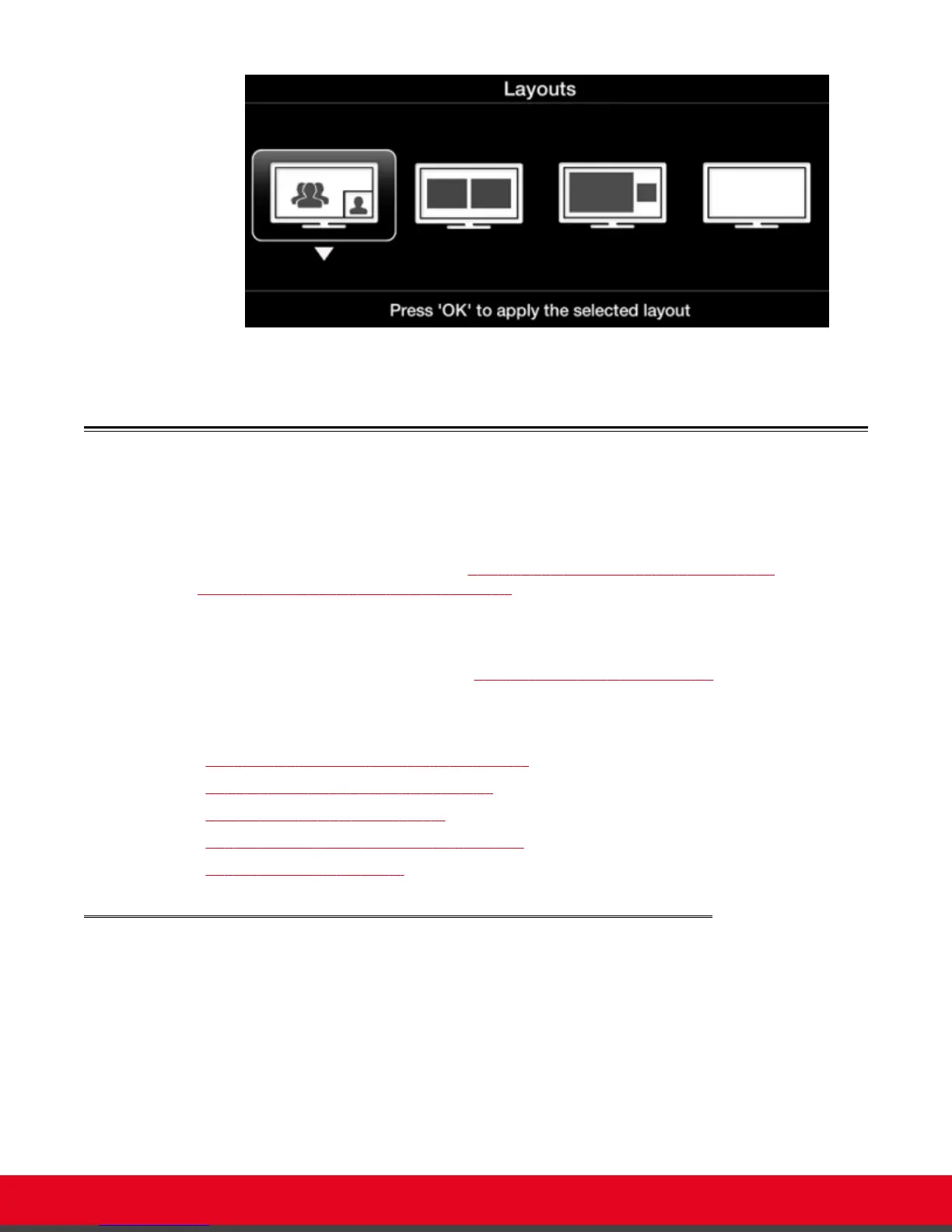
Figure 46: Available video layouts in a call
Sharing Content
This section details how to share a presentation or any other file from a PC.
Typically, a conference room can have one or two monitors. Depending on the conference room
configuration, the presentation is shown either on the same monitor as the live remote video or on the
monitor of its own. For more information see Selecting your Video Layout with One Monitor on page 56
and Selecting your Video Layout with Two Monitors on page 58.
You can share content in your local conference room only or with all conference rooms and endpoints
participating in a call. Local presentation mode is an Scopia XT Series feature that allows to easily
connect a PC laptop to the DVI connector of the XT Codec Unit and immediately display a presentation
or any other PC content on the monitors (see Start Sharing Content Automatically on page 66 for
details).
Navigation
•
Connecting a Computer to the Scopia XT Series on page 63
•
Selecting the Computer Display Resolution on page 65
•
Start Sharing Content Automatically on page 66
•
Sharing Content in the Local Conference Room on page 67
•
Sharing Content during a Call on page 68
Connecting a Computer to the Scopia XT Series
About this task
Use a computer to share a presentation or other PC content during a call. This procedure describes how
to connect computers that are equipped with a DVI-out or VGA-out connector.
Procedure
1. Connect your computer to the XT Codec Unit:
User Guide for Scopia XT5000 Series Version 3.2 During Your Videoconference | 63



 To Next Page