Hardware Installation
PixelStor 5000 User Manual
Rev. 1, May 2013
4.3.1 Change Storage System Password
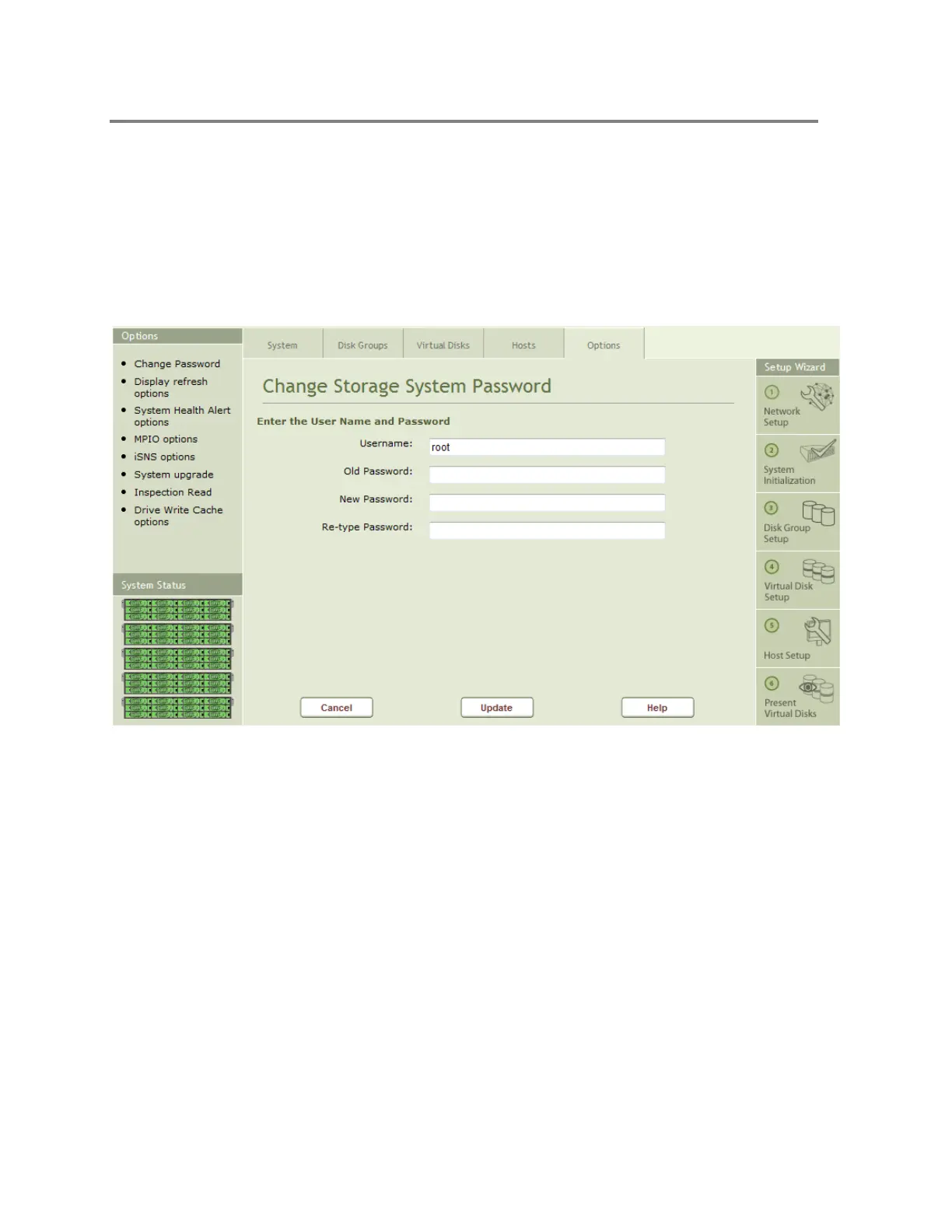
To change passwords on the system, click on the Change storage system password icon in the
options window to bring up the table shown in Error! Reference source not found.. You may
change the password for root or guest through this menu.
Figure 4-40 Change Storage System Password
To change the password:
1. Enter the user name
2. Enter the old password
3. Enter the new password
4. Re-enter the new password
5. Click on the update button
4.3.2 Change the Display Refresh Options
By default, the Management Console is refreshed every 5 seconds. You can change the refresh
interval by clicking on the Display refresh options icon in the Options window. This will bring up
the Display Refresh Options as shown in Error! Reference source not found..


 To Next Page