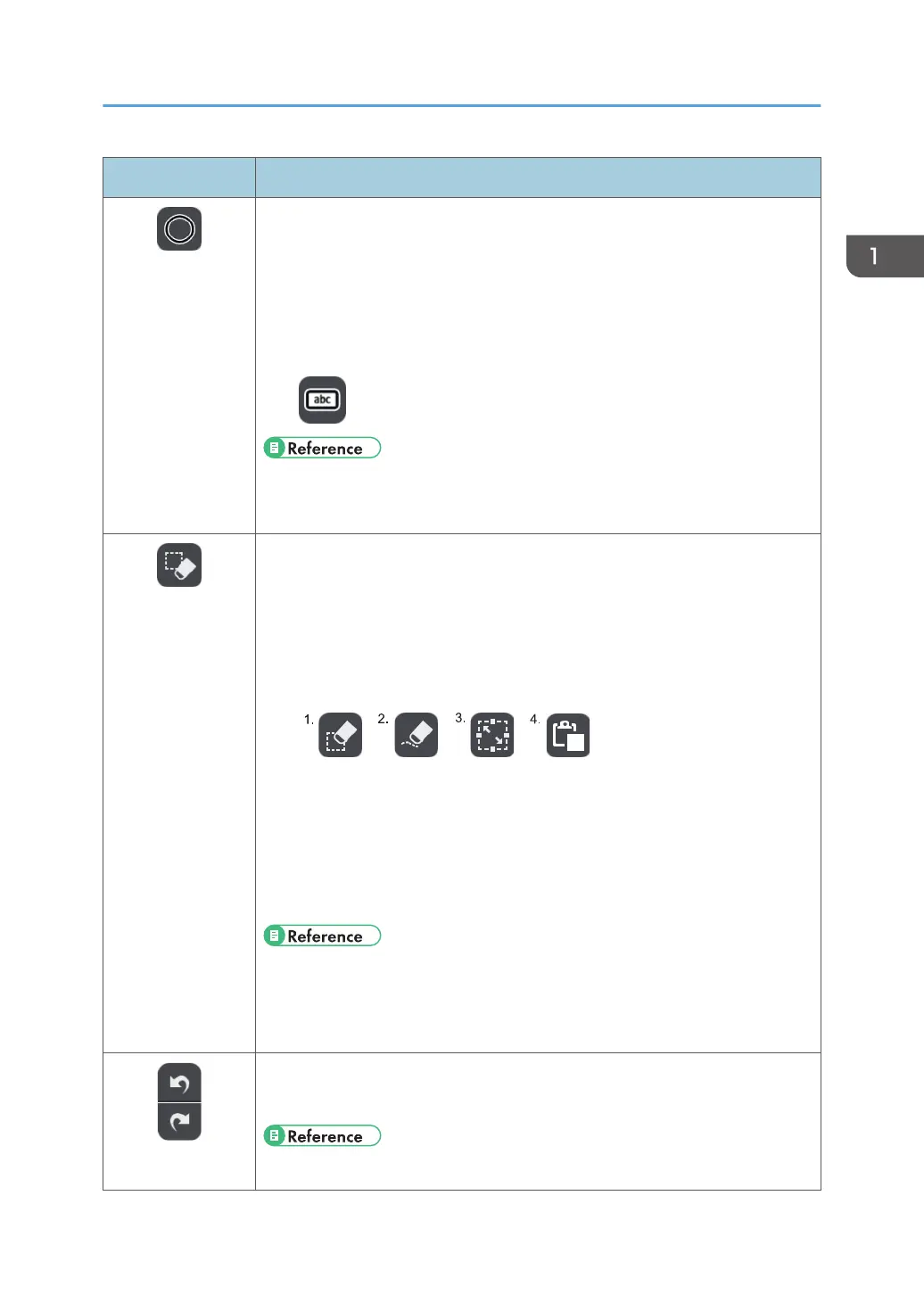
Icon Description
Stamp Entry Mode
• This icon appears when stamp entry mode is selected from the pen
submenu.
• Used to select and enter a stamp.
• The color of the icon changes according to the selected color. Also, the
shape of the selected stamp is displayed. If the entered text is too long, an
icon similar to the following appears:
• See page 30 "Writing on the Screen".
• See page 35 "Writing in stamp entry mode".
Select and Delete
• Used to select a stroke, text, figure, or stamp to edit.
• Used to delete a stroke, text, figure, or stamp.
• Used to draw strokes, text, figures, or cut/copy/paste stamps.
• Depending on the function that is selected on the select or delete submenu,
one of the following icons appears:
1. Delete
2. Partially Delete
3. Select
4. Paste
• See page 41 "Enlarging, Reducing, or Moving the Strokes".
• See page 35 "Deleting Strokes".
• See page 43 "Cutting, Copying, or Pasting Strokes".
Undo/Redo
• Used to undo a drawn, edited, or deleted stroke, text, figure, or stamp.
• Used to redo the operation that was undone.
• See page 47 "Undoing Operations".
Icons Displayed on the Interactive Whiteboard
21



 To Next Page